
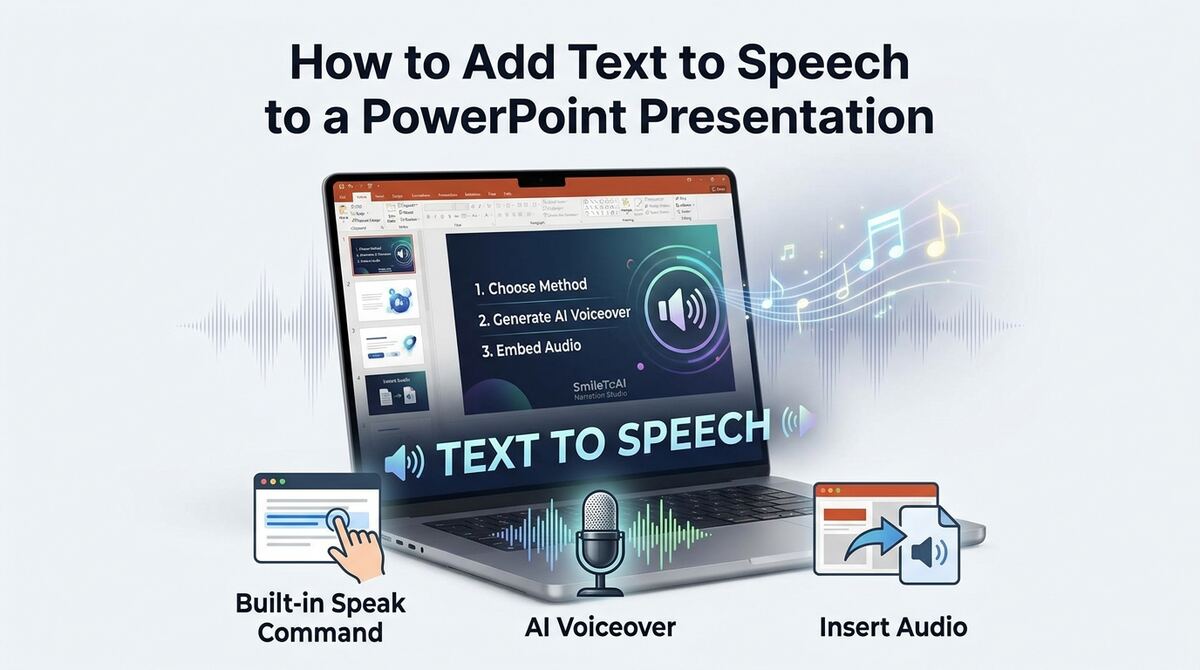
There are three reliable ways to add text to speech to a PowerPoint presentation, and the right one depends on what you're trying to do. If you just want your slides read back to you for proofreading or accessibility, use PowerPoint's built-in Speak command. If you want a polished voiceover that plays automatically during the presentation, generate a natural AI voiceover, download it as an audio file, and embed it on each slide with Insert → Audio → Audio on My PC. And if you specifically want your own voice, use Record Slide Show to speak your narration while PowerPoint captures the slide timings.
Most people searching for "text to speech for PowerPoint" want the second option: narration that sounds natural, plays hands-free, and can be fixed in seconds when the script changes. The built-in Speak tool can't be saved onto a slide, so for a self-running deck, an e-learning module, or a presentation you send rather than deliver, you'll need to generate and embed an audio file. The fastest version of that skips scripting entirely—some tools read your uploaded deck and draft narration slide by slide, then hand back one audio file per slide. This guide covers all three methods, plus how to keep narration from sounding robotic and how to make the deck run itself.
The three methods at a glance
- Built-in Speak command — free, instant, reads selected text aloud on your screen. Best for proofreading and quick accessibility checks. Cannot be embedded or exported.
- AI voiceover, exported and embedded — generate natural voice files (from a script you write, or drafted automatically from your uploaded deck), then insert one per slide. Best for narrated, self-running, or multilingual decks. This is the method most guides and Google's own answer box recommend for "professional presentations."
- Record Slide Show (your own voice) — speak into a mic while PowerPoint records timings. Best when the human voice is the point and you don't mind re-recording edits.
Method 1: Use PowerPoint's built-in "Speak" command
Speak is a built-in text-to-speech feature shared across Word, Outlook, PowerPoint, and OneNote. It reads highlighted text aloud in the language of your version of Office. It isn't on the ribbon by default—you add it once to the Quick Access Toolbar:
- Click the dropdown arrow at the top-left of the window (Customize Quick Access Toolbar) and choose More Commands.
- Under Choose commands from, select All Commands (or Commands Not in the Ribbon).
- Scroll to Speak, select it, click Add, then OK.
- Highlight any text on a slide and click the new Speak icon to hear it read back.
This is genuinely useful for catching awkward phrasing—your ear notices what your eye skims—and for a quick accessibility pass. But it has a hard limit: Speak plays audio live on your machine and cannot be saved as a clip on the slide. Nothing travels with the .pptx. For anything you want to play back later or hand off, move to Method 2.
Method 2: Add a voiceover to PowerPoint with AI, one audio file per slide
This is the method for a presentation that narrates itself. Set expectations first: no tool hands you back a finished, narrated .pptx. As one r/powerpoint thread puts it, a text-to-speech generator "creates MP3 files to add to PPT; it is not an add-on to PowerPoint." You generate the audio, then bring the files into your slides. The good news is that the first half of that job—scripting every slide and rendering it one clip at a time—no longer has to be manual. Which tool you pick matters most for per-slide export and cost per render; SmileToAI vs ElevenLabs compares both on exactly that, with audio from each.
Option A: Let the tool draft narration from your deck
Instead of scripting each slide by hand, hand over the deck and get a per-slide script back. In SmileToAI Voice Studio:
- Upload the presentation.
.pptx,.ppt,.odp, and.pdfare accepted, up to 20 MB. It has to be an uploaded file—a link to a deck won't work. - Choose the
Per-slide voiceovergoal. It appears in the goal picker once a presentation is staged, alongside options like Explain and Summarize. - Set the length, audience, and tone. Length is a preset: Concise (roughly 1–2 spoken sentences per slide), Balanced (3–4, the default), or Detailed (5–7). Audience and tone are free-text—write "first-year nursing students" or "skeptical enterprise buyers, warm but factual" in your own words rather than picking from a menu.
- Let it read the deck. It doesn't just scrape the text boxes—each slide is rendered and looked at as an image, so charts, diagrams, and screenshots inform the narration, and speaker notes are pulled in where the format carries them. It also reads the deck as a whole, so slide 7 can refer back to slide 6 instead of sounding written in isolation.
- Review, then apply. You get one narration block per slide, labeled
Slide 1,Slide 2, and so on. It arrives as a proposal—your script is untouched until you accept it. Once applied, the blocks are ordinary editable blocks, so you can tighten a sentence or fix a product name before rendering a single second of audio. - Render, then download per-slide audio. After the render succeeds, use Download audio per block (.zip) in the render history. You get one audio file per slide, ordered by slide number—which is exactly the shape you need for the next step.
Up to 60 slides are narrated per deck, and larger decks take real time—each slide is analyzed in turn, so start it and go do something else.
Option B: Write the script yourself
For a short deck, or when the wording matters more than the speed, script it manually. One paragraph per slide is a good default, and turning bullet points into spoken sentences is a fast job for an assistant like SmileToAI Chat. An AI voiceover is a form of text to speech: paste the script, choose a voice, get natural audio back.
Either way, generate one audio file per slide, not one long track. When you rewrite a line, you regenerate that one clip instead of re-rendering and re-syncing the whole deck.
Then embed the audio in PowerPoint
Same either way, however you produced the files:
- Insert each clip. Select the slide, then Insert → Audio → Audio on My PC, and choose that slide's file. A small speaker icon appears on the slide.
- Set playback. With the audio selected, open the Playback tab: set Start to Automatically, check Hide During Show so the speaker icon doesn't appear, and use Play Across Slides only if one clip should continue over several slides. Trim silence from the ends here if needed.
- Repeat per slide, then set slide timings (below) so the deck advances on its own.
Voice Studio keeps a render history and reusable team voice kits, so everyone working on the deck lands on the same narrator and you can re-export any line later. The audio is a standard file—reuse it in a video, a course, or another deck.
Method 3: Record your own narration with Record Slide Show
If your own voice is part of the message, skip synthetic audio and record directly:
- Go to the Slide Show tab and click Record Slide Show.
- You'll enter Presenter View. Click the red Record button and speak your narration into your microphone, advancing slides as you go.
- PowerPoint automatically syncs the audio to your slide timings and saves it as embedded audio in the presentation.
It's the most authentic option and needs no extra tools, but it carries the recording tax: a quiet room, a decent mic, and a full re-take whenever you flub a line or change the script. For decks that change often—or that ship in several languages—Method 2 wins on speed.
Write narration that sounds natural, not robotic
Whether you wrote the script or edited a generated one, the words matter more than the voice. Text written to be read silently sounds stiff when spoken:
- Write for the ear. Short sentences, contractions ("you'll," not "you will"). Read each line out loud—if you stumble, the voice will too.
- Use punctuation as timing. A period is a full stop; a comma is a short breath. Text-to-speech takes its rhythm cues straight from punctuation, so place it on purpose.
- Fix pronunciation up front. One mangled brand name or acronym undercuts the whole track. Decide whether "FAQ" is spelled out or read as a word, and use pronunciation guidance for anything unusual.
- Pace for comprehension. Slightly slower reads as more authoritative on a dense slide; add a brief pause between major ideas.
Our guide on adding an AI voiceover to YouTube videos covers the same craft in a video context, and if your slides are heading toward a full video, see how to make AI videos from text.
Make the deck play itself
Embedded audio is only half of a self-running presentation—the slides also need to advance on their own.
- Set slide timings. Use Slide Show → Rehearse Timings to match each slide's on-screen time to its narration, or set Transitions → Advance Slide → After a fixed number of seconds.
- Loop or kiosk it. Under Slide Show → Set Up Slide Show, choose Browsed at a kiosk for an unattended, looping deck.
- Export to video. File → Export → Create a Video bakes narration and timings into an MP4—handy for e-learning platforms or social.
- Keep it accessible. Paste each slide's script into the Notes pane, and consider on-screen captions so it works with the sound off.
Honest limitations to plan around
- The built-in Speak command can't be embedded. It reads live on your screen only; there is no slide audio file to save or share.
- You don't get a narrated deck back. Even when a tool drafts narration from your upload, the output is a script and audio files—you insert each clip and match it to slide timings yourself.
- Uploads have limits. In Voice Studio, files cap at 20 MB and the first 60 slides are narrated, so split a very long deck. And upload the PowerPoint file rather than a PDF export if speaker notes matter—PDFs don't carry them.
- A generated draft still needs an editorial pass. It's a strong first draft, not a final script—read it once for product names and claims before you render.
- Translated scripts need a human check. Multilingual voices are fast, but have a fluent speaker review nuance before you finalize.
- Mind disclosure and licensing. Disclose a synthetic voice where your context requires it, and confirm the tool's license covers commercial use for your presentation.
Common mistakes to avoid
- Producing one long audio track. Editing then means re-rendering everything. Keep one file per slide—and if your tool exports per-slide audio as a ZIP, let it.
- Reading slide text verbatim. Narration should add to the slide, not duplicate the bullets word for word.
- Forgetting timings. Embedded audio without slide timings still needs a click to advance—set both for a truly hands-free deck.
Wrapping up
Adding text to speech to PowerPoint comes down to picking the right method: Speak for a quick read-aloud, an AI voiceover embedded per slide for a deck that runs itself, or Record Slide Show when your own voice is the point. For most presentations you'll want the middle path—get narration for every slide, insert it with Insert → Audio → Audio on My PC, and set your timings.
The shortcut is letting the deck do the talking. In SmileToAI Voice Studio you can upload the presentation, pick Per-slide voiceover at a Concise, Balanced, or Detailed length, and get a narration block drafted for every slide—read from its text, its notes, and the slide itself. Edit what needs it, render, then download one audio file per slide and drop them onto your slides in order. The tedious half of a narrated deck stops being the part that takes the afternoon.
FAQ
Is there a text to speech option in PowerPoint?
Yes. PowerPoint has a built-in feature called Speak that reads selected text aloud—it is the same Speak tool found in Word, Outlook, and OneNote. It is not shown by default, so you add it once to the Quick Access Toolbar (Customize Quick Access Toolbar → More Commands → All Commands → Speak → Add). Speak is designed for proofreading and accessibility, not for saving narration onto a slide. To embed a voiceover that plays during your presentation, generate an audio file with a text-to-speech tool and insert it with Insert → Audio → Audio on My PC.
How do I add a voiceover to PowerPoint?
Add voice to PowerPoint one slide at a time: make one audio file per slide, then insert each file on its slide. To use an AI voiceover, upload the deck (.pptx, .ppt, .odp, or .pdf, up to 20 MB) to SmileToAI Voice Studio, choose the Per-slide voiceover goal, apply the drafted narration, render it, and use Download audio per block (.zip). In PowerPoint, select a slide, choose Insert → Audio → Audio on My PC, pick that slide's file, then on the Playback tab set Start to Automatically and check Hide During Show. To use your own voice instead, go to the Slide Show tab and click Record Slide Show.
Is text to speech for PowerPoint free?
PowerPoint's built-in Speak command is free with your copy of Office, but it only reads text aloud on your screen—it cannot export the synthetic voice as a slide audio file. Dedicated AI voiceover tools handle the export-and-embed workflow; most, including SmileToAI Voice Studio, offer a free tier so you can generate and download narration for a deck before deciding whether you need more.
How do I make PowerPoint read the slides aloud automatically during a presentation?
The built-in Speak command only reads text you have selected on demand, so it will not narrate a running slideshow on its own. For hands-free playback, embed an audio clip on each slide: insert the narration file, then on the Playback tab set it to start Automatically and enable Play Across Slides if one clip should span several slides. Combined with slide timings (Slide Show → Rehearse Timings or Record Slide Show), the deck then advances and narrates itself.
Can I use an AI voice instead of recording my own narration?
Yes, and it is often faster. Instead of setting up a microphone and re-recording every time you fix a typo, you write the script, generate the narration with an AI text-to-speech tool, download the audio, and insert it on the slide. When you change a line, you regenerate just that clip in seconds rather than re-recording the whole deck. Pick one consistent voice so every slide sounds like the same narrator.
Can I generate narration for a whole presentation at once?
Yes. In SmileToAI Voice Studio you upload the deck—.pptx, .ppt, .odp, or .pdf, up to 20 MB—and choose the Per-slide voiceover goal, which appears once a presentation is staged. Pick a length (Concise is roughly 1–2 spoken sentences per slide, Balanced 3–4, Detailed 5–7) and describe your audience and tone in your own words. The assistant reads each slide—its text, its speaker notes, and the slide itself—and drafts one narration block per slide, labeled Slide 1, Slide 2, and so on. It arrives as a proposal you review and apply, so nothing changes until you accept it. Up to 60 slides are narrated per deck.
Can I download the narration as separate files for each slide?
Yes. After a per-slide voiceover render succeeds in Voice Studio, the render history row offers Download audio per block (.zip)—a single ZIP containing one audio file per slide, ordered by slide number. That is what makes the PowerPoint workflow practical: you unzip once and insert each file onto its matching slide, rather than slicing one long recording by hand. A composed single-file download is still available separately if you want one continuous track.
How do I add narration in another language?
Write or translate the script into the target language, then generate the voiceover with a tool that offers multilingual voices—Voice Studio, for example, has a voice library across languages. Generate one audio file per slide as usual and insert them the same way. Have a fluent speaker review translated scripts for nuance before you finalize, and keep pronunciation notes for names and product terms so they are read correctly.