To turn a PDF into a podcast with AI, upload the PDF to a tool that can write a two-person conversation from a document, check the script it drafts, give the two speakers their voices, render the audio and download it. In SmileToAI's Narration Studio that is five steps: upload the PDF under Start from source, choose the Podcast dialogue goal and select Generate draft, review the Host and Guest script and apply it with Apply selected, keep or change the two voices in Speaker settings, then Render and download the file.
It works on the free plan's 5,000 Sparks a month for a short document, and each step shows its Sparks price before it runs. The result is a conversation, not a reading. A Host asks the questions, a Guest answers them, and the PDF is the material they talk about. If you want every sentence of the document read word for word, that is a different goal (Read aloud), covered in How to Turn a PDF Into an Audiobook.
To test the steps, we wrote a one-page PDF of about 160 words on why sourdough bread needs a starter, and ran it through Narration Studio on the web. The draft came back as 30 script blocks alternating between Host and Guest. The rendered audio was 6 minutes 4 seconds long and used 228 Sparks, SmileToAI's credits, on top of an estimated 2 Sparks for the draft. At the Plus plan's rate of $19 for 30,000 Sparks, that render is about $0.14. Every screenshot below comes from that run.
What you need
- A PDF with selectable text. If you can highlight a sentence in your PDF reader, the file has a text layer. A scanned PDF that is only page images is refused, because Narration Studio does not run OCR.
- A file up to 20 MB. The same limit applies to Word, EPUB, PowerPoint and the other accepted file types.
- A SmileToAI account. The free plan includes 5,000 Sparks a month. A short PDF fits easily; a long report is worth pricing before you commit, because each step shows its estimate first.
- Five minutes to read the script. The hosts are written by AI. Reading what they will say is the one step you should not skip.
You can start from other material the same way: a Word document, an EPUB, a PowerPoint, an HTML page, a public web article or a YouTube link all go into the same Start from source box.
Step 1: Upload the PDF under Start from source
Open Narration Studio and start a new session. The Start from source panel has a field for a web or YouTube address and an Upload a document button. Choose Upload a document and select your PDF. The file name appears next to the button once it is attached.
Step 2: Choose the Podcast dialogue goal
The Goal field defaults to Explain, so change it to Podcast dialogue before you generate anything. The goal list also holds Summarize, Read aloud, Voiceover script and Per-slide voiceover; only Podcast dialogue writes two speakers. The panel also has optional Language, Audience and Tone fields. Language defaults to Match the source, so a PDF in another language gives a podcast in that language unless you pick one.
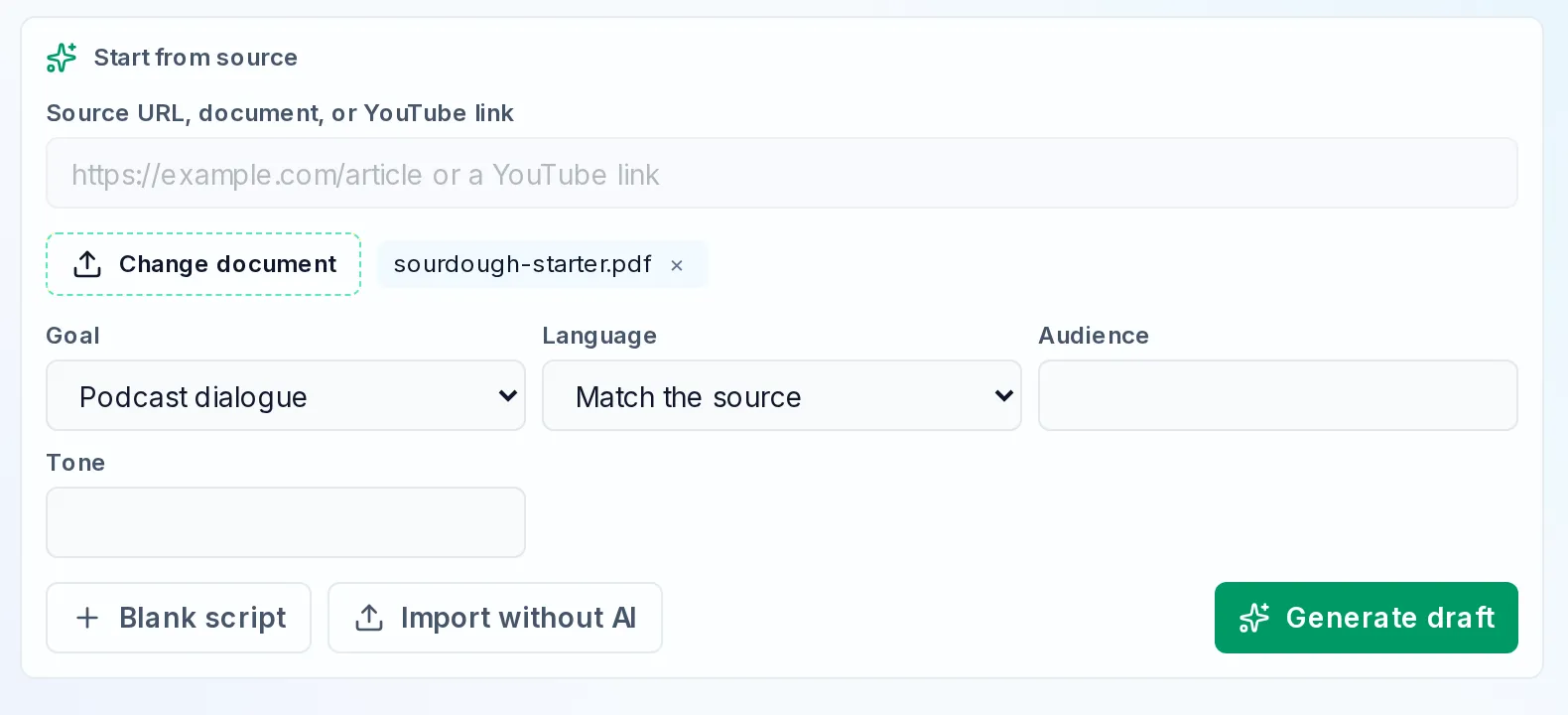
Start from source with our sample PDF attached and the goal changed from Explain to Podcast dialogue. Audience and Tone are left empty.
Step 3: Generate the draft and read the Host and Guest script
Select Generate draft. Before anything is written, a Draft the script? card shows what the draft will cost. For our one-page PDF it estimated about 2 Sparks, with the note that the charge can come out a little higher or lower, and that stopping the draft early means the parts not yet read are not charged. Confirm with Draft the script.
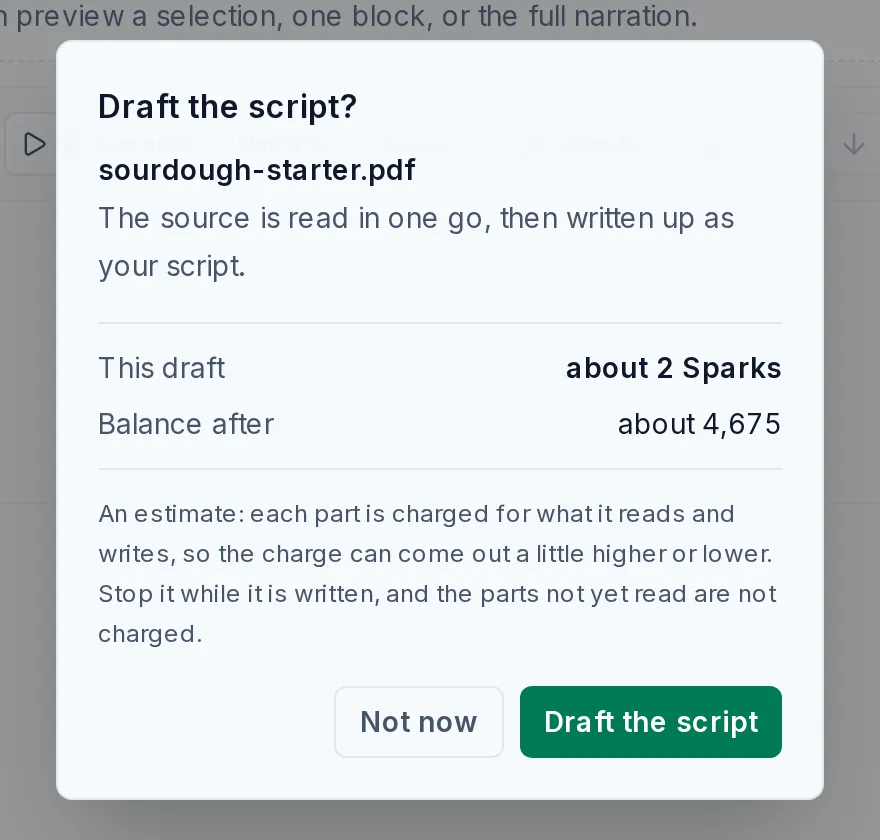
The cost card appears before the draft is written. The balance shown here is the test account's, not a recommendation.
The draft arrives in the Assistant panel as a proposal, not yet in your script. It shows a Replace script draft change with a Before (an empty block) and an After (the opening of the conversation). Nothing in the script changes until you choose Apply selected; Reject throws the proposal away, and Undo last apply reverts it afterwards.
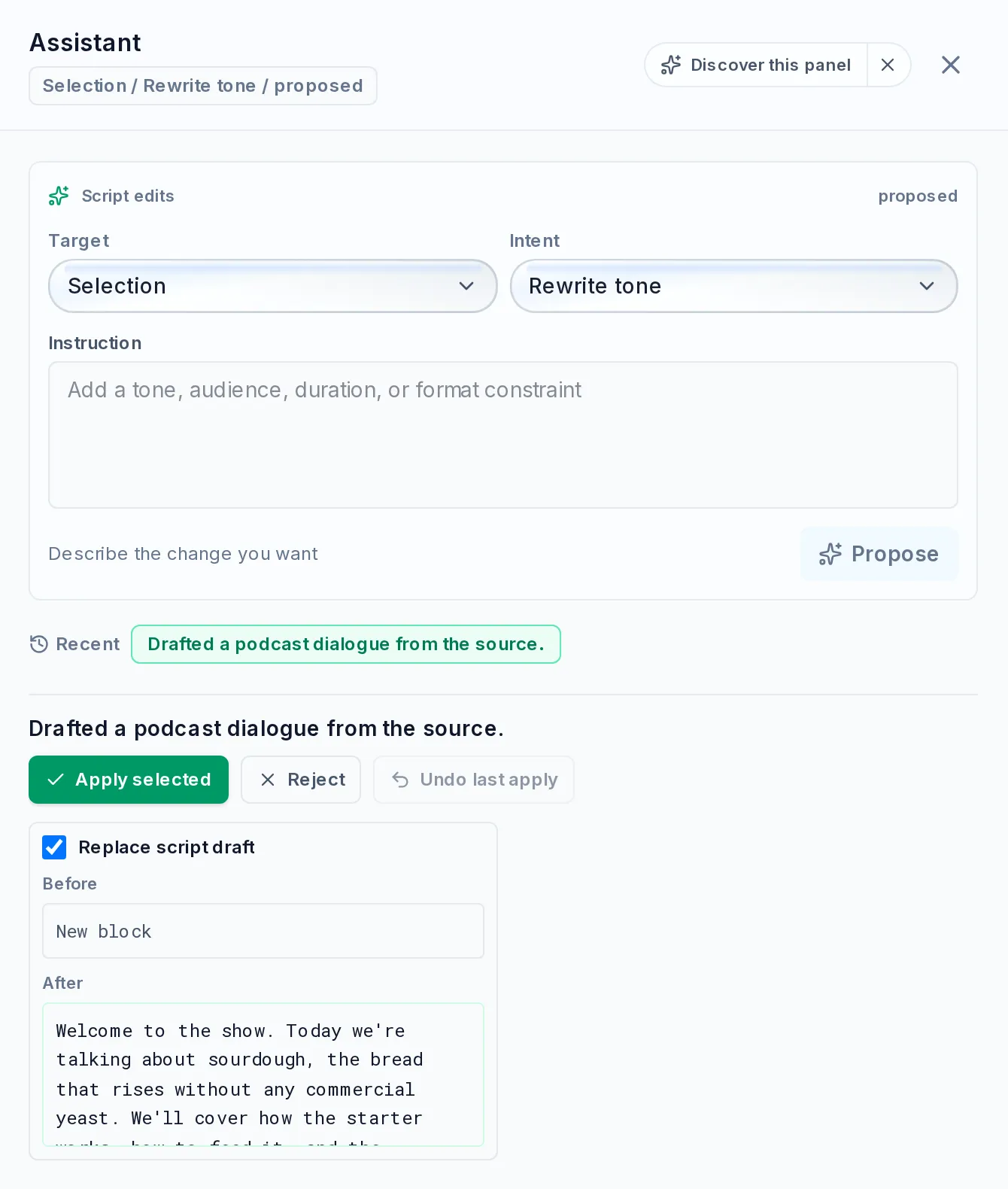
The proposed script before it is applied. The After box opens with the Host's welcome.
Select Apply selected, then read the script. Each turn of the conversation is its own block, and the opening blocks of our run looked like this:
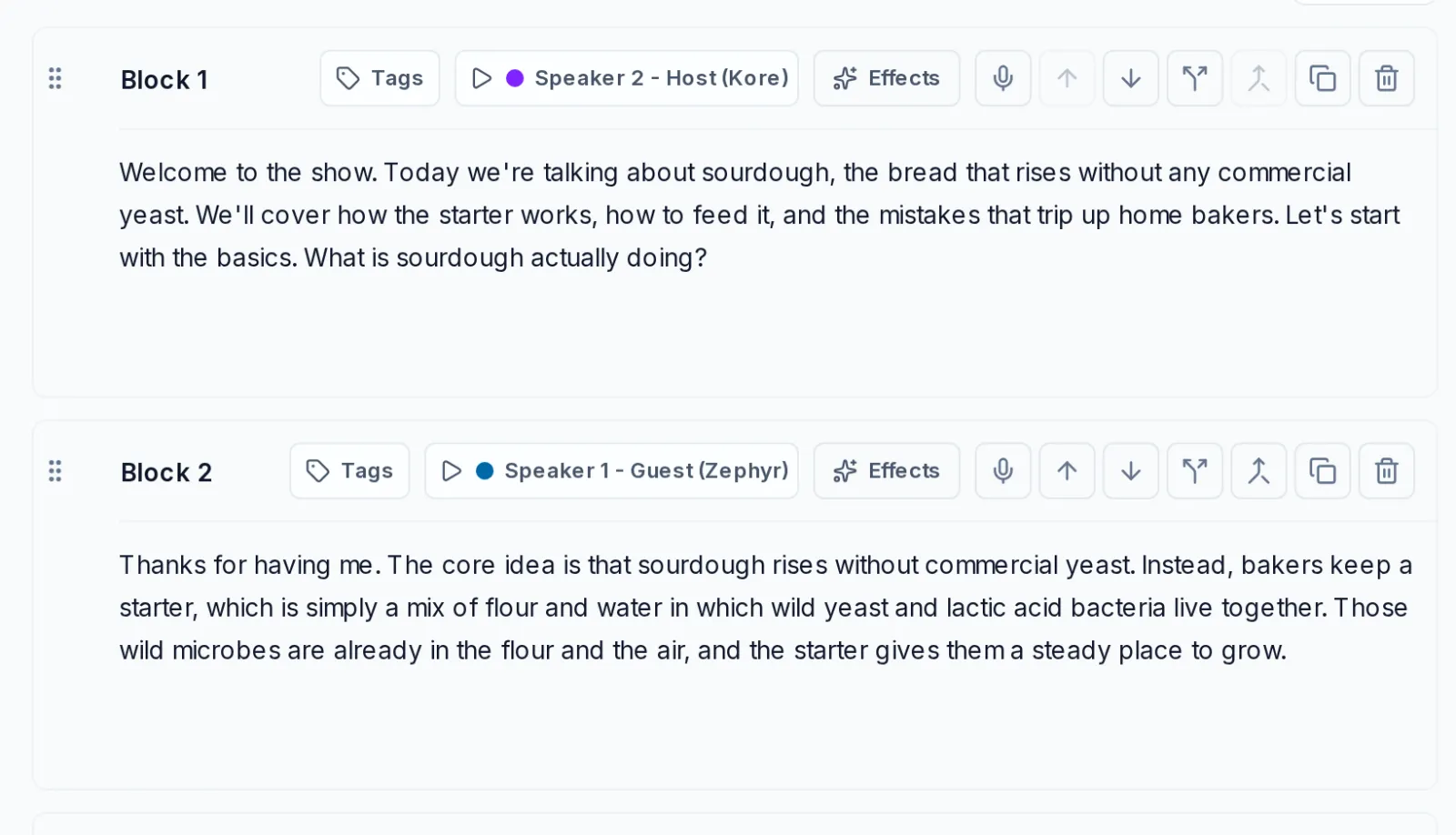
After Apply selected: one block per turn, each with its speaker. Every block's text can be edited.
Treat this as your editing pass. A podcast dialogue is a rewrite of your document, and the hosts can say things the PDF does not. In an earlier run of the same PDF, the Host introduced the Guest as a baker "who has kept a starter going for years", which our one-page file never says. Delete or rewrite any line like that before you render, and fix anything the hosts got wrong, because the audio will say it with confidence.
Step 4: Keep the two voices, or change them in Speaker settings
The draft assigns Speaker 2 - Host (Kore) and Speaker 1 - Guest (Zephyr), so the two sides of the conversation sound different without any setup. To change them, select a speaker button on any block to open Speaker settings. For each speaker you can set:
- the Speaker name,
- an Audio Profile, a short description of how the speaker should sound,
- a Director's note with a Style (ours showed Empathetic) and a Pace (Natural),
- the Voice, picked from a searchable list where each voice can be previewed.
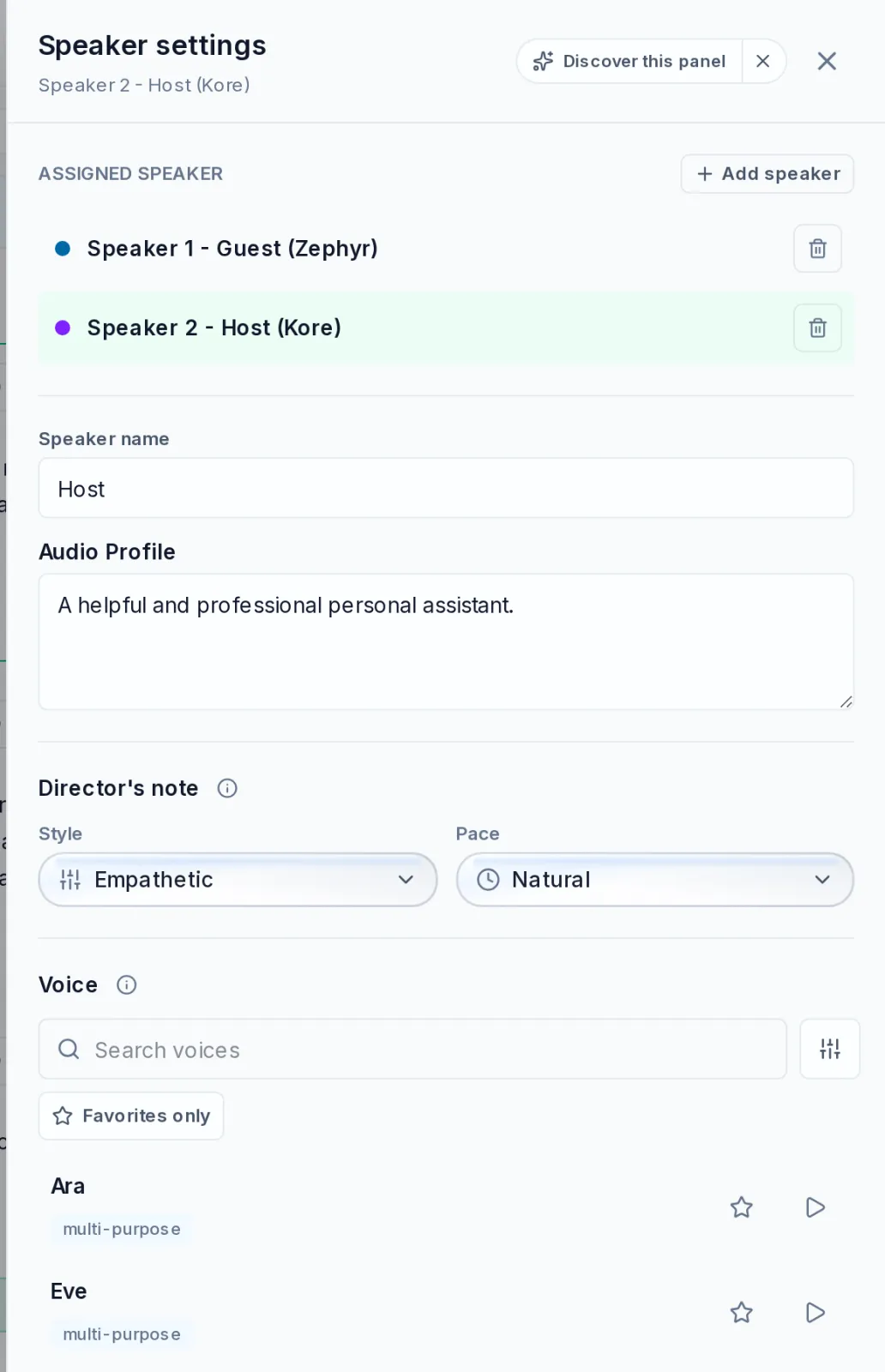
Speaker settings for the Host. The Guest has the same controls, with a different voice.
The draft creates exactly two speakers, Host and Guest. Narration Studio does not clone a voice from a recording, so every speaker uses a voice from the list.
Step 5: Render and download the audio
When the script reads the way you want, select Render. A Render 30 blocks? card shows the length and price before it starts. Ours estimated about 6:59 of new audio and about 208 Sparks, and it explains that you are charged for the audio actually made, block by block, as each one finishes.
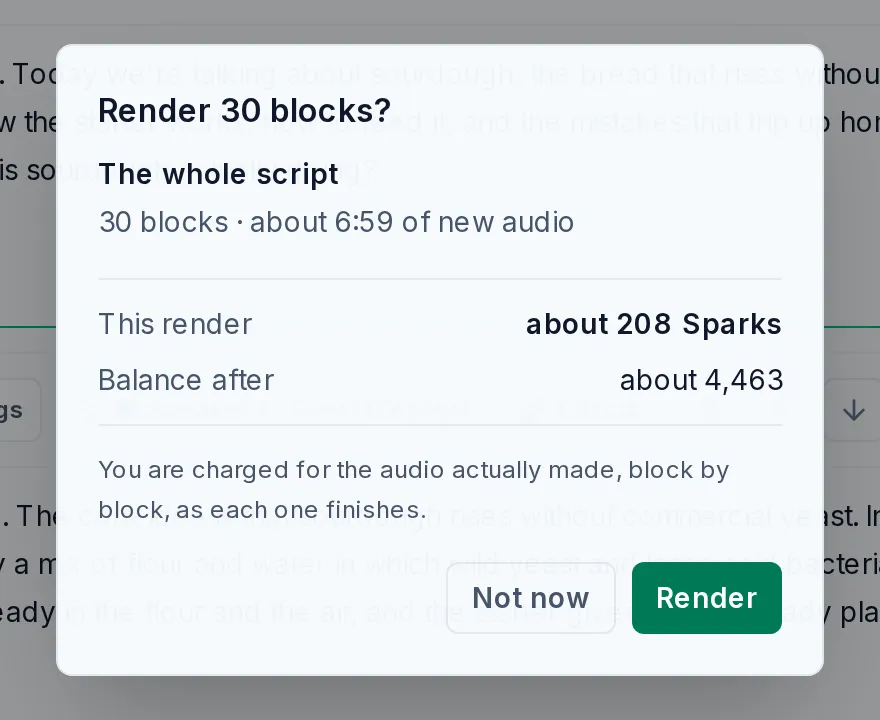
The render estimate for the whole script. The final audio was 6:04 and used 228 Sparks, so treat the estimate as a guide, not a quote.
The finished render appears in the Render history list in the right-hand options panel, with its length in the player at the bottom of the studio. Use the play button to listen to it, and the download button (the arrow into a tray, labelled Download render) to save the audio. With the output Codec left on Default, our download was a .wav file.
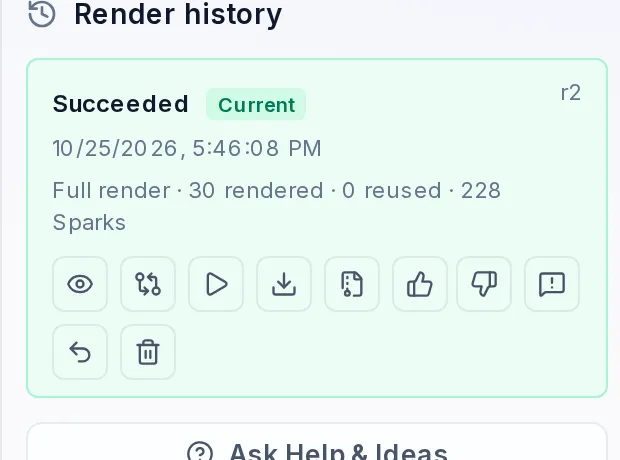
The finished render: 30 of 30 blocks rendered for 228 Sparks. The download icon is the fourth button in the row.
If you change a line afterwards, open the Regenerate menu after a full render and choose Regenerate changed: it renders only the blocks that changed and reuses the rest (the Render history row counts them as rendered and reused). Regenerate block redoes just the selected block.
What it cannot do
- More than two speakers. A drafted dialogue is Host and Guest only.
- Clone your voice or a guest's voice. Voices come from the Narration Studio list.
- Publish the episode. There is no upload to Spotify, Apple Podcasts or any other platform, and no RSS feed. You get an audio file and place it yourself.
- Read a scanned PDF. A PDF with no text layer is refused.
- Promise accuracy. The hosts paraphrase and elaborate, so the script review in step 3 is part of the job.
Which goal should you pick?
| You want | Use this goal |
|---|---|
| A two-person conversation about the document | Podcast dialogue |
| Every sentence read as written | Read aloud |
| A short spoken recap in one voice | Summarize |
| A single narrator explaining the ideas | Explain |
For a recap you can read instead of hear, see How to Summarize Long Documents With AI. If your goal is a voice over video rather than a conversation, How to Add AI Voiceover to YouTube Videos covers that, and the glossary entries for text-to-speech and AI voiceover explain the technology behind the voices.
FAQ
Can I turn a PDF into a podcast for free?
You can try it on SmileToAI's free plan, which includes 5,000 Sparks a month. Drafting and rendering both use Sparks, and each shows its price before it runs. In our test, a one-page PDF drafted for an estimated 2 Sparks and the full render used 228 Sparks. A long report costs more, because the render grows with the length of the conversation.
Can I have more than two voices in the podcast?
The draft has exactly two speakers, Host and Guest. Speaker settings has an Add speaker button, but the drafted conversation will not use extra speakers unless you reassign blocks to them yourself. Voice cloning is not supported, so every speaker uses a voice from the Narration Studio voice list.
Can it publish the podcast to Spotify or Apple Podcasts?
No. Narration Studio gives you a downloadable audio file and does not publish to podcast platforms or create an RSS feed. If you want the episode on a platform, download the file and upload it there yourself.
Will the hosts stick to what is in my PDF?
Not necessarily. Podcast dialogue turns the source into a conversation, and the hosts can elaborate, rephrase and add small details of their own. Read the Host and Guest script before you render and delete anything that your PDF does not say. If you need every sentence read exactly as written, use the Read aloud goal instead.
Does it work with scanned PDFs?
Only if the PDF has a text layer. Narration Studio reads the text inside the file and does not run OCR on scanned pages, so a PDF that is only page images is refused.
What other files and links can I start from?
The same Start from source panel accepts PDF, Word, PowerPoint, Excel or CSV, EPUB, HTML, Markdown and plain text files up to 20 MB, and you can paste the address of a public web page or a YouTube link instead of uploading a file.
Can I make the podcast on my phone?
Yes. Narration Studio is in the SmileToAI app on iOS and Android as well as on the web, and its source start screen offers the same podcast dialogue goal. The screenshots in this guide are from the web app.