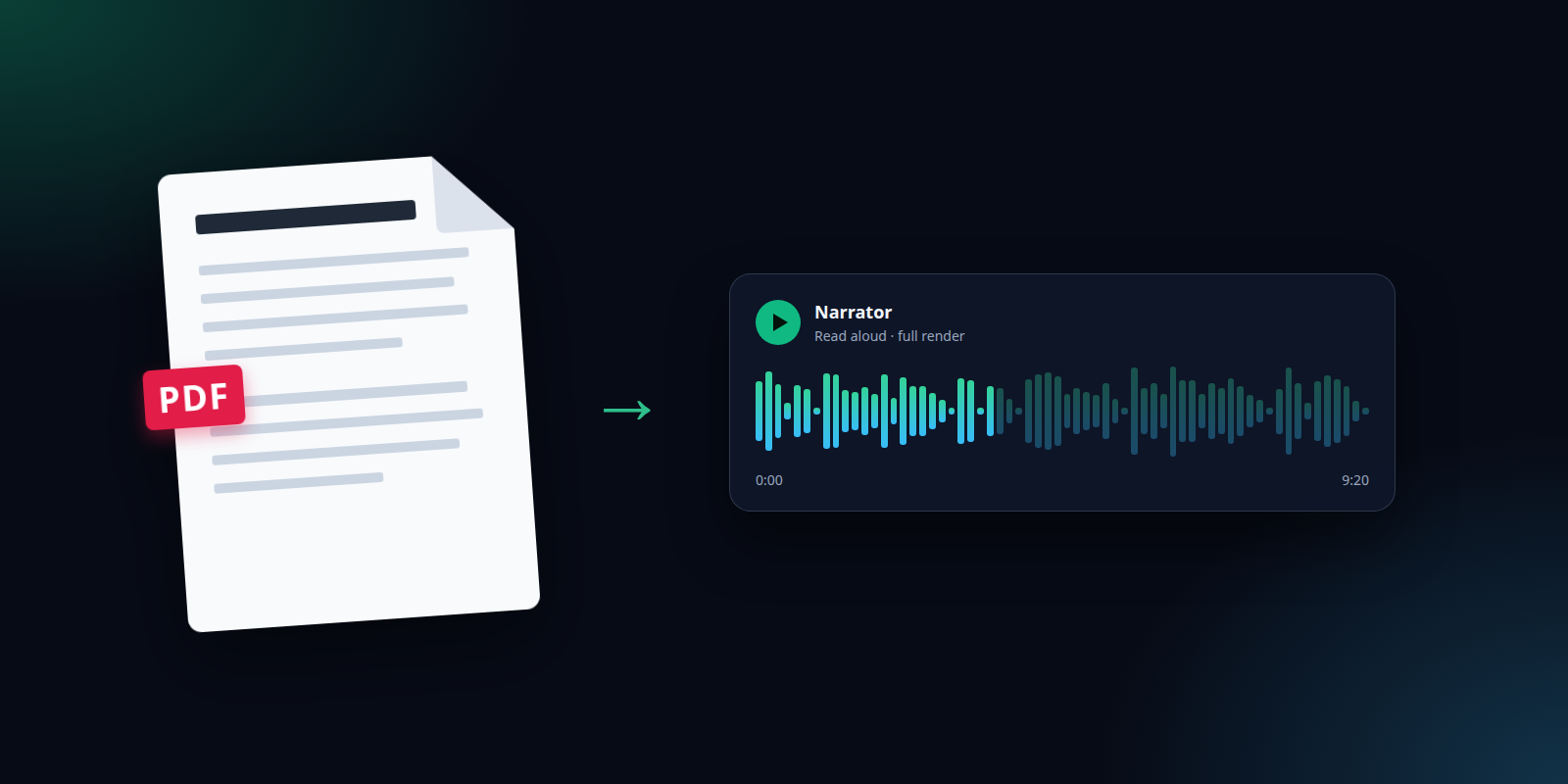
To turn a PDF into an audiobook with AI, upload the PDF to a text-to-speech tool that can read documents, tell it to keep the text word for word, choose a voice, render the narration, and download the audio. In SmileToAI's Narration Studio that is five steps: choose Upload a document under Start from source, pick the Read aloud goal, select Generate draft and apply it, choose a voice in Speaker settings, then Render and download the file.
The important choice is the goal. Read aloud keeps every sentence of your PDF in its original wording and order. It only rewrites the parts that cannot be spoken as written, such as headings, bullet lists, links, and tables, and it leaves code out. The other goals (Summarize, Explain, Voiceover script) rewrite the text, which is useful for a recap but not for an audiobook.
Two limits are worth knowing before you start. The PDF needs a real text layer, because scanned page images are not run through OCR. And the extracted text must fit in one narration script of up to 256,000 characters. A long report, a research paper, a thesis chapter, or a short book fits. A long novel needs to be done in parts.
To test the steps below, we saved one of our own guides, How to Make AI Videos from Text, as a PDF from the browser and ran it through Narration Studio with Read aloud. The draft came back as 10 script blocks. One full render with a single narrator voice produced 9 minutes 20 seconds of audio and used 630 Sparks. This is that render, unedited apart from conversion to MP3:
What you need
- A PDF with selectable text. If you can highlight a sentence in your PDF reader, the file has a text layer. A scanned book that is only page images will be refused with a "does not contain extractable text" message.
- A file up to 20 MB. The same limit applies to EPUB, Word, and every other document type.
- A SmileToAI account. The free plan includes 5,000 Sparks a month. Drafting from a source is charged in Sparks by the source's length, and rendering uses Sparks too, so check what a long document will cost on the free plan before you commit to a whole book.
You can use the same steps for an EPUB ebook, a Word document (.docx), an HTML page, or a public web article. Paste the article's address into Source URL, document, or YouTube link instead of uploading a file.
Step 1: Upload the PDF
Open Narration Studio and start a new narration. Under Start from source, choose Upload a document and select your PDF. Narration Studio extracts the text from the file and breaks it into sections it can narrate in order.
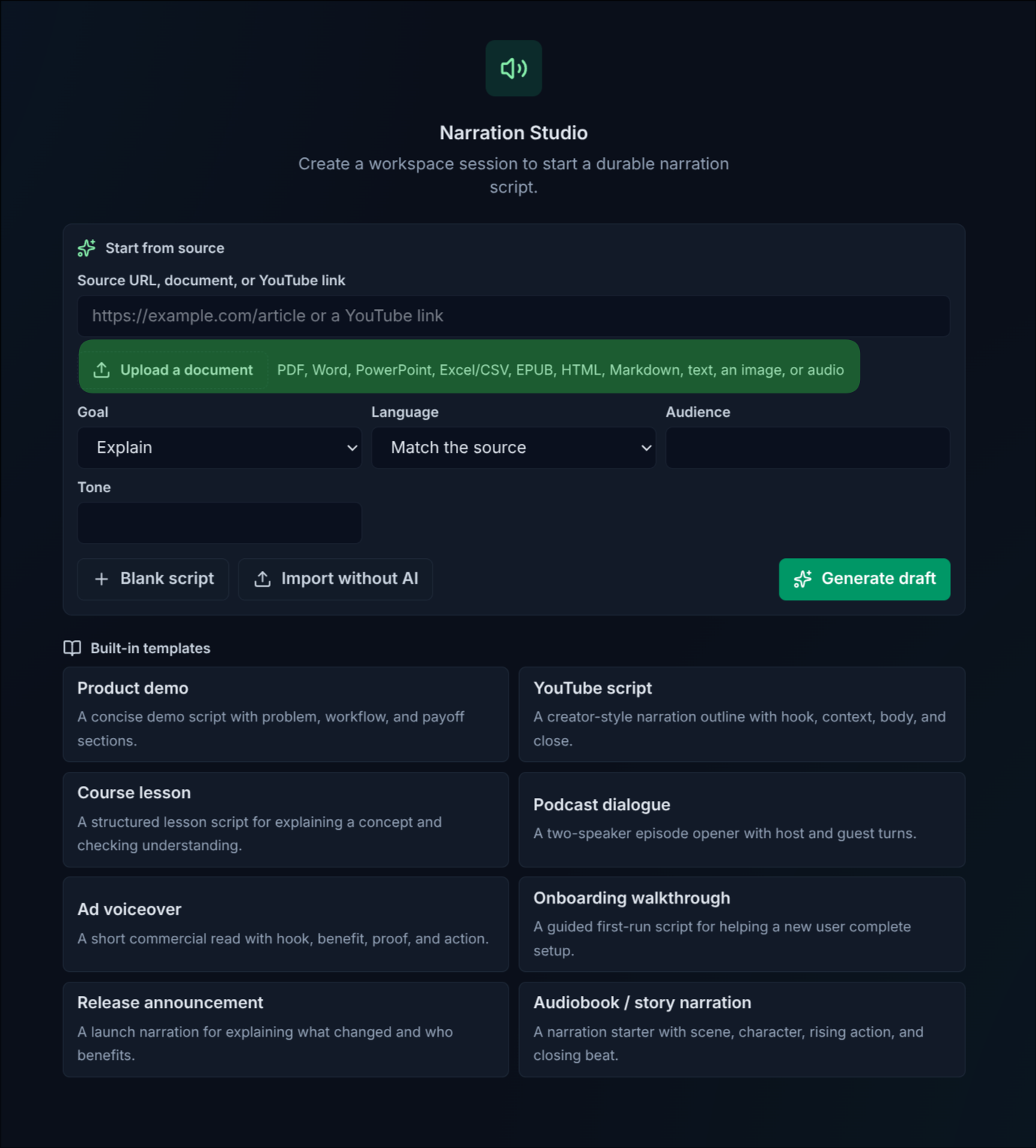
Start from source before anything is attached. The Goal field defaults to Explain, so change it before you generate. The Audiobook / story narration card at the bottom is a writing template for new stories, not a way to read an existing document.
Accepted documents are PDF, .docx, .epub, .html/.htm, .pptx, .xlsx/.xls/.csv, .txt, and .md. Older Word .doc files, .odt, and .rtf are not accepted, so export those to .docx or PDF first. The same button also takes an image or an audio file, but this guide is about documents.
Step 2: Choose the Read aloud goal
Pick Read aloud as the goal (in the mobile app it is called Read it aloud). This is what makes the result an audiobook rather than a summary.
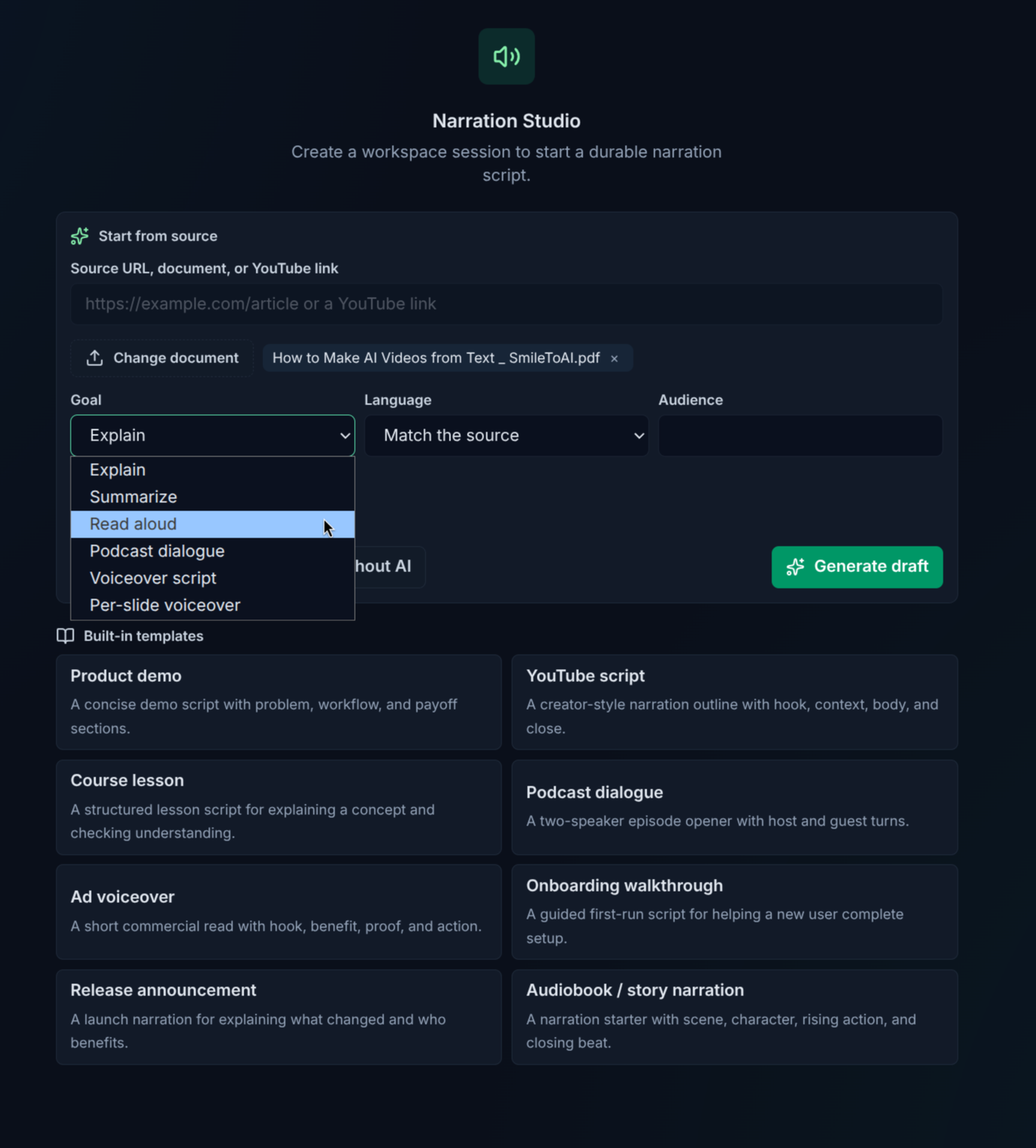
Once a file is attached, its name appears next to Change document. Read aloud is the third option in the Goal list; the others rewrite the source.
Read aloud drafts a long source section by section. If a section comes back shorter than the original, the draft keeps that section's original text and says so in its warnings. The script stays as long as your PDF instead of quietly losing paragraphs.
What Read aloud changes, and why:
| In the PDF | In the narration |
|---|---|
| Body paragraphs | Kept word for word, in order |
| Headings | Adapted so they sound like spoken section breaks |
| Bullet and numbered lists | Adapted into speakable sentences |
| Links | Spoken as text, not as raw URLs |
| Tables | Adapted for listening |
| Code blocks | Left out |
You can also set Language, Audience, and Tone. Leave Language on Match the source for an audiobook in the PDF's own language. Picking another language translates the text as it drafts, so the result is no longer word for word.
Step 3: Generate the draft and apply it
Select Generate draft. Narration Studio returns a proposal, which is the full script split into blocks, and nothing changes in your narration until you accept it. Read through the proposal, check the warnings, and select Apply selected.
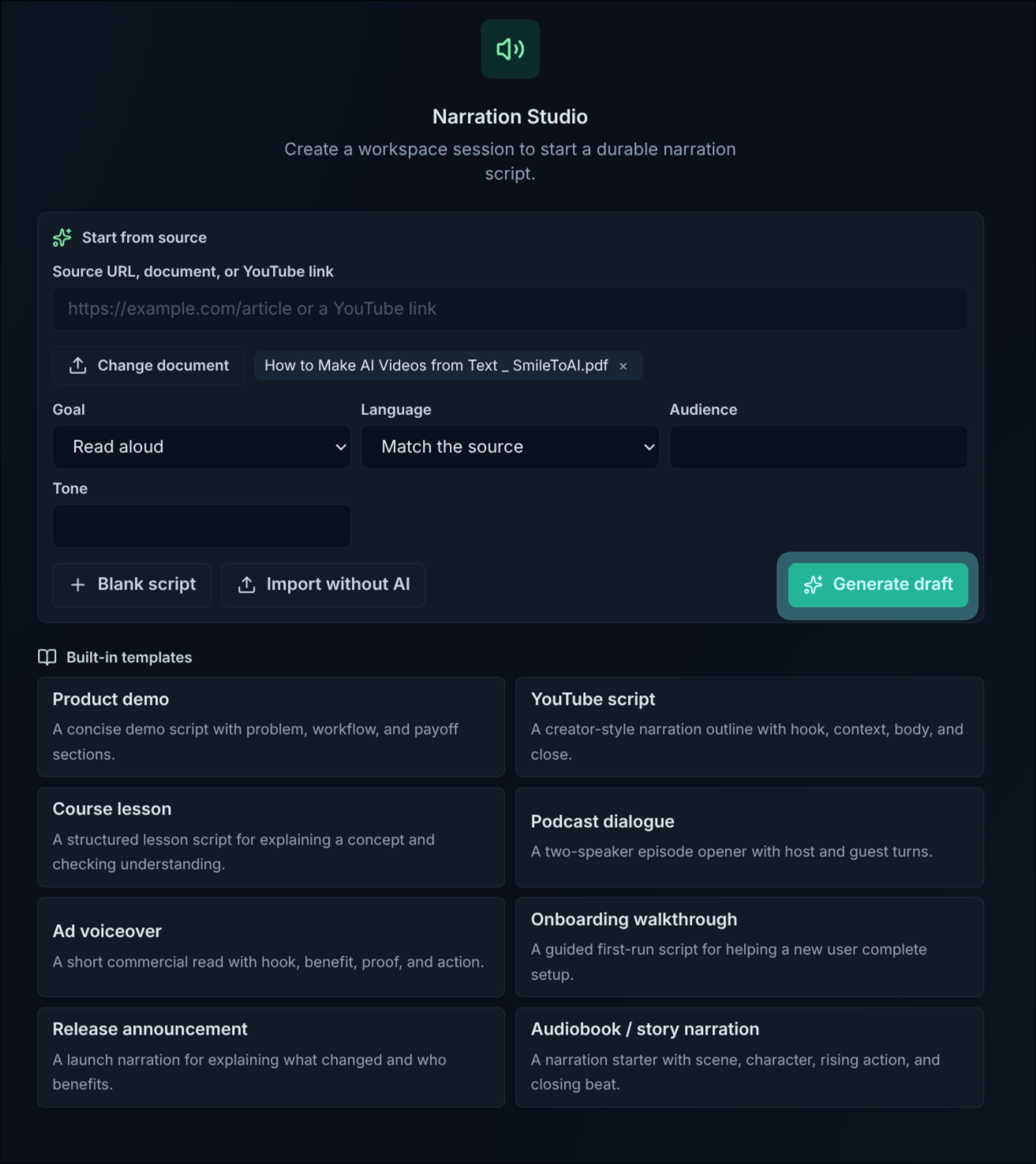
Ready to draft: the PDF is attached, the goal is Read aloud, and the language matches the source.
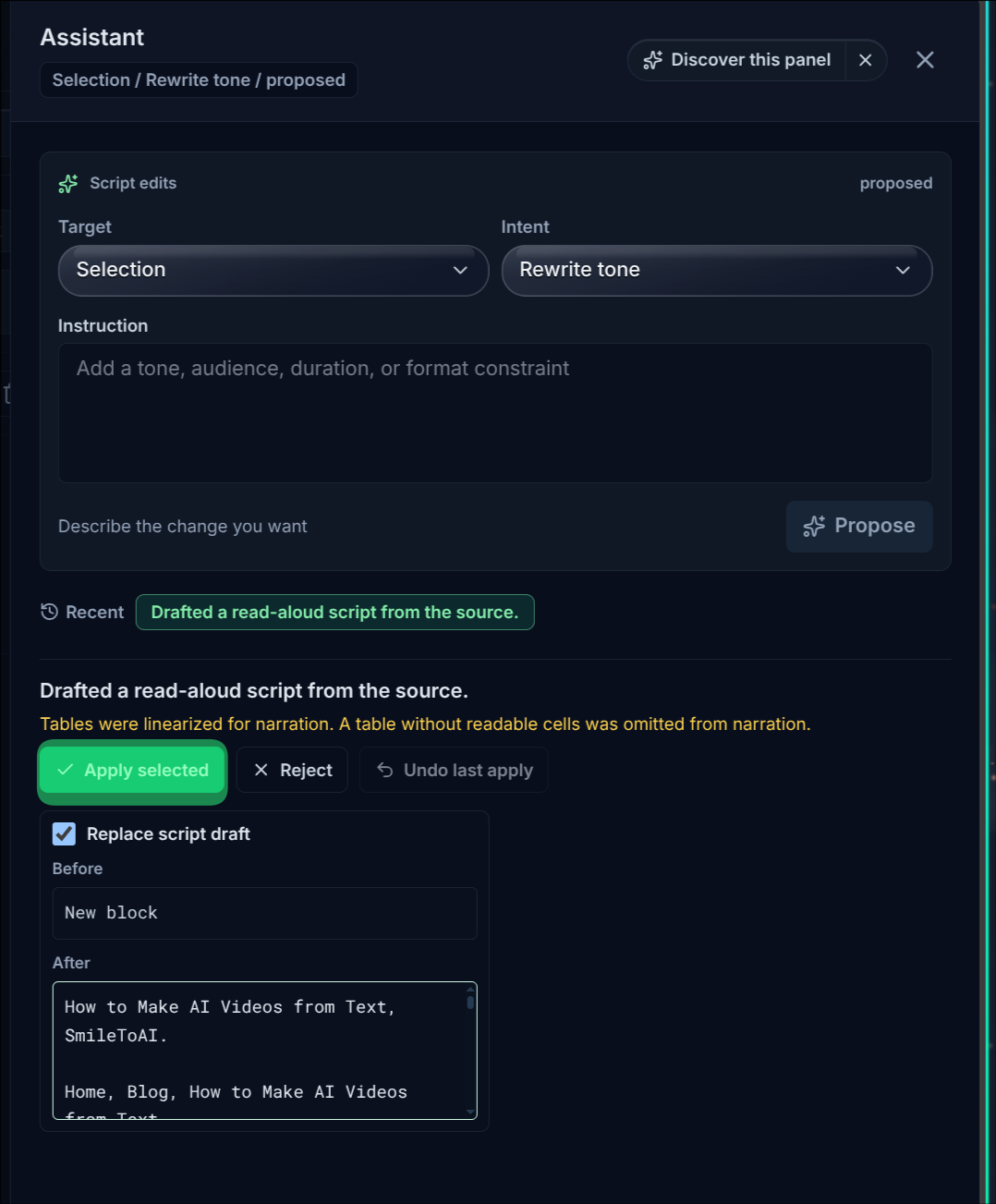
The proposal for our test PDF. The warning says how tables were handled: they were turned into speakable text, and one table with no readable cells was left out. Apply selected replaces the empty starting block with the drafted script.
This review step is where you catch PDF clutter. Page numbers, running headers, and footnote markers that were part of the text layer can end up in the script. Delete them from the blocks now, before you spend Sparks on audio.
A PDF saved from a web page brings the page around the article with it. In our test, the first block opened with the site's breadcrumb trail, the "6 min read" label, and a workspace link from the page header, all of which Read aloud kept because they were part of the text:
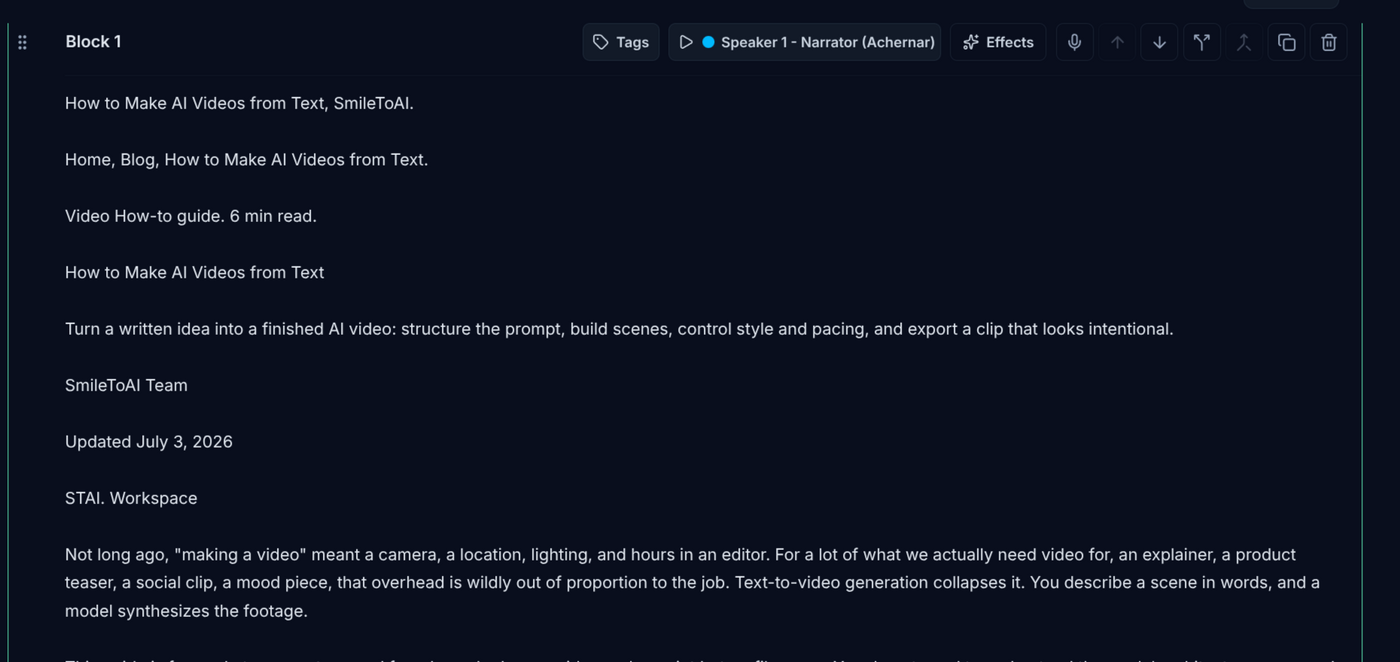
Block 1 as drafted. The breadcrumb line, the "Video How-to guide. 6 min read." line, the repeated title, and "STAI. Workspace" all came from the web page around the article.
We deleted those lines in the block editor before rendering:
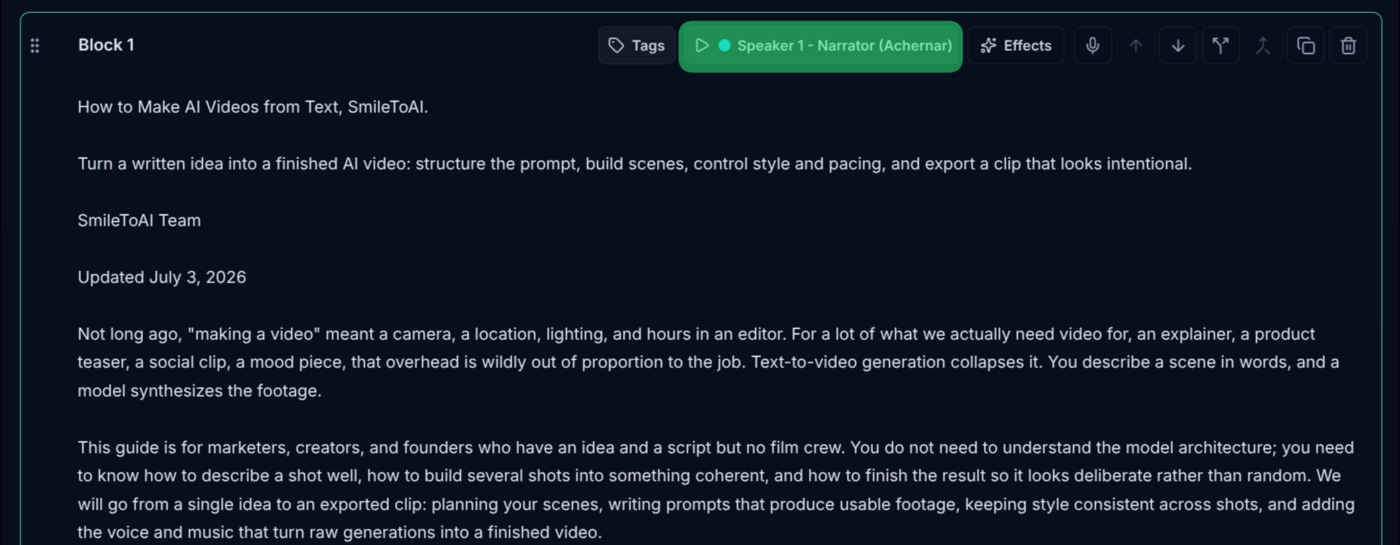
The same block after cleanup. We kept the byline and date, and also left the page's "Try it as you read" call-out, so it is spoken in the sample above. Delete lines like that too if you want only the article.
Step 4: Pick a voice
Open Speaker settings by selecting the speaker label on any block (it reads "Speaker 1 - Narrator" followed by the current voice), and choose the voice that will read your audiobook. In our test every block of the Read aloud draft used the same speaker, so one choice covered the whole book. One consistent voice works best for long listening.
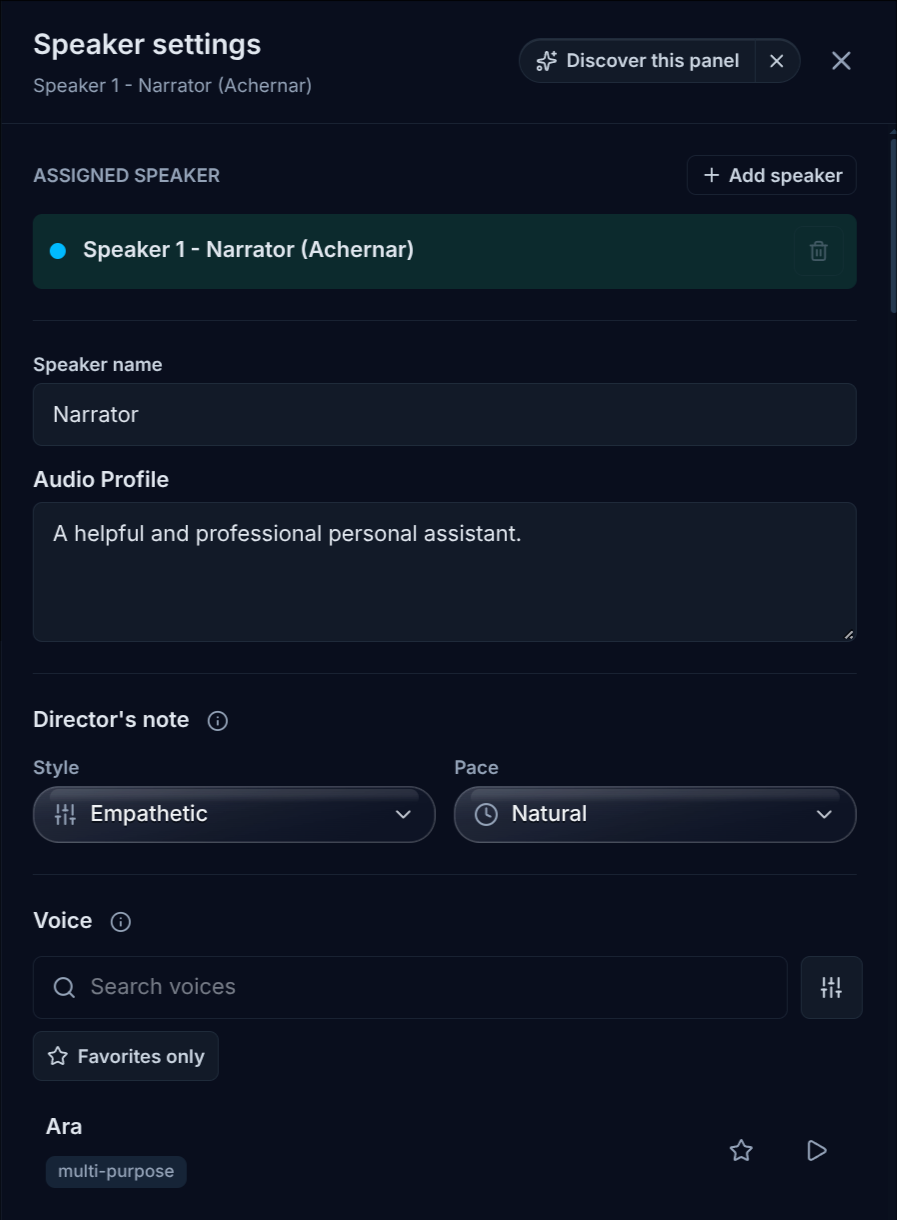
Speaker settings, shown here with the Achernar voice selected. The play button next to each voice plays a sample. Our final render used the Algenib voice.
Above the voice list are two optional controls. Audio Profile is a short description of who is speaking. Director's note sets the delivery with Style and Pace menus, plus Accent for languages that offer one. For an audiobook, a steady pace such as Natural is a sensible start. Some voices cannot use the audio profile and director's note; when you pick one of those, the fields are locked and the panel tells you to choose a different voice to use them.
Two optional settings help with books:
- Pronunciation settings fix names, places, and technical terms that the voice gets wrong. The studio also flags words it has no rule for. In our test it flagged the all-caps call-out "TRY IT AS YOU READ" and names like YouTube and TikTok, each with Add a rule and Ignore buttons.
- Preview full script lets you listen before you render.
Step 5: Render and download
Select Render. A long document takes a while to render. If it takes more than two minutes, Narration Studio sends a notification when it finishes, so you can leave the page.
When the render succeeds, you have two download options:
- Download render: one combined audio file for the whole document. This is the simplest way to listen in a single player.
- Download audio per block (.zip): one audio file per script block, in order. Use this if you want the book split into shorter tracks.
Then copy the file to your phone, your audiobook app, or a shared drive. This is the only step that happens outside SmileToAI, and it does not change the audio.
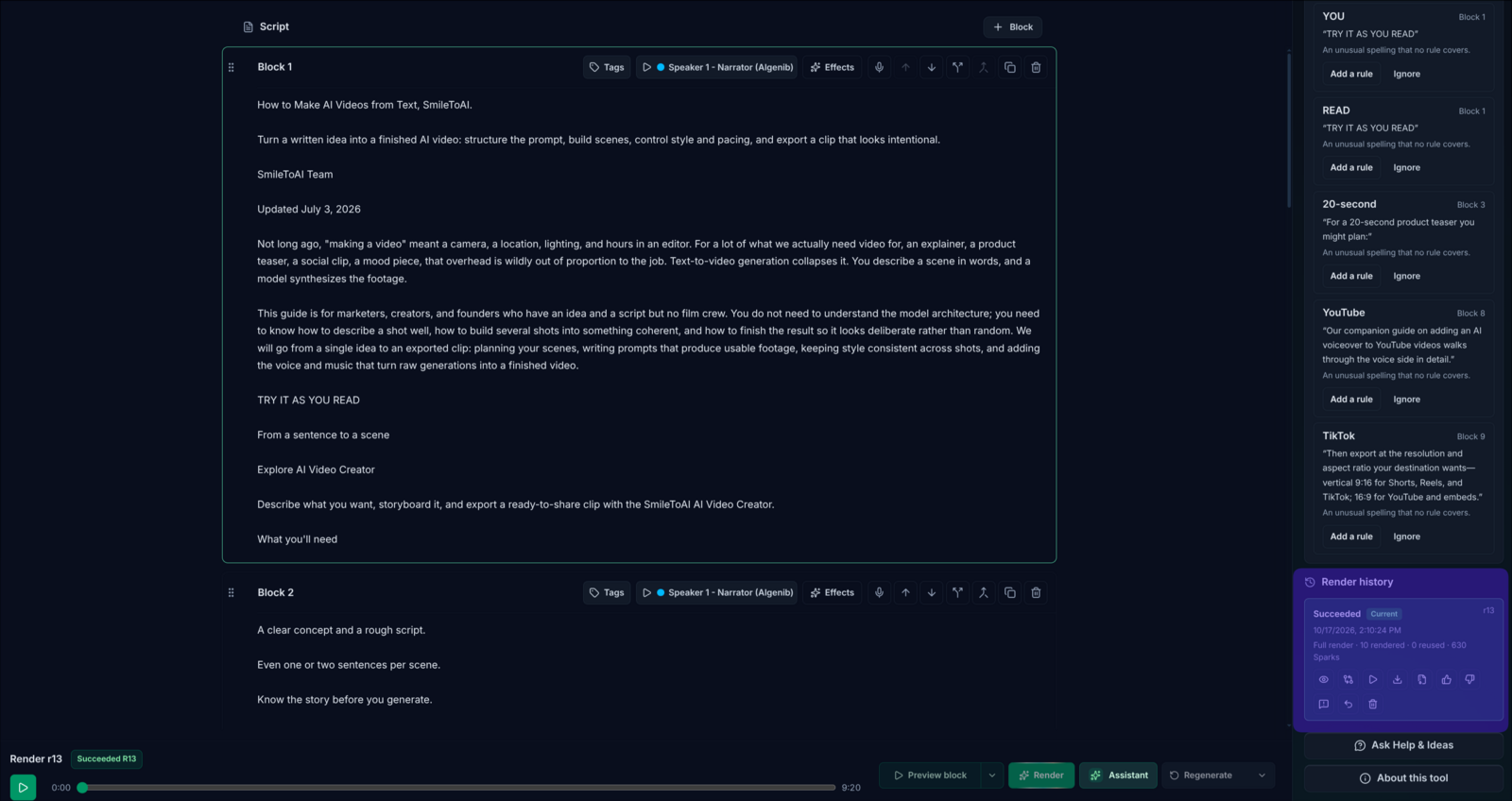
The finished render. The player bar shows the full length, 9:20, and the right column holds pronunciation suggestions above Render history.
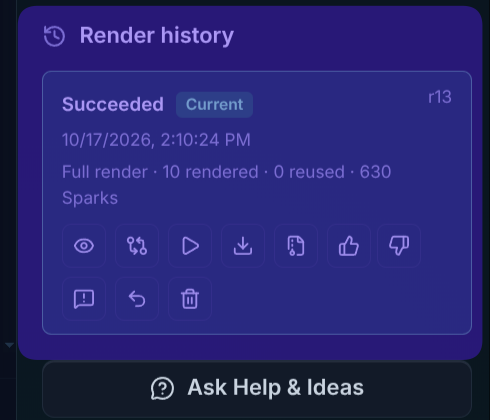
The render history row for the sample. "10 rendered · 0 reused · 630 Sparks" means all ten blocks were rendered fresh, for 630 Sparks in total. The download arrow is Download render; the file icon next to it is Download audio per block (.zip). Hover an icon to see its name.
Converting a book longer than the limit
Read aloud refuses a source whose extracted text runs past 256,000 characters. It does not cut the book off partway through. You have two options:
- Convert it in parts. Upload each part of the book (for example, a range of chapters saved as its own PDF) as a separate narration, render each one, and download them in order.
- Use Summarize instead. If you want the ideas rather than every word, the Summarize goal condenses the whole document into a spoken recap. That is a different product from an audiobook, but it is often what a study or work reading actually needs.
Tips for a better-sounding audiobook
- Start with a clean PDF. Documents exported from Word or Google Docs extract more cleanly than PDFs with columns, sidebars, and footnotes on every page.
- Check the first section closely. Problems such as a header repeated on every page show up in the first few blocks. Fix them once and you know what to look for in the rest.
- Keep one voice. Switching voices partway through sounds like a different narrator took over.
- Use pronunciation settings early. A misread character name repeats hundreds of times in a book. Fixing it before rendering is faster than re-rendering.
- Have the text already? If you have the book as a .txt or Markdown file, Import without AI brings it in word for word, costs no Sparks, and skips drafting. It accepts files up to 1 MB.
What this method does not do
So you know before you start:
- No OCR. Scanned, image-only PDFs are not read.
- No voice cloning. You pick from the voice library and cannot narrate in a cloned voice.
- No pages behind a login. A web article must be a public page. Sites that block automated readers cannot be fetched.
- No word-for-word import of PDF, Word, or EPUB without drafting. Those files always go through Generate draft. Only .txt and .md can be imported without AI.
For related workflows, see how to summarize long documents with AI if you want a recap instead of the full text, and how to add text to speech to PowerPoint if your PDF is really a slide deck. If you are new to the technology, the text-to-speech glossary entry explains how AI voices are generated.
FAQ
Can I turn a PDF into an audiobook for free?
You can start on SmileToAI's free plan, which includes 5,000 Sparks a month. Drafting a script from a PDF is charged in Sparks by the length of the source, and rendering the narration also uses Sparks, so a short report fits more easily than a whole book. If you already have the text as a .txt or .md file, Import without AI brings it in word for word and costs no Sparks.
Will the AI read every word, or summarize my PDF?
That depends on the goal you pick. Read aloud keeps every sentence of the source in its original wording and order, and only adapts what cannot be spoken as written: headings, lists, links, and tables. Code is left out. Summarize, Explain, and Voiceover script rewrite the source instead.
How long a PDF can I convert?
Uploaded files can be up to 20 MB. For Read aloud, the extracted text must also fit in one narration script of up to 256,000 characters; a longer source is refused rather than cut short. For a longer book, convert it in parts, or use the Summarize goal for a shorter spoken version.
Does it work with scanned PDFs?
Only if the PDF has a text layer. Narration Studio reads the text inside the file and does not run OCR on scanned pages, so a PDF that is only page images returns an error that it contains no extractable text.
Can I convert EPUB or Word files the same way?
Yes. The same Upload a document option accepts EPUB, Word (.docx), HTML, PowerPoint, Excel or CSV, plain text, and Markdown, as well as PDF. Legacy Word .doc, .odt, and .rtf files are not supported, so save those as .docx first.
Can I make the audiobook on my phone?
Yes. Narration Studio works in the SmileToAI app on iOS and Android as well as on the web. On mobile the Read aloud goal is labelled Read it aloud.