
To transcribe audio to text, upload the recording to an AI transcription tool, let a speech-to-text model write down what was said, then read the result through, correct it, and download it. In SmileToAI's AI Audio Transcription that is four steps:
- Open AI Audio Transcription. Leave Language on Auto-detect (or pick the spoken language), and keep Speaker diarization and Include timestamps on.
- Drop an MP3, WAV, M4A, AAC, OGG or FLAC file of up to 150 MB on the page, or select Choose file. Transcription starts as soon as the upload finishes.
- Read the transcript. Click any paragraph to correct it, move lines to the right speaker, and rename "Speaker 1" and "Speaker 2" to real names.
- Select Download TXT for plain text, or Download SRT / Download VTT for subtitle files.
That works for a meeting recording, an interview, a lecture, a podcast episode or a voice memo. For this guide we ran a real 1 minute 33 second, two-voice podcast clip through every step. In our test it took about 20 seconds from the start of the upload to the finished transcript and was charged 40 Sparks, on a free account (the free plan includes 5,000 Sparks a month). Below is each screen, the transcript exactly as it came back, the mistakes it made, and how to fix them before you download.
What you need
- The audio file. MP3, WAV, M4A, AAC, OGG or FLAC, up to 150 MB. The tool works on uploaded files only, so a podcast or a recording that lives behind a link has to be downloaded first.
- A SmileToAI account. Transcription is charged in Sparks by the length of the audio. The free plan includes 5,000 Sparks a month, and our test ran on a free account.
- Speech you can hear. Clear speech close to the microphone transcribes best. Music under the voice and people talking over each other make every transcription model work harder.
Have a video instead? The same tool takes MP4, MOV, M4V, WEBM and MKV files and transcribes their audio track; our guide to transcribing a video covers what is different for video.
This is the clip we transcribed. It is the first 93 seconds of a two-voice podcast render made in SmileToAI's Voice Studio, a Host and a Guest talking about sourdough:
Step 1: Pick the language and speaker settings
Open AI Audio Transcription from the SmileToAI workspace. Three settings sit above the upload area. Language and speaker diarization decide what kind of transcript you get, so set them before you upload.
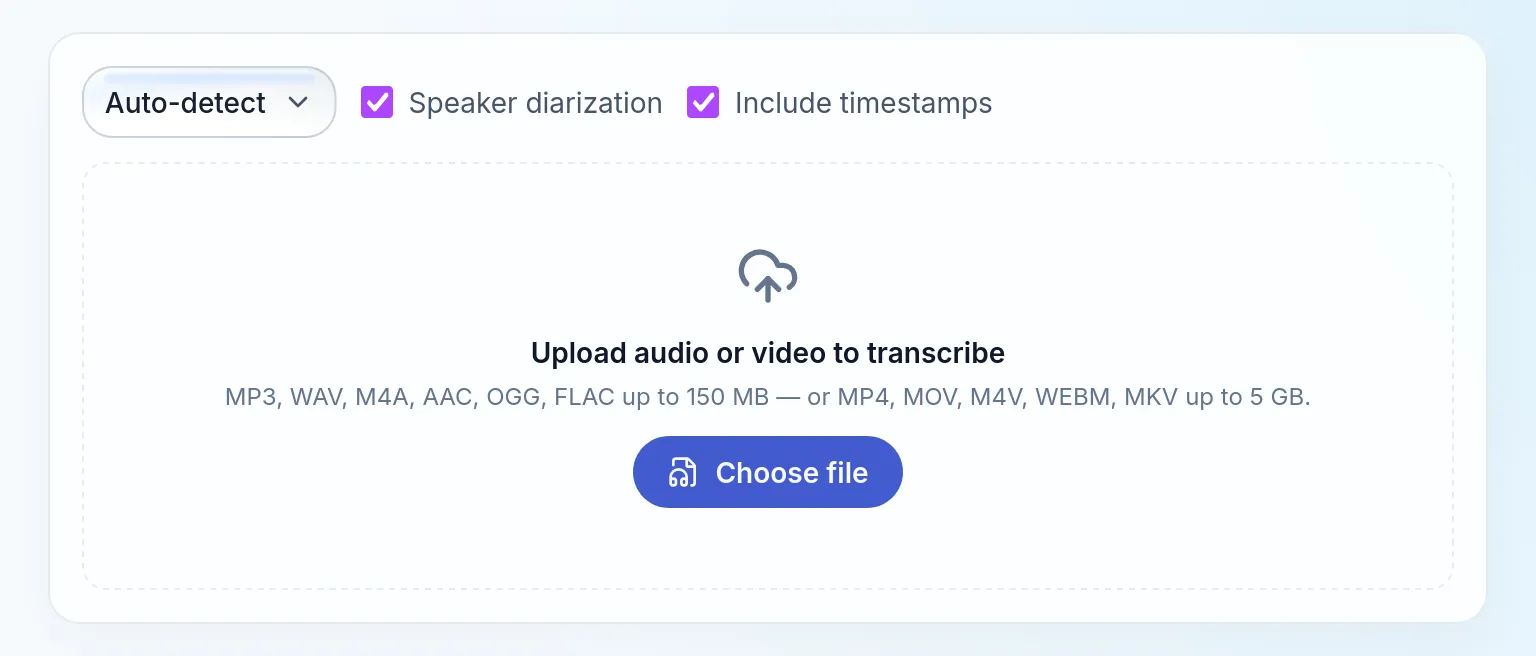
The upload panel with the default settings, which we kept for the test.
- Language. Auto-detect is the default. If you know the language, pick it from the list of 24: English, Spanish, German, French, Italian, Portuguese, Dutch, Polish, Turkish, Russian, Ukrainian, Czech, Swedish, Danish, Norwegian, Finnish, Romanian, Hungarian, Greek, Hindi, Indonesian, Japanese, Korean and Chinese.
- Speaker diarization. On by default. It works out who spoke when and gives each voice a label ("Speaker 1", "Speaker 2"). Keep it on for anything with more than one voice: an interview, a meeting, a podcast. Speaker diarization explains how it works.
- Include timestamps. On by default. It shows each turn's start time in the transcript and in the TXT download. The SRT and VTT subtitle files are timed either way.
Step 2: Upload the recording
Drag the file onto the page or select Choose file. The panel shows the upload, then a spinner while the audio is transcribed.
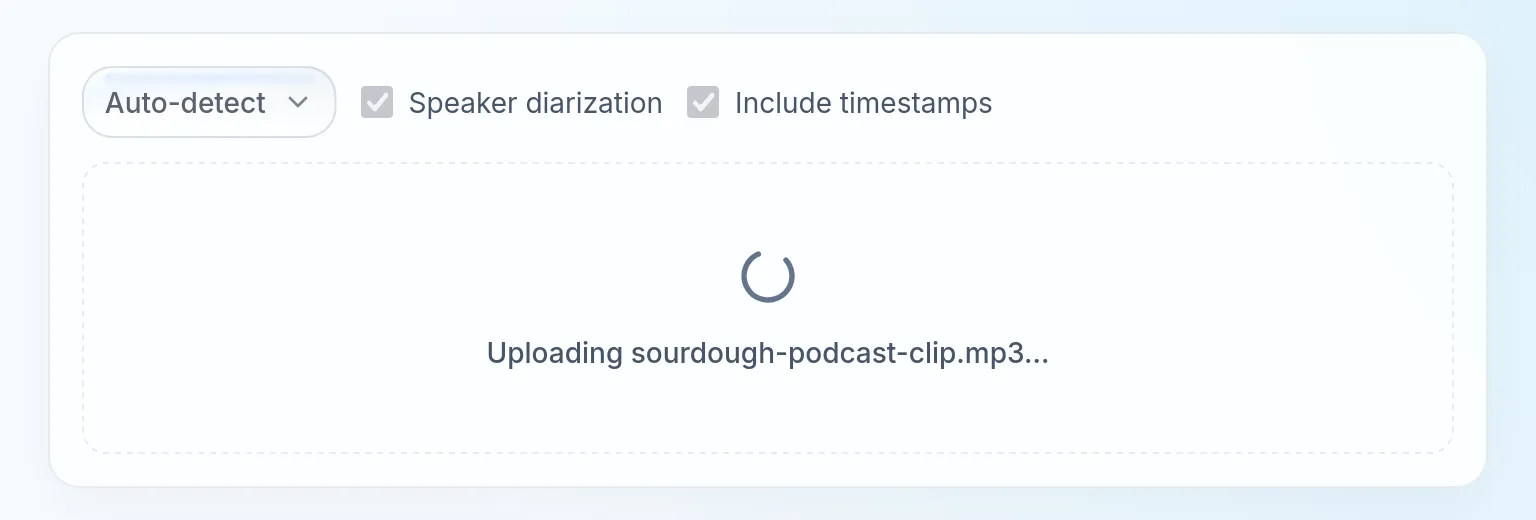
Uploading our 1.5 MB MP3. The settings are locked while the file is processed.
Our 1.5 MB MP3 was uploaded and transcribed in about 20 seconds in our test. Longer files take longer, and you do not have to wait on the page: each transcript is saved in its own session in the sidebar, so you can come back to it later.
Step 3: Read the transcript and fix what it got wrong
The finished transcript opens as speaker turns. Each turn has a colored speaker label and a start time. Above it are the download buttons, the speaker legend and a Search transcript box, and the top row shows the length of the audio and the Sparks the run cost.
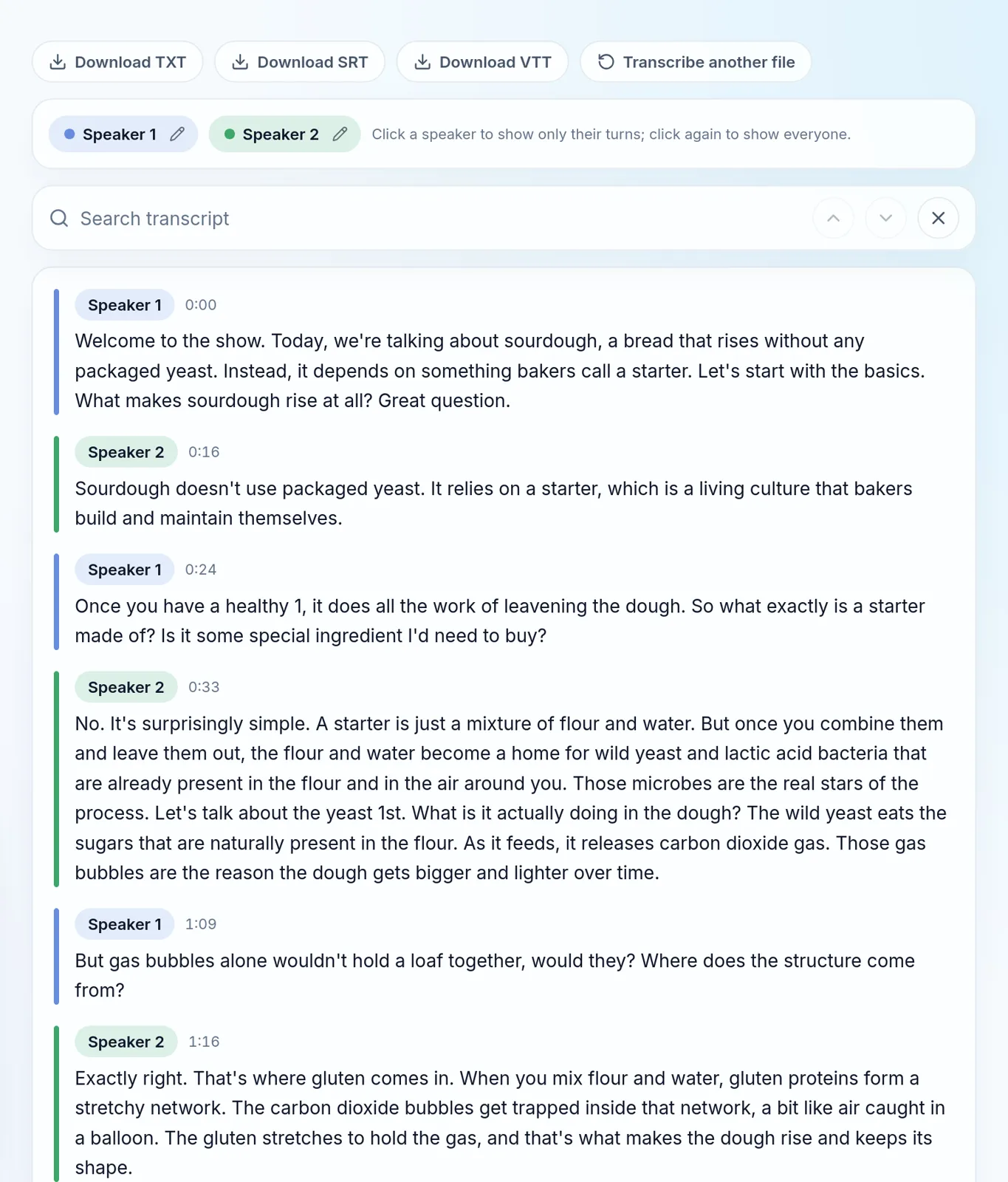
The transcript exactly as SmileToAI returned it, before any correction.
What our test run got right and wrong
Most of the text reads cleanly, with punctuation and capital letters, and "lactic acid bacteria", "leavening" and "gluten" are spelled correctly. Diarization found two voices, which is correct, and split the clip into six turns.
Three kinds of mistakes are worth looking for in any transcript, and this one shows all three:
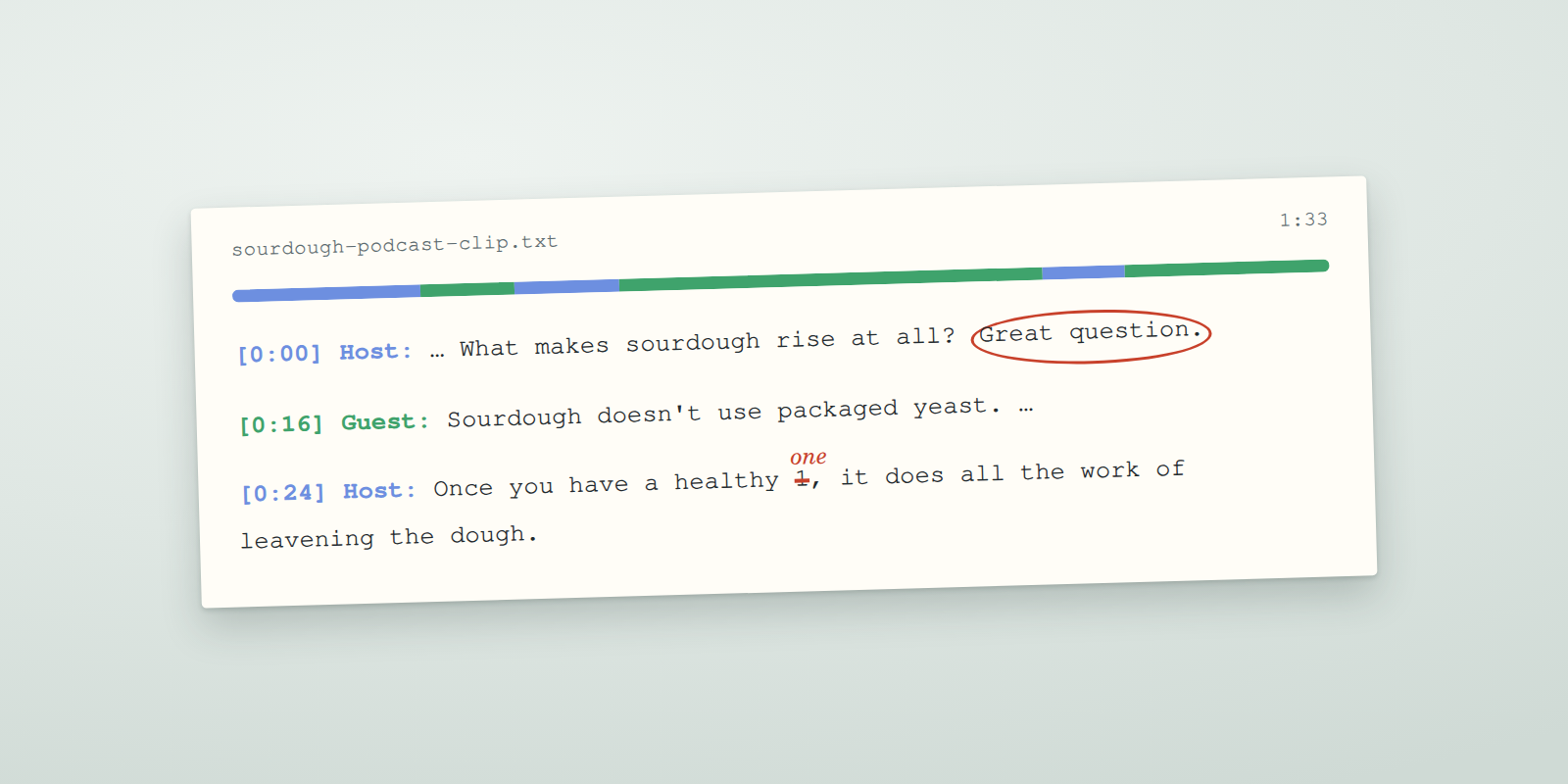
- Numbers written as digits. "Once you have a healthy one" came back as "a healthy 1", and "let's talk about the yeast first" as "the yeast 1st". Search for stray digits in a transcript of speech.
- Words at a turn boundary under the wrong speaker. The first turn ends with the Host's question, "What makes sourdough rise at all?", followed by "Great question." A host rarely answers their own question that way, so this reads as the start of the Guest's answer, filed under the Host; play that moment back to confirm. In the same way, the 0:24 turn opens with "Once you have a healthy 1, it does all the work of leavening the dough", which reads as the end of the Guest's explanation, not the Host's.
- A question inside an answer. The Guest's long turn at 0:33 contains "Let's talk about the yeast 1st. What is it actually doing in the dough?", a question that sets up the explanation that follows. That looks like the Host's line merged into the Guest's turn. When a turn changes direction mid-way like this, check whether two voices were merged.
Both misplaced passages sit right where one voice hands over to the other, so that is the first place to look. Plan a few minutes per recording to read it through.
The editing tools
- Search the transcript to find every place a name, term or digit appears, and step through the matches.
- Click any paragraph to edit its text in place.

Clicking a paragraph opens it for editing.
- Move a paragraph to another speaker. Click a turn's speaker label to open the menu, then pick the right speaker, or New speaker if two people were merged under one label.
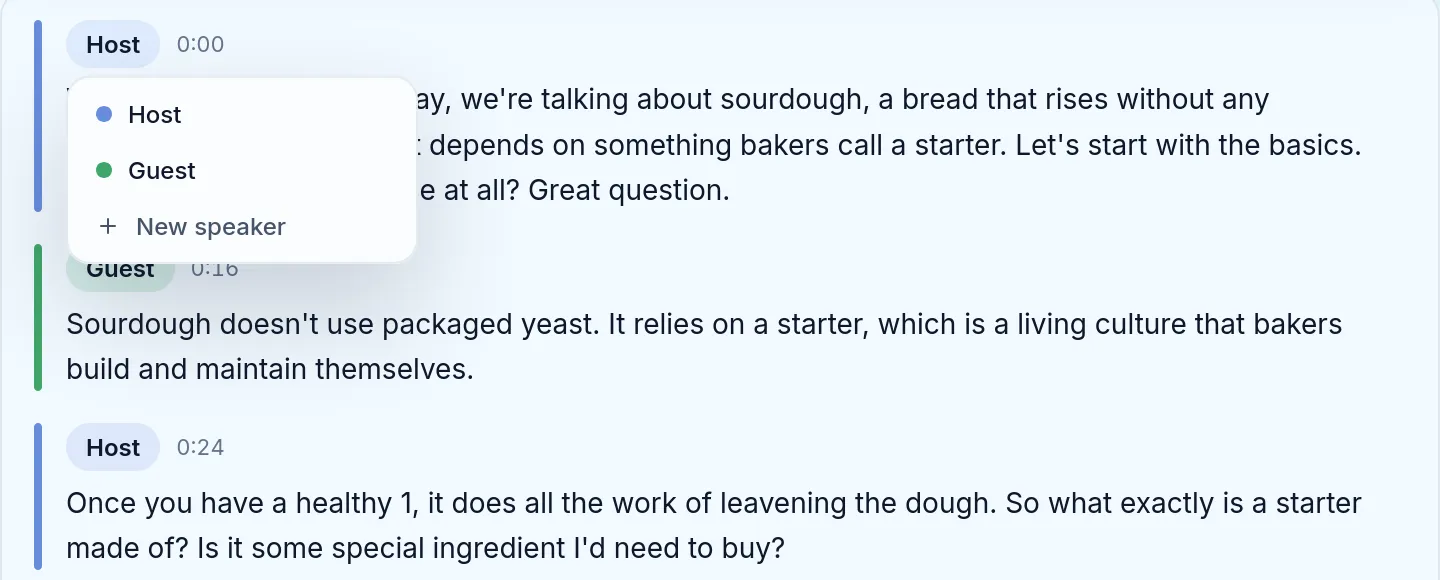
Clicking a speaker label opens the menu for moving that paragraph to another speaker (the speakers here are already renamed to Host and Guest).
- Rename speakers. Select the pencil next to a speaker in the legend and type a name. The new name replaces the label everywhere, including in the downloads.
- Filter by speaker. Click a speaker in the legend to see only their turns, and click again to see everyone.
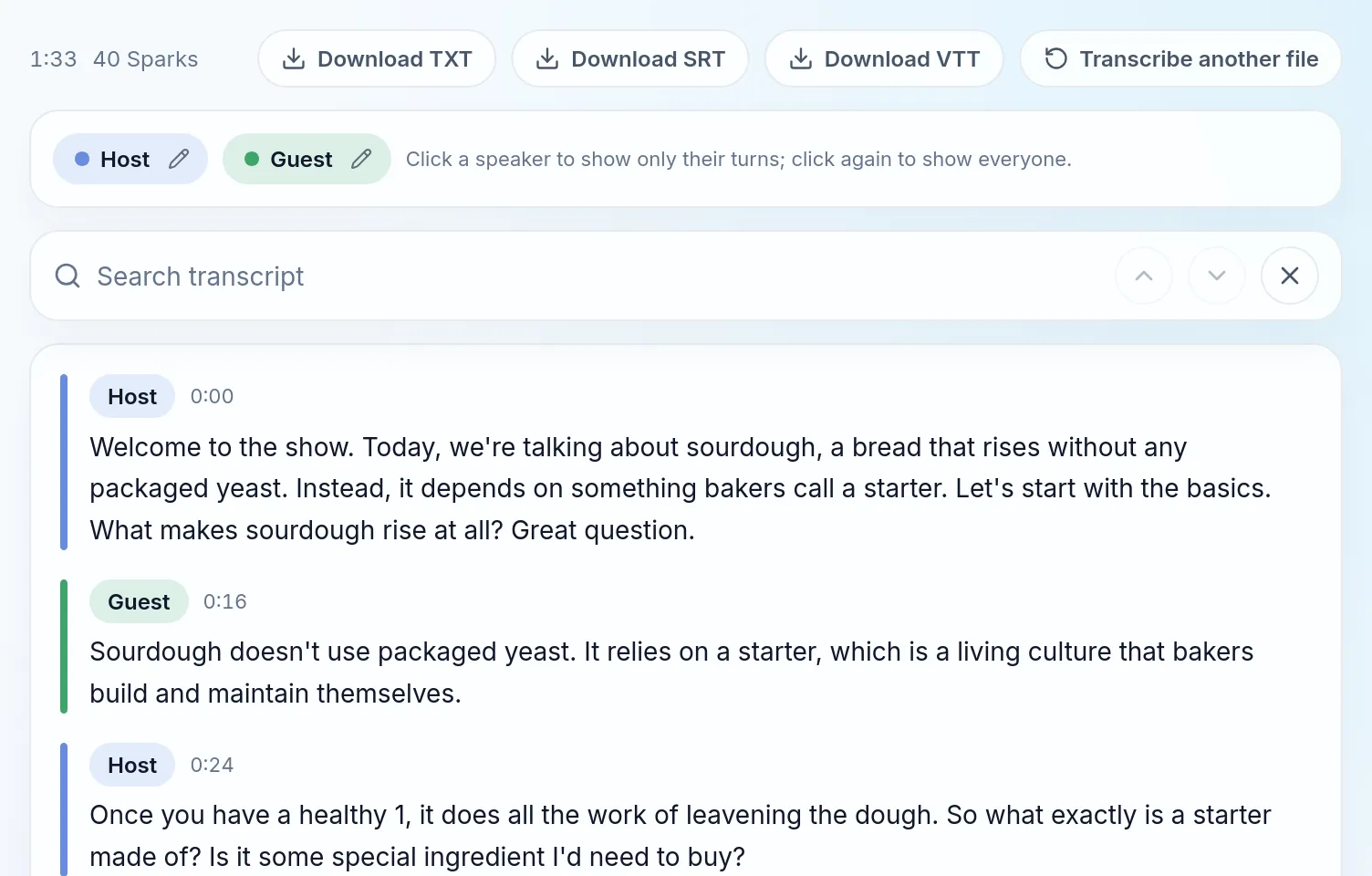
After renaming Speaker 1 to Host and Speaker 2 to Guest. The top row shows the length (1:33) and the charge (40 Sparks).
Fix the speakers before you rename them. A rename applies to every line under that label, so if a line sits under the wrong speaker, the rename puts the wrong name on it. Move misplaced paragraphs first, then rename. Your corrections and names are saved with the session.
There is no custom vocabulary list, so names, brands and jargon the model gets wrong are fixed in this editing pass.
Step 4: Download the transcript
Pick the format by what you will do with the text:
| You want | Select | What you get |
|---|---|---|
| Meeting notes, quotes, show notes, an article draft | Download TXT | Plain text, one paragraph per turn, with the timestamp and speaker name in front |
| Subtitles for a video platform or editor | Download SRT | A SubRip subtitle file |
| Subtitles for a web video player | Download VTT | A WebVTT subtitle file |
This is the start of the TXT file our run produced, after the rename and before any other correction:
[0:00] Host: Welcome to the show. Today, we're talking about sourdough, a bread that rises without any packaged yeast. Instead, it depends on something bakers call a starter. Let's start with the basics. What makes sourdough rise at all? Great question.

[0:16] Guest: Sourdough doesn't use packaged yeast. It relies on a starter, which is a living culture that bakers build and maintain themselves.
Before each download, a small panel asks whether to Keep speaker labels. Turn it off ("Turn off for clean subtitles") when the names should not appear in the file, for example in subtitles shown on screen.
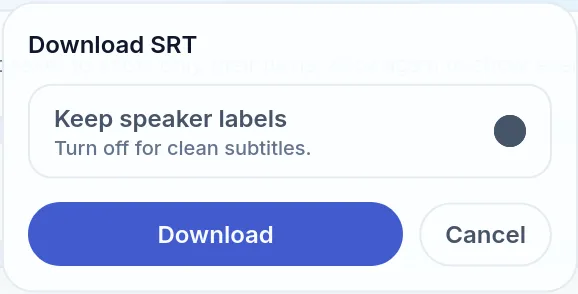
The panel that opens before a download, here for SRT.
The subtitle file splits long turns into short cues. These are the first lines of our SRT file, downloaded before the rename with speaker labels kept:
1
00:00:00,160 --> 00:00:01,760
Speaker 1: Welcome to the show.

2
00:00:01,760 --> 00:00:07,120
Today, we're talking about sourdough, a
bread that rises without any packaged yeast.
For putting those subtitles on a video, see our guide to auto-generating subtitles.
Tips for a cleaner transcript
- Record close to the microphone. A voice that is close and clear leaves the model less to guess.
- Transcribe the voice track, not the final mix. If you have the recording before music was added, upload that.
- Pick the language when you know it. Auto-detect works, but a recording that switches languages is best transcribed with the main language selected, then checked by hand.
- Avoid crosstalk. People talking over each other are hard for any model to separate, and short interjections are the most likely to be filed under the wrong speaker.
What this tool does not do
- No live transcription. It works on recorded files, not on a microphone as you speak.
- No links. It cannot fetch audio from a podcast page, a cloud link or a YouTube URL; upload the file.
- No custom vocabulary. Specialist terms are corrected in the editor.
- 150 MB per audio file. For a very long recording in an uncompressed format such as WAV, export it as MP3 or M4A first so it fits.
Transcribing audio in short
Keep Auto-detect, speaker diarization and timestamps on, upload the file, and spend a few minutes on the transcript before you download it: search for digits that should be words, move short replies to the right speaker, then rename the speakers. Our 93-second, two-voice clip took about 20 seconds and 40 Sparks, and needed only those three kinds of fixes. To read more about the technology itself, start with what speech to text is.
Sample used in this guide: the first 93 seconds of a Podcast dialogue render made in SmileToAI's Voice Studio for our PDF to podcast guide, cut from the published file and saved as MP3. Both voices are AI voices. The screenshots show SmileToAI's output; the only changes made are the speaker renames visible in the speaker-menu and renamed-transcript screenshots.
FAQ
What audio files can I transcribe?
MP3, WAV, M4A, AAC, OGG and FLAC files up to 150 MB. The same tool also takes video files (MP4, MOV, M4V, WEBM and MKV) and transcribes their audio track.
How much does it cost to transcribe audio?
Transcription is charged in Sparks by the length of the audio. Our 1 minute 33 second test clip, with speaker labels and timestamps on, was charged 40 Sparks. The free plan includes 5,000 Sparks a month, and our test ran on a free account.
Can I paste a link to a podcast or YouTube video instead of uploading a file?
No. AI Audio Transcription works on uploaded files only. Download the episode or recording first, then upload the file.
Can it transcribe from my microphone as I speak?
Not in this tool. AI Audio Transcription works on recorded files. Record first with any app that saves an audio file, then upload the recording.
Which languages can it transcribe?
24 languages, with Auto-detect as the default: English, Spanish, German, French, Italian, Portuguese, Dutch, Polish, Turkish, Russian, Ukrainian, Czech, Swedish, Danish, Norwegian, Finnish, Romanian, Hungarian, Greek, Hindi, Indonesian, Japanese, Korean and Chinese.
Can I transcribe audio on my phone?
Yes. AI Audio Transcription is in the SmileToAI app on iOS and Android as well as on the web, with the same settings, editor and TXT, SRT and VTT downloads.