
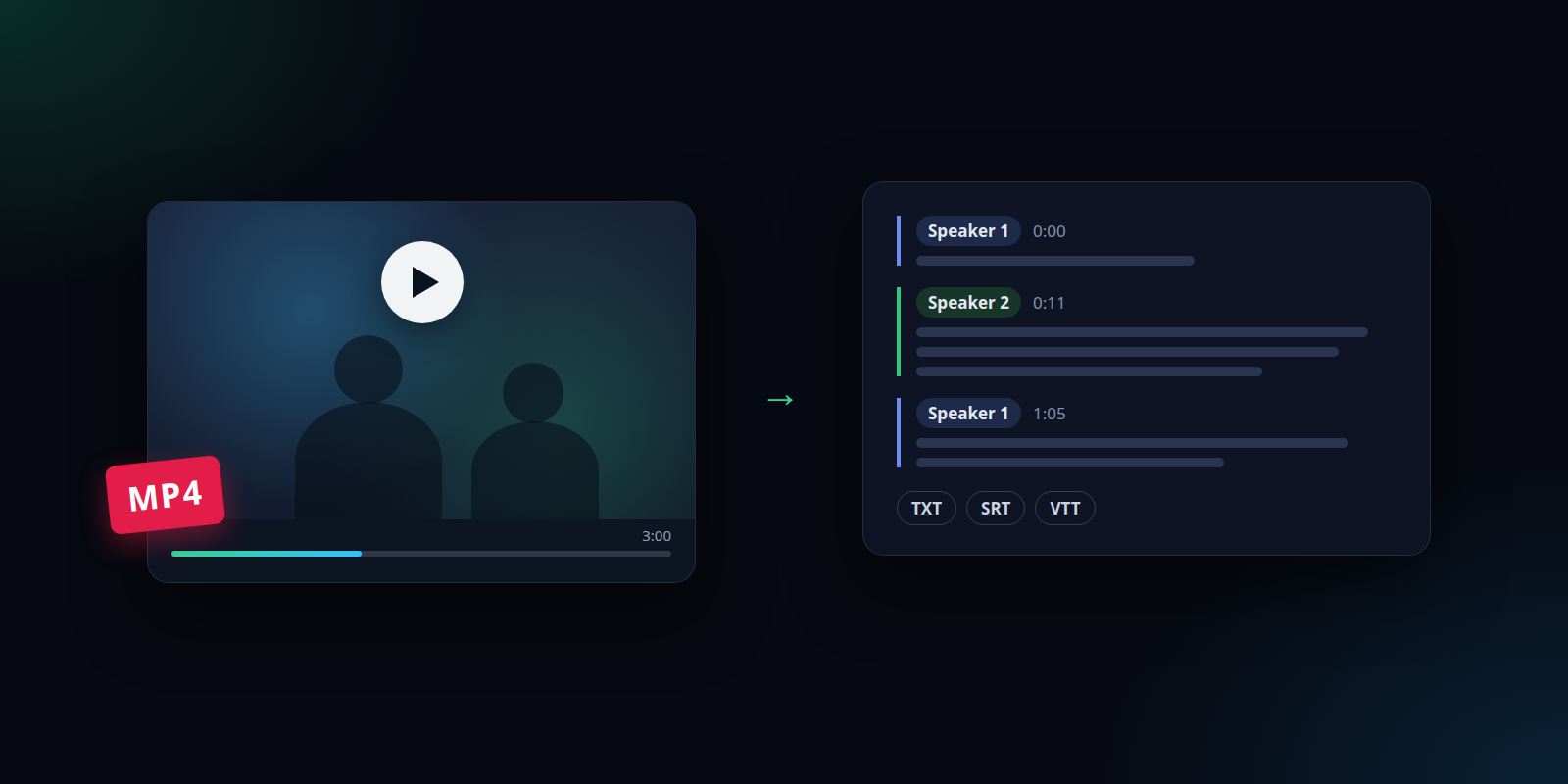
Video transcription is turning the speech in a video into written text. The fastest way to do it today is with AI: you upload the video file, the tool takes out the audio track, a speech-to-text model writes down what was said, and you correct the result and download it. In SmileToAI's AI Audio Transcription that takes four steps:
- Open AI Audio Transcription, keep Language on Auto-detect (or pick the spoken language), and leave Speaker diarization on if more than one person talks.
- Drop an MP4, MOV, M4V, WEBM, or MKV file on the page, or select Choose file. Videos can be up to 5 GB on the web and 2 GB in the mobile app.
- Wait while SmileToAI takes out the audio and transcribes it. The transcript appears as speaker turns with timestamps.
- Fix names, misheard words, and speaker labels, then select Download TXT for plain text, or Download SRT / Download VTT for subtitle files.
That covers a recorded meeting, a lecture, an interview, a screen recording, or a clip from your phone. For this guide we ran a real three-minute MP4 through every step. The rest of the guide shows what each screen looks like, what the transcript got right and wrong, and what the tool does not do, so you know before you upload.
What you need before you start
- The video file itself. AI Audio Transcription works on uploaded files. It cannot fetch a video from a YouTube link or any other URL, so you need the MP4, MOV, M4V, WEBM, or MKV file on your computer or phone.
- A SmileToAI account. The free plan includes 5,000 Sparks a month, and transcription is available on every plan. It is charged in Sparks by the length of the audio, and turning on speaker labels adds a small per-minute amount. Our three-minute test video with speaker labels on cost 80 Sparks.
- Audible speech. The tool transcribes the audio track only. A video with no audio track is refused before any transcription charge, and on-screen text is not read.
If you only have audio (a podcast export, a voice memo), the same product takes MP3, WAV, M4A, AAC, OGG, and FLAC files up to 150 MB.
Step 1: Choose the language and speaker settings
Open AI Audio Transcription from the SmileToAI workspace. Before you upload anything, two settings decide what kind of transcript you get.
Language. The default is Auto-detect. If you know the spoken language, you can pick it from the list of 24: English, Spanish, German, French, Italian, Portuguese, Dutch, Polish, Turkish, Russian, Ukrainian, Czech, Swedish, Danish, Norwegian, Finnish, Romanian, Hungarian, Greek, Hindi, Indonesian, Japanese, Korean, and Chinese.
Speaker diarization. This is on by default. It works out who spoke when and labels each turn ("Speaker 1", "Speaker 2", and so on). Keep it on for interviews, panels, meetings, and podcasts. For a single narrator, such as a tutorial voiceover, you can turn it off and skip its per-minute charge. For more on how this works, see what speaker diarization is.
Include timestamps is also on by default. Leave it on if you plan to make subtitles: SRT and VTT cues are timed from these timestamps, and turns without them are left out of subtitle files.
Step 2: Upload the video
Drag the video onto the page or select Choose file. Accepted formats are MP4, MOV, M4V, WEBM, and MKV.
| Where you upload | Largest video |
|---|---|
| SmileToAI web app | 5 GB |
| SmileToAI mobile app (iOS, Android) | 2 GB |
What happens next depends on the file:
- MP4, MOV, or M4V in the web app. Your browser takes the audio track out of the video before anything is uploaded, so only the audio goes to SmileToAI and the video never leaves your computer. This works when the audio track is AAC, the usual audio format inside MP4 and MOV files. It is also why a long video uploads quickly: our three-minute MP4 uploaded as 2 MB.
- WEBM, MKV, or other audio formats, and anything sent from the mobile app. The video is uploaded and the audio is taken out on SmileToAI's servers. The video is deleted as soon as that is done, whether it succeeds or fails, and the server handles one video at a time per account.
Either way, you get the text, not a copy of the video back.
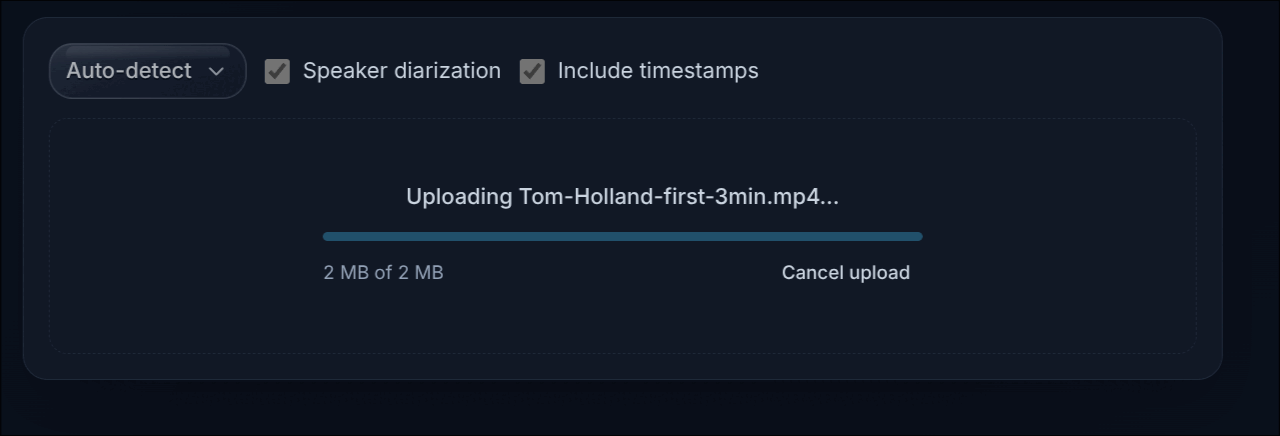
Uploading a three-minute MP4: only the audio track goes up, about 2 MB.
Once the upload finishes, the panel switches to a spinner while the audio is transcribed.
The panel while the audio is transcribed.
Step 3: Review and correct the transcript
The finished transcript opens as speaker turns, each with a colored speaker chip and a timestamp. The header shows the file name, the length, and what the run cost.
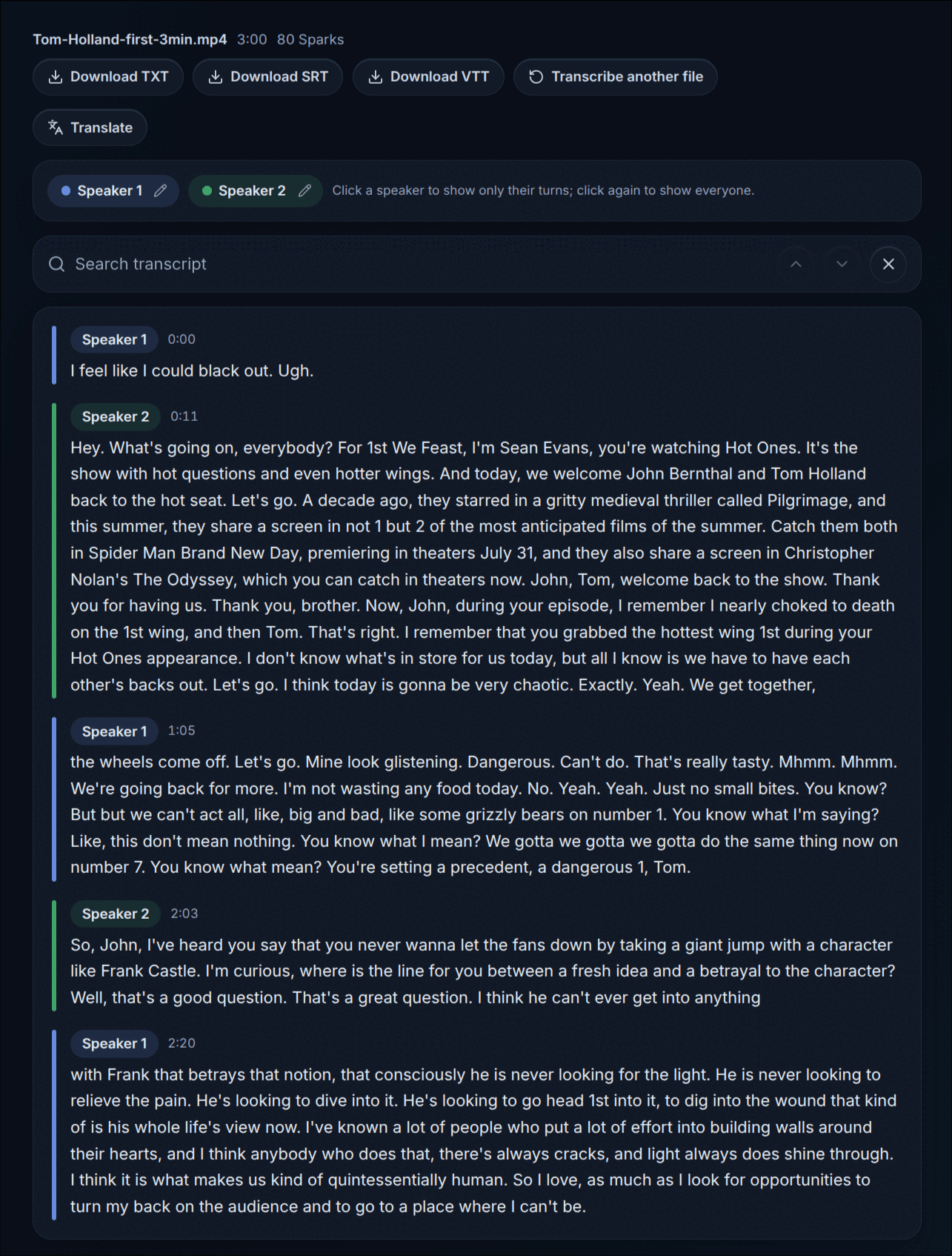
The transcript as SmileToAI produced it, before any corrections.
AI transcription gets most words right on clear audio, but it reliably stumbles on the same things: names, brand and product terms, acronyms, numbers, and who said what. Budget a few minutes to read it through. The editor is built for that pass:
- Search the transcript to find every place a name or term appears, stepping through matches with next and previous.
- Click any paragraph to correct its text.
- Move a paragraph to another speaker with Assign speaker, or create a New speaker if two people were merged into one label.
- Rename speakers from the legend row, so "Speaker 1" becomes a real name everywhere at once.
- Filter by speaker by selecting a speaker in the legend, which shows only that person's turns. This is handy when you need one guest's quotes.
Your edits and speaker names are saved with the session, so you can close the page and come back later. Past transcripts live in the history panel.
What our test run got wrong
Our sample was the first three minutes of a talk-show episode with a host and two guests. The words came out well, but the run shows exactly what the review pass is for.
- Three people came out as two speakers. Diarization found two voices, not three. Some of the guests' short replies, such as "Thank you for having us", landed inside the host's turn, and the 2:03 turn opens with the host's question but ends with the first words of a guest's answer, which then continues under the other label.
- Turns break mid-sentence. Where the label switches, a sentence can be cut in two, as at 1:05, where a turn starts with the second half of the previous one.
- Names and numbers need a look. The show's name came out as "1st We Feast" rather than "First We Feast", and several numbers were written as digits ("not 1 but 2").
The fix order matters. Reassign first, rename second. If you rename "Speaker 1" straight away, every line under that label gets the new name, including lines someone else said. Use Assign speaker to move each misplaced paragraph, add a New speaker for the person who was merged in, and only then rename the labels. On a merged recording like this one, skipping the reassign step puts one person's words under another person's name in every download.
What else affects accuracy
Some factors are under your control before you ever upload:
- Background music and noise compete with speech. If you edited the video, a version with the music bed lowered transcribes better than the final mix.
- Overlapping speakers are hard for any model to separate. Crosstalk and quick back-and-forth tend to come out merged, as they did in our test.
- Distance from the microphone matters more than camera quality. A lapel mic recorded on a phone often beats an expensive camera's built-in mic across the room.
- Mixed languages in one video work less well with a single language setting. Pick the language most of the video is in, then check the other passages by hand.
The tool has no custom vocabulary list, so specialist terms are fixed in the editing pass rather than taught to the model up front.
Step 4: Download the transcript or subtitles
Choose the format by what you will do with the text:
| You want | Select | What you get |
|---|---|---|
| Notes, quotes, a blog post, a show-notes draft | Download TXT | Plain text with your corrections and speaker names |
| Subtitles for most video platforms and editors | Download SRT | A SubRip subtitle file, one cue per speaker turn |
| Subtitles for a web video player | Download VTT | A WebVTT subtitle file, one cue per speaker turn |
For subtitles, turn Keep speaker labels off in the download panel ("Turn off for clean subtitles") if you don't want names in front of each line. Leave it on for a captioned interview where viewers need to know who is talking.
This is the first cue of the SRT file our test run produced, with speaker labels off:
1
00:00:00,320 --> 00:00:03,760
I feel like I could black out. Ugh.
Each subtitle cue is one whole speaker turn, timed from the transcript. That suits short exchanges like this opening line. For long turns it does not: the second cue in our file runs from 00:00:11,120 to 00:01:04,560, almost a minute of text in a single subtitle, and the whole three-minute video came out as just five cues. The tool does not split turns into short caption lines or let you edit cue timings. If you need tightly paced captions, our guide to auto-generating subtitles covers what to check. Subtitles and captions are also not quite the same thing, which matters if you are captioning for accessibility.
Once downloaded, the files are yours to place wherever they go: paste the TXT into a document, or upload the SRT or VTT as a subtitle track in YouTube Studio or your video host. SmileToAI does not burn subtitles into the video or return a captioned copy.
Optional: translate the transcript
A finished transcript can be translated in the same place. Select Translate, pick up to eight languages under Translate into, and the translations run in the background, so you can leave and come back. Each one keeps the original speakers and timestamps, can be edited like the original, and downloads as TXT, SRT, or VTT. Compare shows two or three languages side by side, and with exactly two in compare, Combine into one dual-language file gives you a single subtitle file with both languages in every cue. Translation is charged in Sparks by transcript length.
This translates the text only. It does not produce dubbed or translated audio.
Transcribing video on your phone
Everything above also works in the SmileToAI app on iOS and Android: the same language and speaker settings, the same editor, and the same TXT, SRT, and VTT downloads. Three differences: the largest video you can upload from the app is 2 GB rather than 5 GB, the app uploads the video and lets the server take out the audio, and downloads are saved through the Android file picker or the iOS share sheet. For a long screen recording or a full-length lecture over 2 GB, upload it from the web app instead.
What this workflow does not do
So you can decide before you upload:
- No links. It does not transcribe from a YouTube, Vimeo, or social-media URL. You need the file.
- No video output. You get text and subtitle files, never a captioned or burned-in copy of the video.
- No live transcription. It works on recorded files, not a live microphone or a meeting in progress.
- No custom vocabulary. Names and jargon are corrected in the editor.
- Whole-turn subtitle cues. Captions are not split into short readable lines, and cue timings cannot be edited.
Video transcription in short
For most videos, AI transcription is the quickest route from footage to usable text. Pick the language, keep speaker labels on when several people talk, upload the file, then spend a few minutes reassigning merged speakers, fixing names, and correcting misheard words before you download TXT for reading or SRT/VTT for subtitles. The result is a transcript you can search, quote from, caption with, or translate. To understand what the model is doing under the hood, start with what speech to text is.
Sample used in this guide: the first three minutes of a Hot Ones episode (First We Feast) with host Sean Evans and guests Jon Bernthal and Tom Holland. The screenshots show SmileToAI's output before any corrections, so the speaker labels are the model's, not ours.
FAQ
Can I transcribe a video for free?
You can start on SmileToAI's free plan, which includes 5,000 Sparks a month, and transcription is not limited to paid plans. Transcription is charged in Sparks by the length of the audio, and speaker diarization adds a small per-minute amount. In our test, a three-minute video with speaker labels on cost 80 Sparks.
Can I paste a YouTube link instead of uploading the video?
No. SmileToAI transcribes uploaded files only, so it cannot fetch a video from a YouTube URL or any other link. Upload the video file itself (MP4, MOV, M4V, WEBM, or MKV).
Does SmileToAI keep my video?
No. In the web app, an MP4, MOV, or M4V file with AAC audio has its audio track taken out in your browser, so only the audio is uploaded and the video never leaves your device. Other videos, and videos sent from the mobile app, are uploaded and the audio is taken out on SmileToAI's servers; the video is then deleted, whether that step succeeds or fails. Either way, no copy of the video is stored with your transcript.
How large a video can I upload?
Up to 5 GB in the web app and up to 2 GB in the SmileToAI mobile app. If a video has no audio track at all, it is refused rather than charged for a transcription.
Can I transcribe a video on my phone?
Yes. AI Audio Transcription works in the SmileToAI app on iOS and Android as well as on the web, with the same editing and TXT, SRT, and VTT downloads. On Android the file is saved through the system file picker, and on iOS through the share sheet.
Can I get the transcript in another language?
Yes. Once the transcript is finished you can translate it into up to eight languages in one run. Translations keep the original speakers and timestamps and download as TXT, SRT, or VTT, like the original.