
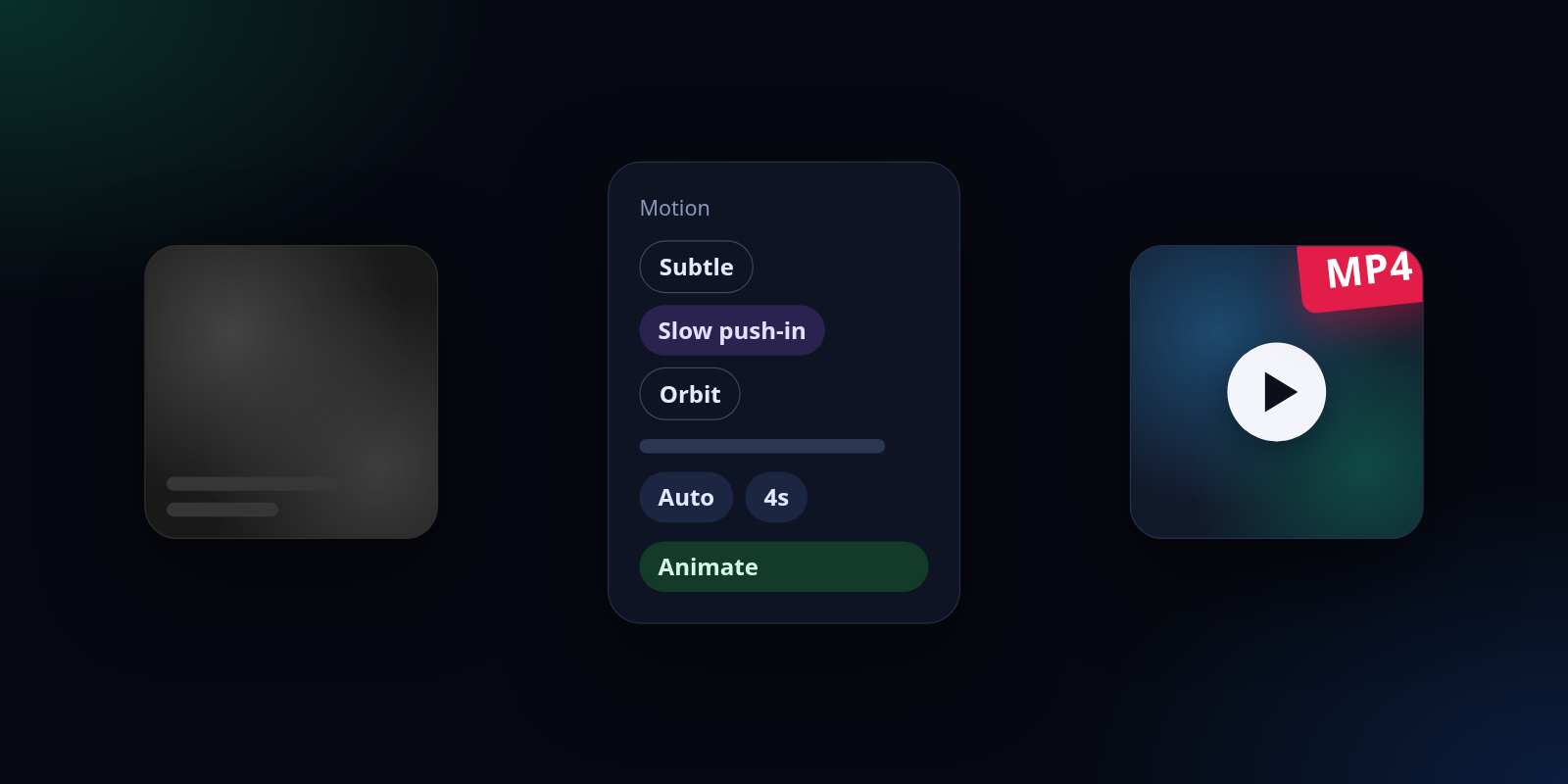
To animate a photo, you give an image-to-video model your still and tell it how the camera and the scene should move. It then renders a short video clip that starts from your picture. In SmileToAI's AI Image Generator it takes five steps. Open the Animate this template and upload Your image. Pick a Motion such as Slow push-in and, if you like, describe what should move. Click Review cost to check the model, the length and the Sparks estimate. Click Animate and wait for the clip. Then download it as an MP4. It also works in the SmileToAI app for iOS and Android.
It is not free per clip, but you can try it on a free account. Each clip costs Sparks, SmileToAI's credits, and the price is shown before you confirm. Our 4-second clip used 1,000 of the 5,000 Sparks a Free account gets each month, and the download had no watermark.
We ran it for this guide on a black-and-white photo of a harbour at dawn: a stone pier, rowing boats, a lighthouse, gulls and mist. We chose Slow push-in with the guidance "The mist drifts slowly across the water, the boats rock gently on their ropes and the gulls glide overhead." We left the model on Auto and the length at 4s. The estimate said 1,000 Sparks, and that is what the run used. Here is the clip exactly as it downloaded, with nothing edited:
The downloaded MP4: 4.04 seconds, 544 x 544 pixels, 1.3 MB. With the model left on Auto, SmileToAI chose one for us (grok-imagine-video in this run).
The photo is not a real old print. We generated it in the AI Image Generator as a 1950s-style black-and-white harbour scene with no people in it, so we could publish both the still and the clip.
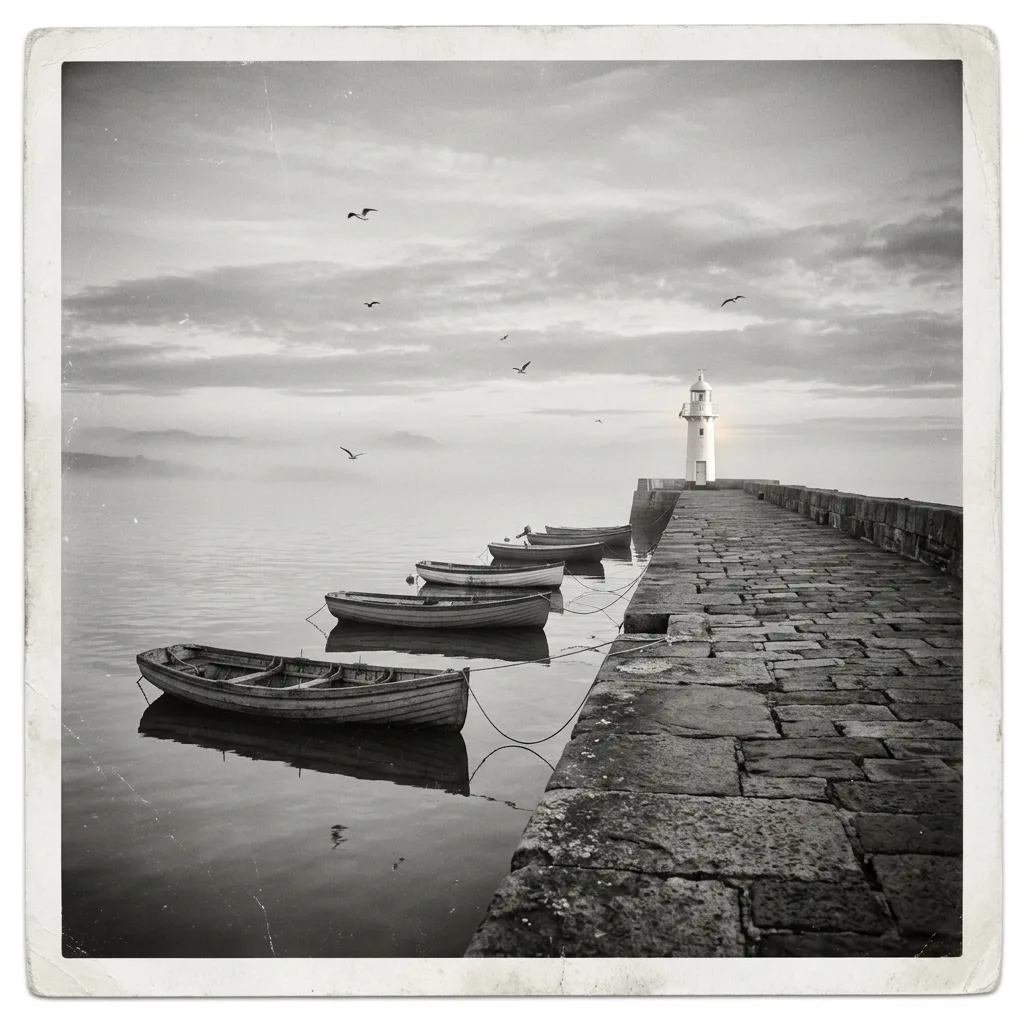
The still we animated, generated in SmileToAI for this guide.
What you'll need
- A photo. A digital photo, a scan of a print or an image you generated. Animate this works on one image per clip.
- An idea of the motion. A camera move (push in, pan, orbit) and what in the scene should move: water, hair, clouds, smoke, leaves.
- A SmileToAI account with Sparks. Clips are priced as video generation, and you see the estimate before anything is spent.
Step 1: Open Animate this and upload your photo
In the AI Image Generator, open Templates and choose Animate this. It turns "a still image into a short video clip with the motion you choose". Under Your image, click Upload image and pick your file. Its name appears next to the button once the upload finishes.
If the picture is already in your gallery, for example an image you just generated, use its Animate image action instead. It opens the same flow with that image, and the finished clip is saved next to the still it came from.
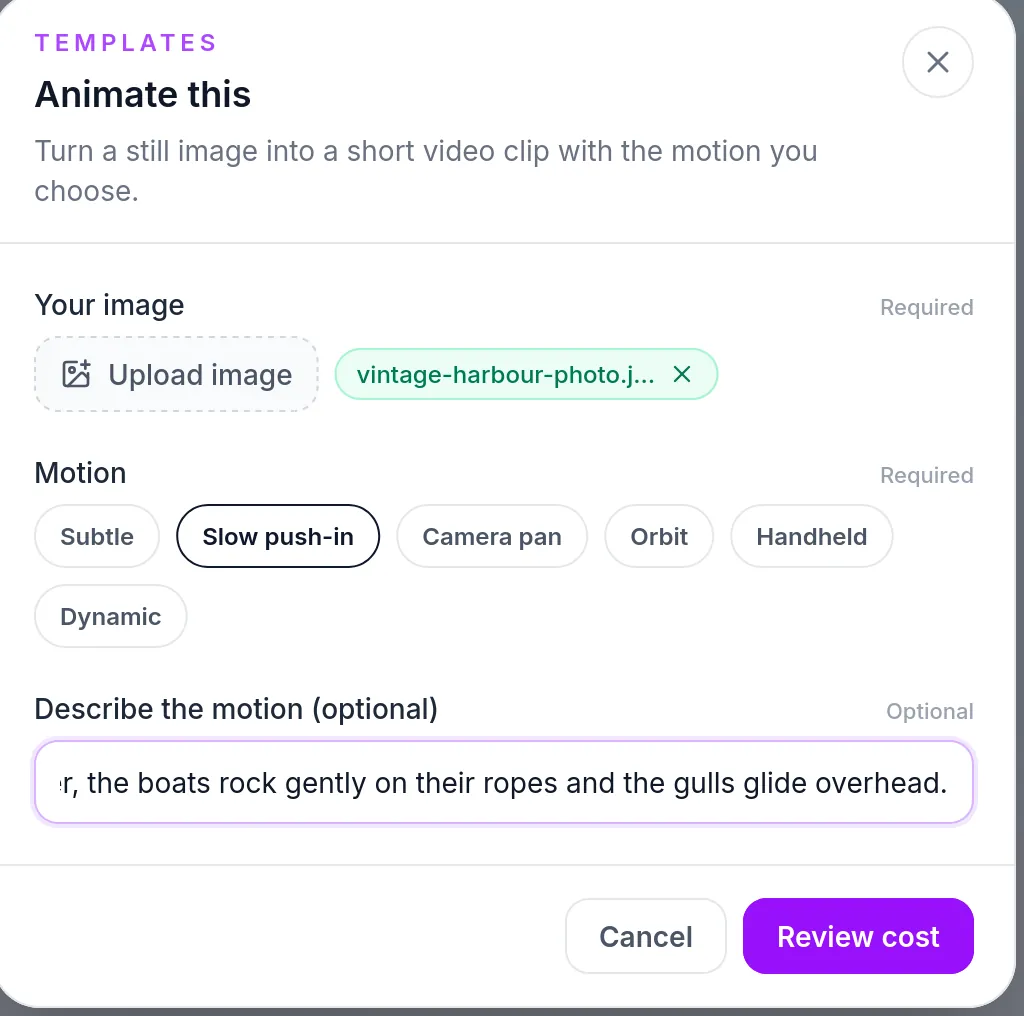
The Animate this form after the upload, with Slow push-in chosen and the motion described.
Step 2: Pick a motion and describe what should move
Motion is required and offers six camera styles. Each one adds its own phrase to the request the model receives:
| Motion | What it asks the model for |
|---|---|
| Subtle | subtle, barely-there motion |
| Slow push-in | a slow camera push-in |
| Camera pan | a steady horizontal camera pan |
| Orbit | a slow orbit around the subject |
| Handheld | loose handheld motion |
| Dynamic | energetic, fast motion |
Describe the motion (optional) is where you say what in the picture should move. The camera move alone only moves the frame. Your description is what gets the water, the birds or the hair moving. Write it as plain sentences about the scene, as in the field's own example: "the curtains sway and candlelight flickers".
SmileToAI builds the request from both. In our run, the clip's details showed this prompt: "Animate the source image with a slow camera push-in motion. The mist drifts slowly across the water, the boats rock gently on their ropes and the gulls glide overhead. Keep the subject consistent, natural movement."
When the form is complete, click Review cost.
Step 3: Check the model, length and cost
The next dialog, Animate this image, sums up your choices and asks you to confirm before anything is spent.
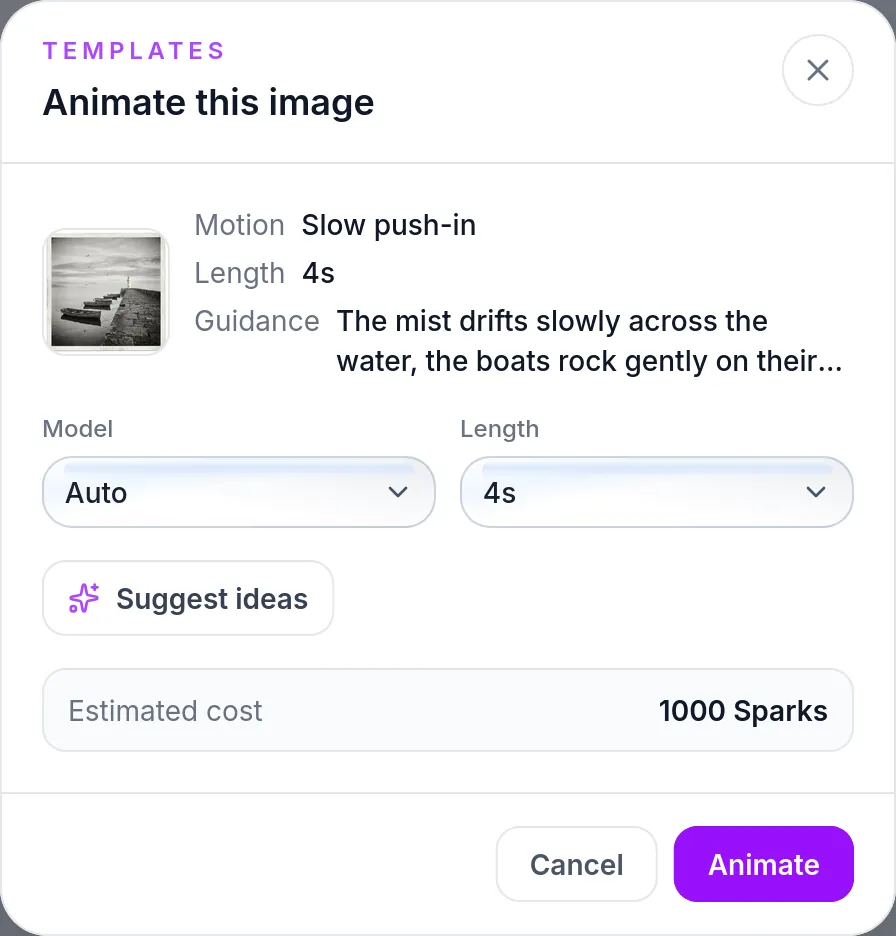
The confirm step: Auto model, 4 seconds, 1,000 Sparks estimated.
- Model. Auto is the "Best available for your plan". You can also pin a specific model. The list is grouped by provider; ours showed Gemini, Grok, ByteDance, KwaiVGI, Pruna AI, PixVerse, MiniMax, Runway and Wan. Premium video models need a paid plan and are marked Upgrade to use.
- Length. The lengths on offer follow the chosen model. With Auto, our run offered every length from 1s to 15s. If you change the model or the length, check the estimate again before you confirm.
- Suggest ideas. Useful when you don't know how the picture should move: it asks the assistant to look at your image and propose a few animation ideas. Each idea you tick renders as its own clip, and the estimate shows the total for all of them.
- Estimated cost. The total in Sparks for every clip in this run.
Click Animate to start.
Step 4: Wait for the clip
While the clip renders, the dialog says the model is animating the still and that this usually takes about a minute. When it is done, the title changes to Your clip is ready.
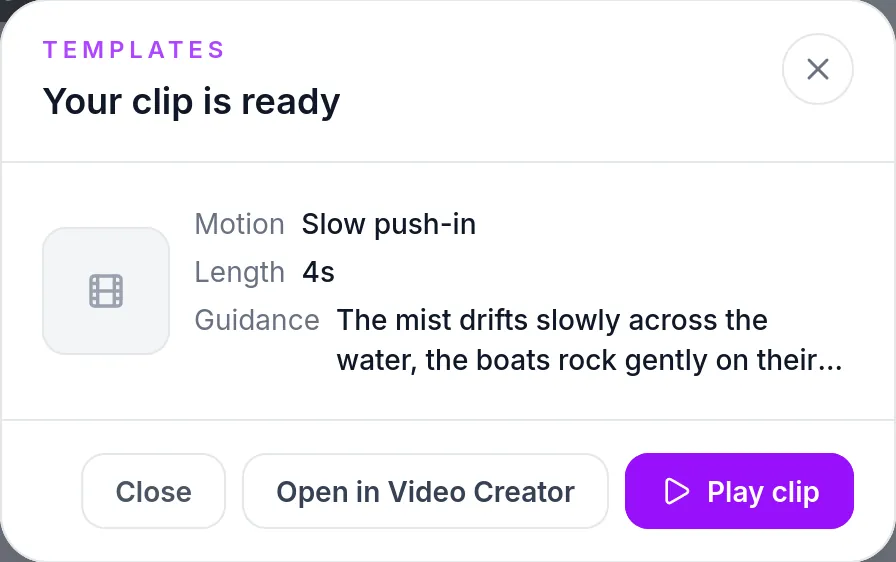
The finished run. Play clip opens the player and Open in Video Creator carries the clip into AI Video Creator.
If the safety filter blocks a clip, the dialog says so instead. Change the guidance or pick a different image, then animate again.
Step 5: Play and download the clip
Back in the gallery, the photo now carries a Video badge. The clip is stored as a new version of the image, so the still and its animation stay together.
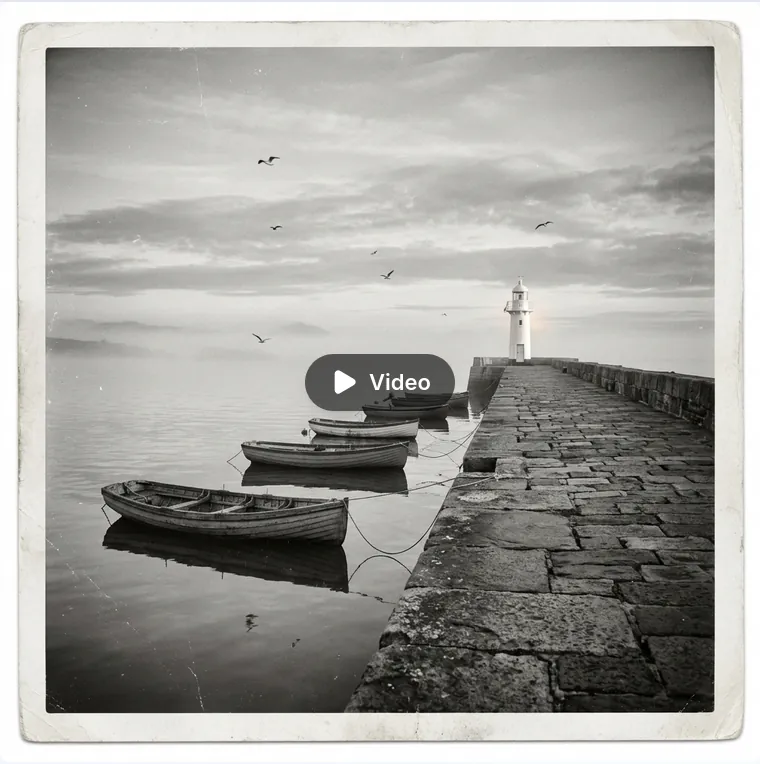
The gallery tile after the run, marked Video.
Click the badge to open the player. Underneath the clip you see a Source tile for the still, Clip 1 with the model name and length, and an Animate again tile for another take with a different motion or description. Click Download at the top to save the clip as an MP4.
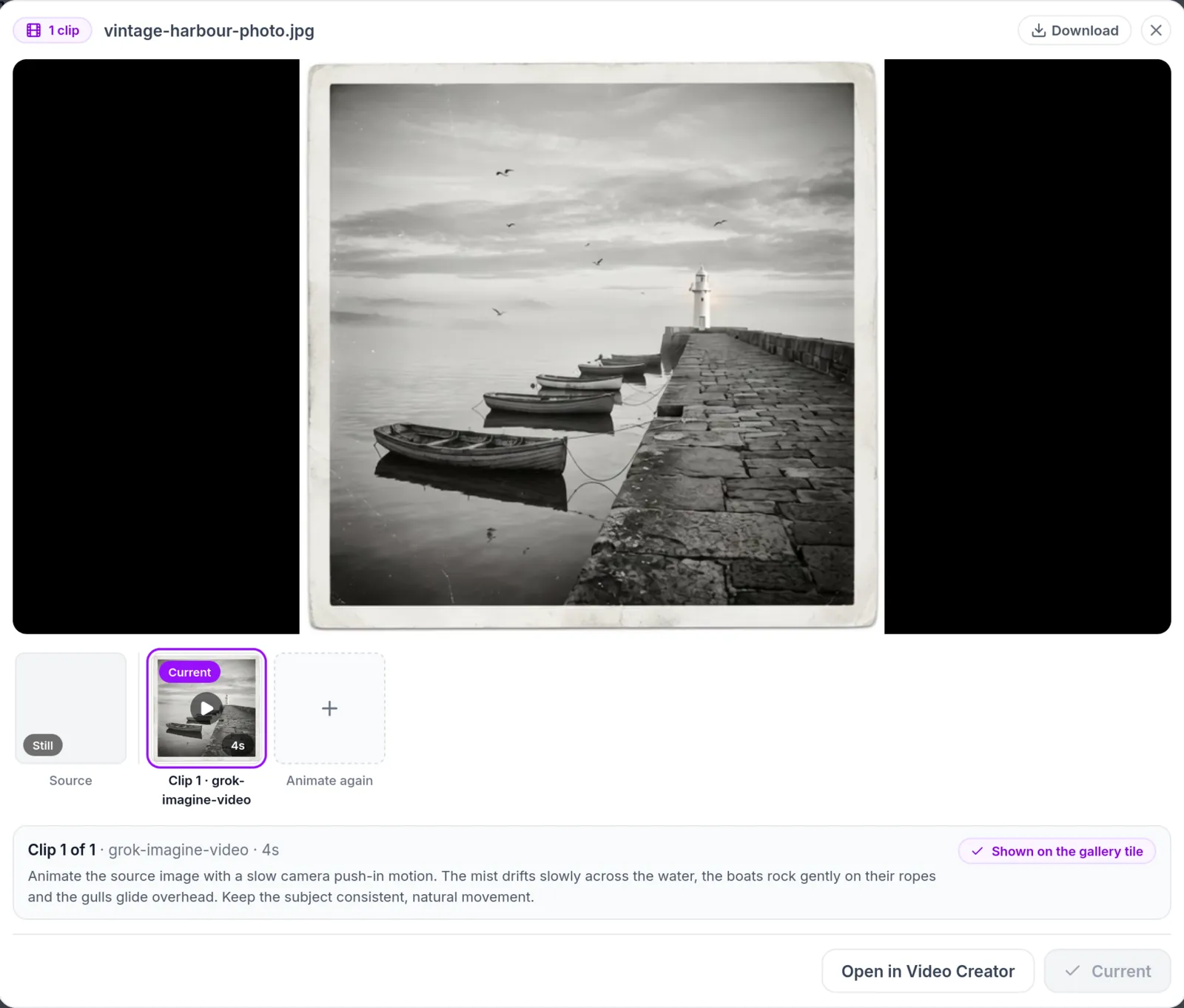
The player, with the prompt the run used and the Download button at the top right.
Our download was a 4.04-second H.264 MP4 at 544 x 544 pixels and 24 frames per second, with a quiet audio track, 1.3 MB in all. The clip kept the square shape of the source photo.
How to animate old photos
Old family photos are the most common thing people want to animate, and the same steps apply. A few extra moves help:
- Make a clean digital copy. Scan the print, or photograph it flat in even light without glare. The model animates what it sees, dust and creases included.
- Repair it first if it needs it. The restore old photo tool, free to try, removes scratches and adds natural color in one pass. Our guide on how to colorize black and white photos walks through it. Then animate the restored copy, or keep the original black-and-white look as we did.
- Start with a calm motion. Subtle and Slow push-in ask the model for the least change. That is usually what you want for a portrait you care about. Describe small, natural movements such as "she blinks and smiles slightly" rather than big actions.
- Run more than one take if the first one is off. Animate again keeps every clip next to the same still, so you can compare takes and keep the best one.
Only animate photos you have the right to use, and be thoughtful with pictures of real people.
What it costs
Animating a photo is not free: clips are priced as video generation and paid in Sparks, SmileToAI's credits. The price depends on the model and the length you choose, and the Estimated cost shows it before you click Animate. Our 4-second clip with Auto cost 1,000 Sparks on a Free account, and the balance dropped by exactly that much. The Free plan includes 5,000 Sparks a month. If you tick several ideas from Suggest ideas, each one is a separate clip, and the estimate shows the total.
What Animate this doesn't do
- One image per clip. Each clip starts from a single source image.
- Short clips, not finished videos. For a longer, multi-shot or narrated video, click Open in Video Creator and keep working in AI Video Creator. Our guide on making AI videos from text covers that kind of project.
The same feature is in the SmileToAI app for iOS and Android, so you can animate a photo from your phone too. For a quick overview of the tool itself, see the image to video page.
The short version
- In the AI Image Generator, open Templates, choose Animate this and upload Your image.
- Pick a Motion and describe what should move.
- Click Review cost and check Model, Length and Estimated cost.
- Click Animate and wait for Your clip is ready.
- Open the clip from the gallery and click Download for the MP4.
FAQ
How do I animate a photo with AI?
In SmileToAI's AI Image Generator, open the Animate this template (or use the Animate image action on an image already in your gallery), upload Your image, pick a Motion such as Slow push-in, optionally describe what should move, and click Review cost. Check the Model, Length and Estimated cost, then click Animate. The finished clip opens in a player where you can download it as an MP4.
Can I animate an old photo?
Yes. Scan or photograph the print, upload it to Animate this, and choose a calm motion such as Subtle or Slow push-in. If the print is scratched or faded, you can repair and colorize it first with SmileToAI's restore tool and animate the restored copy.
How long is the clip?
You choose the Length before you confirm. The lengths on offer follow the model: with Auto selected, our run offered every length from 1 to 15 seconds. Our test clip was set to 4 seconds and the downloaded file runs 4.04 seconds.
Is animating a photo free?
No. Clips are priced as video generation and use Sparks, SmileToAI's credits, and the estimate is shown before you confirm. Our 4-second clip with the Auto model cost 1,000 Sparks on a Free account. The Free plan includes 5,000 Sparks a month.
Can I make a longer video from my photo?
Animate this makes one short clip from one image. For a longer, multi-shot or narrated video, click Open in Video Creator on the finished clip and keep working in AI Video Creator.
Can I animate a photo on my phone?
Yes. The SmileToAI app for iOS and Android can animate an image from the AI Image Generator too.