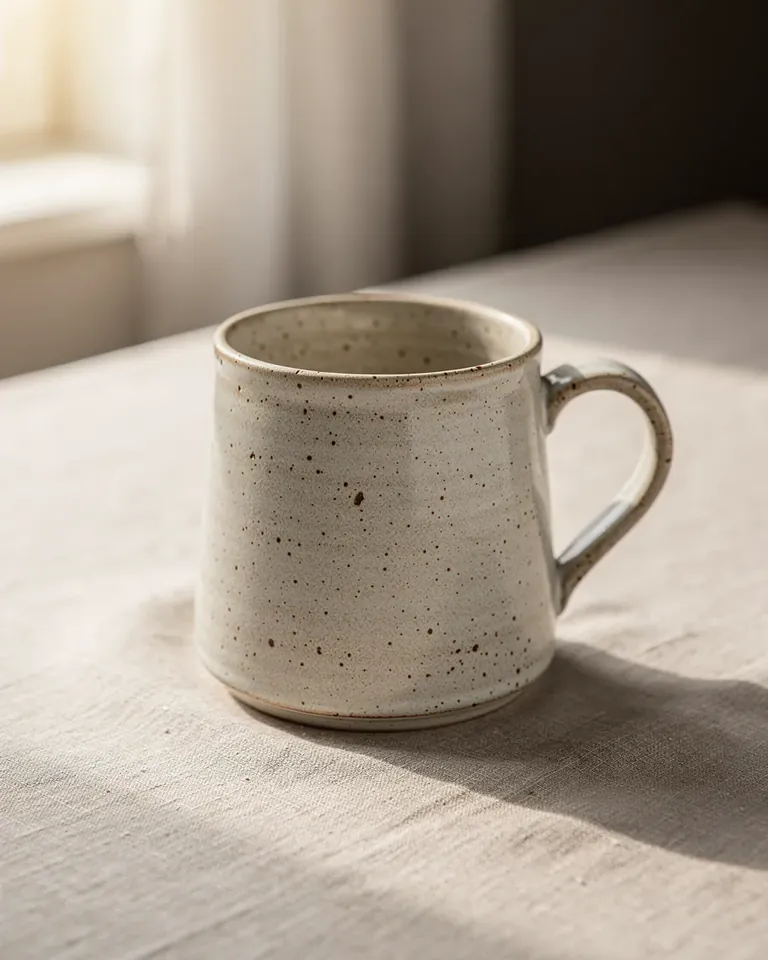
- What was asked
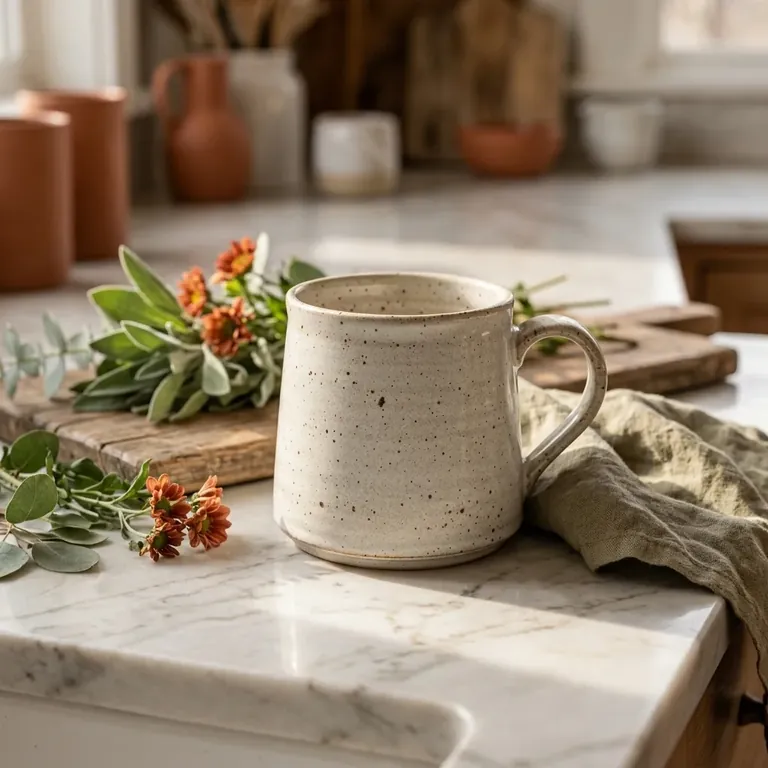
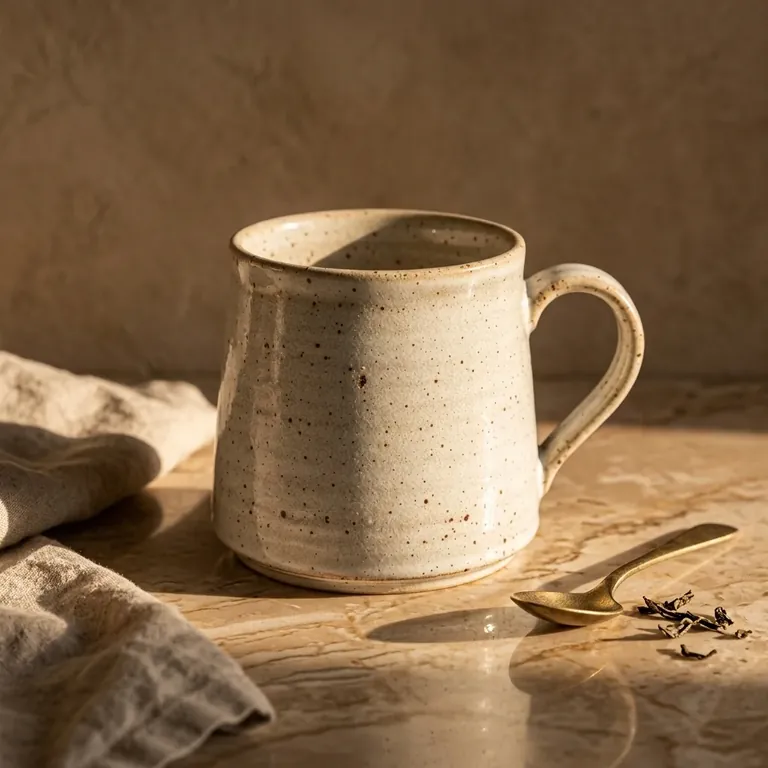
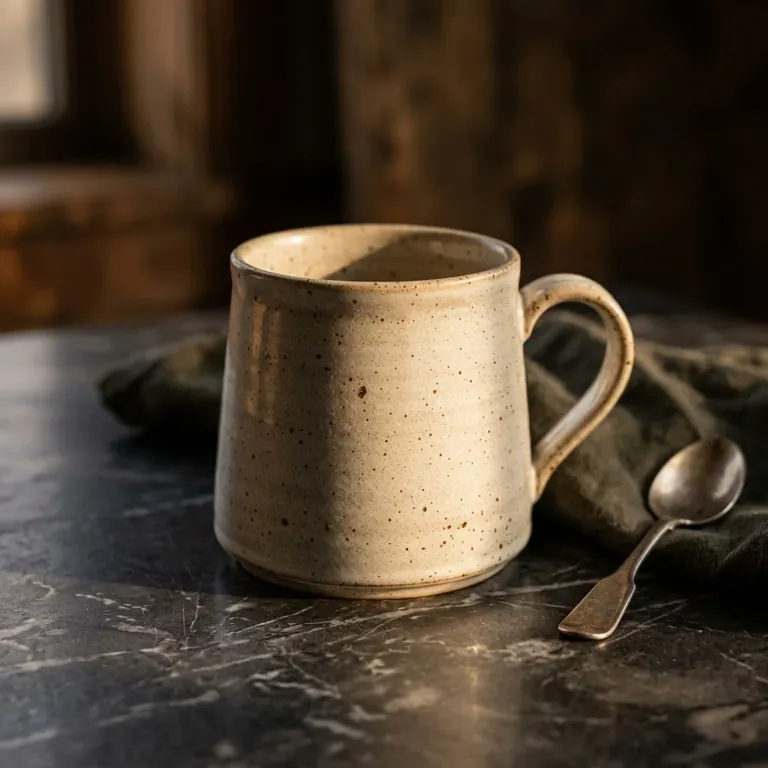
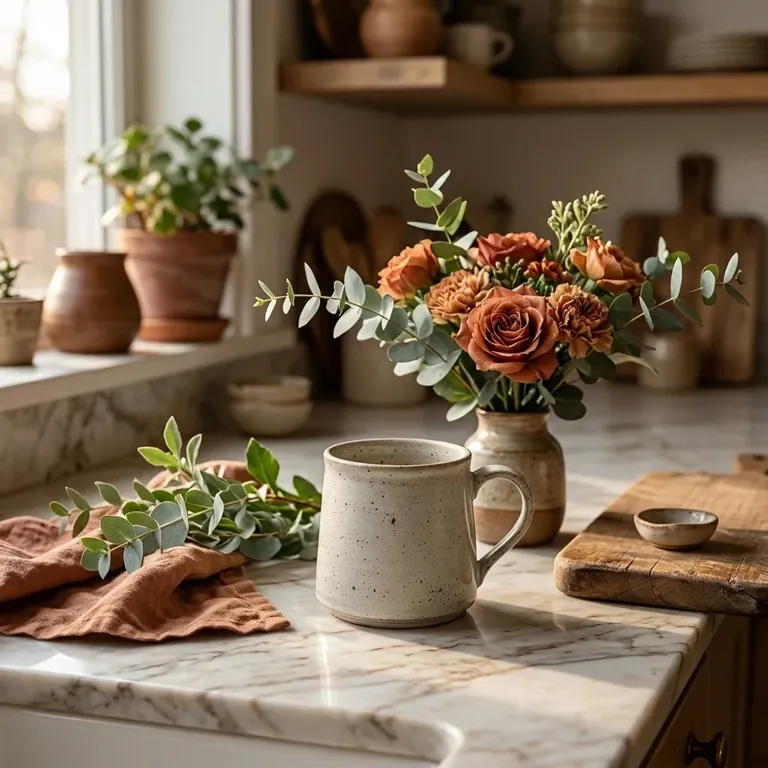
- Studio and lifestyle pictures of a handmade ceramic mug, made from an AI-made product picture.
- Settings
- Scene: Marble surface, two ideas with two variations each, square
- Charged
- 1,045 Sparks
Upload one product photo and get e-commerce ready studio and lifestyle shots on new backgrounds. Colors and proportions stay true to the product.
Every example on this page was made in SmileToAI.
 What went in
 and the images one run made.
Add what it asks for: a photo, a few words, a script or a style.
Each run shows its price before it starts.
Run it, then change a choice and run it again whenever you like.
In every plan, Free included. Each run shows its price before it starts. The assistant's questions and suggestions before the images are charged on top of the image price.
See plans and SparksAbout 200 Sparks an image. You see the price of the images before they are made. The assistant's questions and suggestions before the images are charged on top.
Every plan, the Free plan included.
A picture, uploaded or picked from your Library.
Finished images, ready to download or to change with the assistant.
The images appear in your conversation in AI Image Generator.
Yes. You own what you make from your inputs and can use it for any purpose, commercial use included. Results may not be unique: similar content can be made for other people. Use only inputs you have the right to use, and check results before you publish them.
Yes, and it does by default: the product is cut out before the new shots are made. Turn it off to keep the photo as it is. The cut-out is billed as its own image edit.
Leave the scene on Auto. The assistant looks at your product and proposes at least five studio and five lifestyle ideas. Pick the ones you like, or let it choose: the ideas you pick decide how many pictures you get.
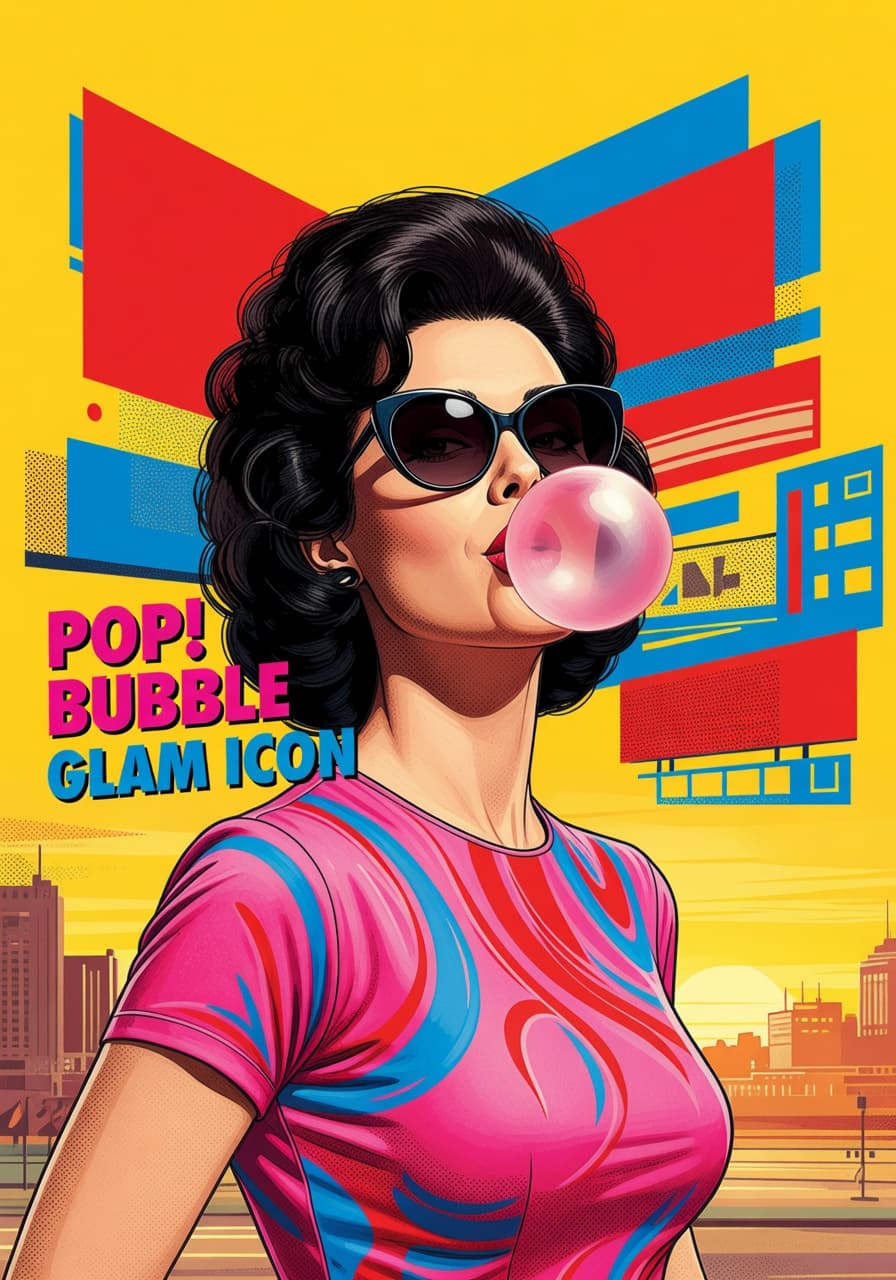 TemplateSocial media postDesign a scroll-stopping post graphic with guided help.You bring a prompt
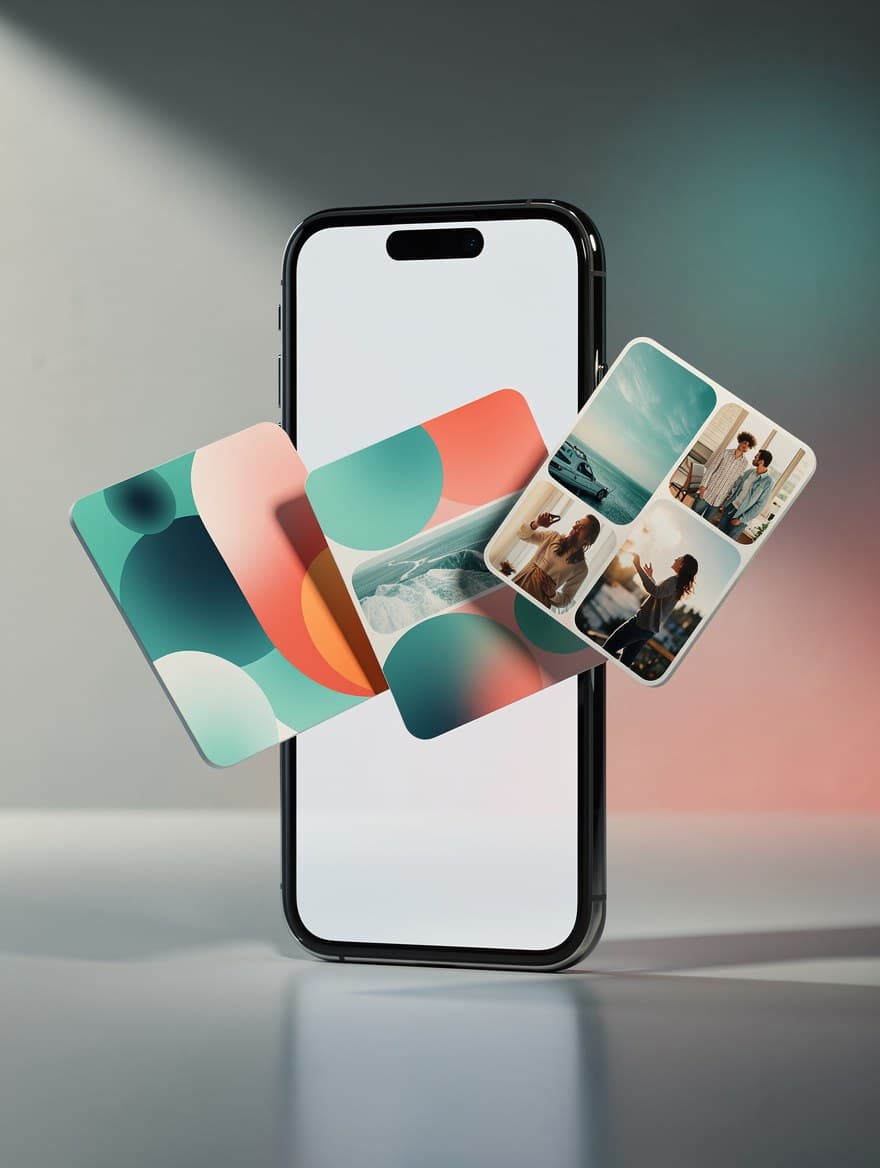 TemplateCarouselTurn one topic into a consistent multi-slide carousel.You bring a prompt
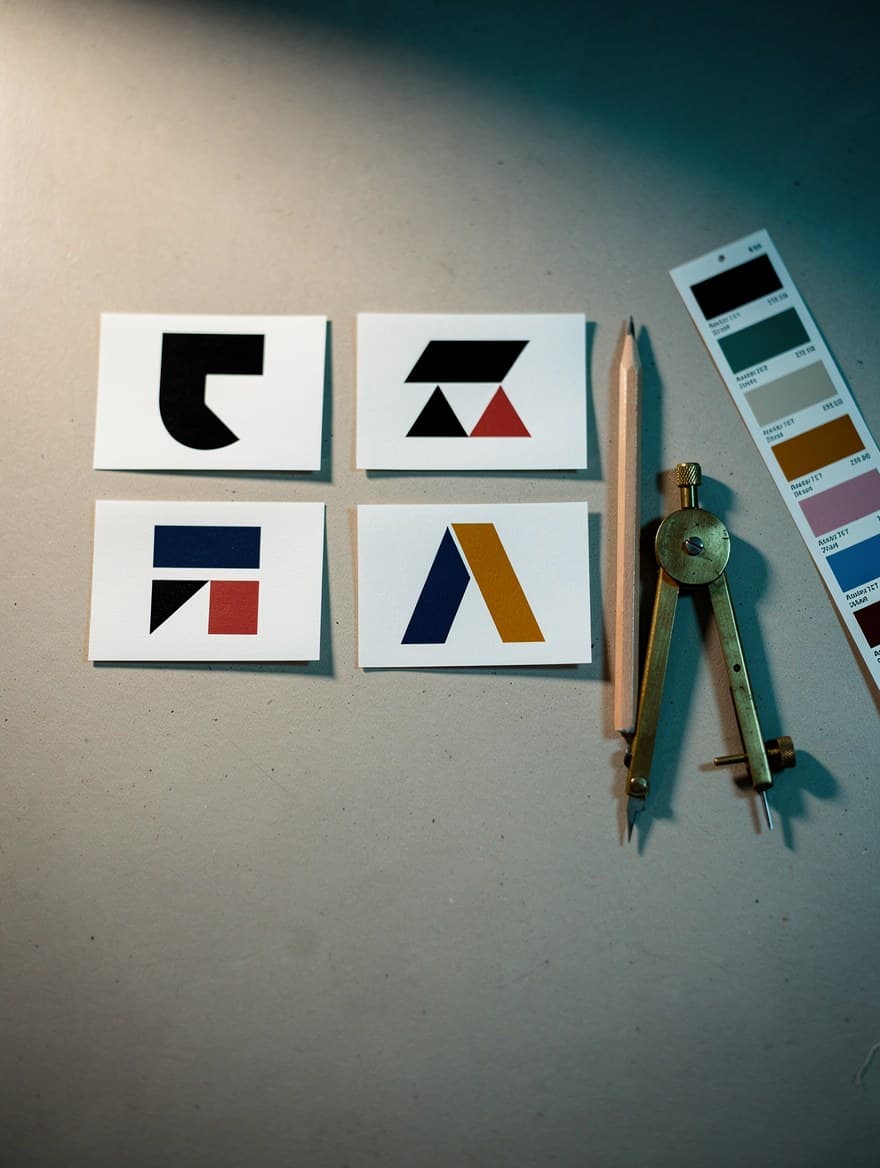 TemplateBrand logo conceptsExplore logo directions for your brand with guided help.You bring a prompt
 TemplateOn-brand ad creativeTurn a photo of your product, your space or your service, a headline, and your brand kit into ad creatives for every placement.You bring an image, a prompt
 TemplateYouTube thumbnailType your video title, add a photo of yourself if you like, and get 16:9 thumbnails with large, readable text.You bring an image, a prompt
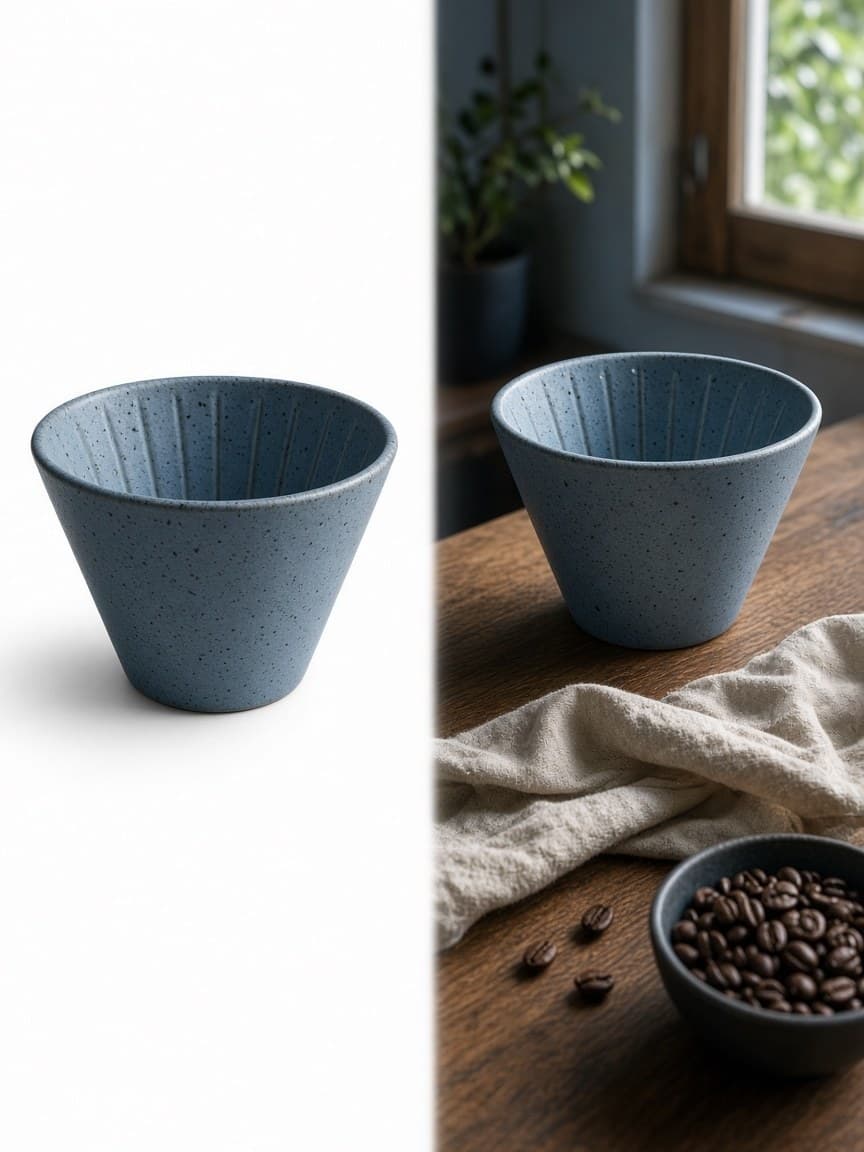 TemplateMarketplace listing photosTurn one product photo into square listing images in the look Amazon, Etsy or eBay buyers expect.You bring an image