
To turn a script into a video with AI, cut the script into short shots, generate one clip per shot, have an AI voice read the script over them, add captions, and export everything as one file. In SmileToAI's AI Video Creator, one assistant does all of that in a single run: paste your script into its chat, ask it to keep your narration word for word, and choose Step-by-step before you confirm. The run then stops after each stage (script, pictures, voice, clips, captions, export) so you can check it before anything more is spent, and you download one finished video at the end. Every scene is newly generated footage; there is no stock library and no on-camera presenter.
We ran this guide on a three-line script about making morning coffee. The assistant kept all three lines word for word, and the result was a 19-second landscape video (1920×1080) with narration and burned-in captions. It used 3,770 Sparks, SmileToAI's credits, plus 50 for the request message. That fits inside the 5,000 Sparks the Free plan gives each month, and works out to about $2.40 at the Plus plan's rate of $19 for 30,000 Sparks. Every screenshot below comes from that run.
What you'll need
- A finished script. Plain sentences in the order they should be heard. The wording you want spoken should be settled.
- A SmileToAI account with enough Sparks. The Free plan includes 5,000 Sparks a month; Plus ($19/month) includes 30,000, Pro ($49) 100,000 and Team ($129) 300,000.
- A target shape: Vertical (9:16) for Shorts, Reels and TikTok, Square (1:1) for feeds, or Landscape (16:9) for YouTube and websites.
- Optional pictures of a product, a mascot or a place that should appear in the video. An uploaded picture becomes a subject; you can use it unchanged or have a new picture generated from it.
Step 1: Cut the script into shots before you paste it
AI video models render short clips, so your script becomes a sequence of shots. Doing the cutting yourself decides where each picture changes.
Two limits shape the cut. SmileToAI paces narration at 2.55 words per second and fills about 85% of each shot, so a 6-second scene holds about 13 words. And one run covers up to 24 scenes and 600 seconds, so a 300-word script becomes a dozen or more short shots, not one long clip.
Mark a break wherever the picture should change: a new idea, a new place, a new object on screen. Then check each piece against the pacing rule. At 2.55 words per second with 85% fill, a line needs about:
| Shot length | Words that fit |
|---|---|
| 4 seconds | about 8 |
| 6 seconds | about 13 |
| 8 seconds | about 17 |
| 10 seconds | about 21 |
A line that runs long doesn't just sound rushed. The pipeline lays one continuous voiceover over the cut sequence, so an overlong line pushes every later line onto the wrong shot. If a sentence is too long for one shot, split it across two scenes.
Our test script had three lines of 14, 14 and 11 words, planned as three 6-second scenes, so the first two were already one word over budget:
- Every morning starts the same way: the kettle, the grinder, and a quiet kitchen.
- Fresh beans, ground coarse, go into the press. Four minutes is all it needs.
- Then the first cup, by the window, before the day begins.
In the export the first clip came back about 8 seconds long instead of 6. The voiceover runs continuously, so lines 2 and 3 each started about a second before their pictures did. Play the clips against the narration before you approve them.
Next to each line, note what the viewer should see. "Hands pouring ground coffee into a French press" gives the video model far more to work with than "the coffee".
Step 2: Paste the script into the canvas assistant
Open AI Video Creator and start an empty canvas. The assistant chat sits beside it.
- Optionally open Add brief above the composer and fill in Campaign goal and Audience.
- Paste your script and say exactly what you want. Ours was: "Make an 18-second landscape video from this script. Keep my narration word for word, one scene per line, three scenes", followed by the three lines and "Show hands and objects only, no faces."
- The assistant drafts the production pipeline and opens the cost card. Nothing has been generated yet.
Each message to the assistant costs Sparks, like a Chat message; our request took 50. The assistant also saves the details you give it to the brief, so check the Brief fields afterwards: in our run it rewrote the Campaign goal from the request and left Audience empty.
Step 3: Check the cost card and choose Step-by-step
The cost card is your one confirmation for the whole run. Read it top to bottom:
- Video shape: Vertical, Square or Landscape. Every frame, clip and the export use it.
- Video quality: Standard (P-Video) or Premium (Gemini Omni Flash), each with its total. Ours showed 3,470 Sparks for Standard and 16,670 for Premium; Premium needs a paid plan.
- Video model: Standard (default), or another model your plan allows.
- Execution mode: Run automatically or Step-by-step.
- What you're approving: every stage with its estimate. Reference images, Scene frames, Voiceover and Captions have a checkbox, so you can skip one and lower the cost.
- Burn captions into the video: otherwise captions download as a .srt file.
- Spend cap: the most the run may spend.
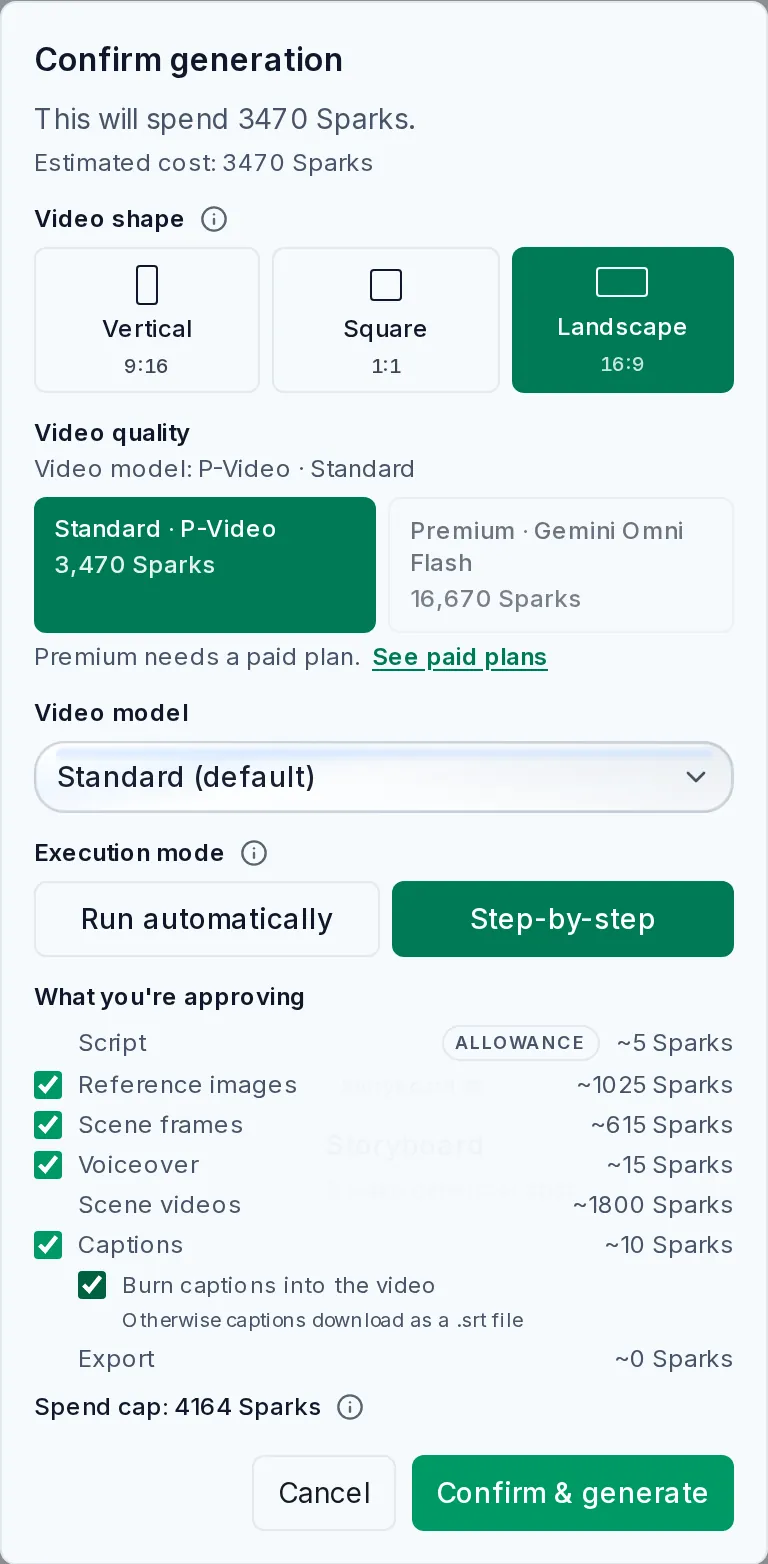
Our cost card: Landscape, Standard P-Video, Step-by-step, captions burned in. Per-stage estimates add up to 3,470 Sparks; the cap is 4,164.
For a script you care about word for word, choose Step-by-step. Run automatically chains every stage without stopping. Step-by-step pauses after each stage so you can review, edit or regenerate before the next one spends Sparks.
If the estimate is more than your team has, the card says so and won't start. It offers Top up Sparks or Make it fit, which asks the assistant for a smaller plan.
Press Confirm & generate. The run continues in the background, a Production pipeline panel beside the chat shows each stage with its Sparks, and a card per stage appears on the canvas.
Step 4: Check your words in the Script stage
The Script stage is the storyboard: one scene per shot, each with a title, a prompt, a frame prompt, a duration in seconds, the entities it shows, and its narration. Everything downstream is built from it.
Open the Script card and select Review. Compare each Narration field with your script. In our run all three lines came back exactly as written, because the request asked for that. If yours don't:
- Narration. Type your exact sentence into the field. Add narration line adds another line to a scene.
- Scenes. Add scene adds a shot; the arrows reorder scenes and the bin removes one.
- Prompts. Rewrite a scene's prompt with your "what the viewer sees" notes: framing, action, light.
You can also type into Ask the assistant to change the script, for example "make scene 3 a close-up".
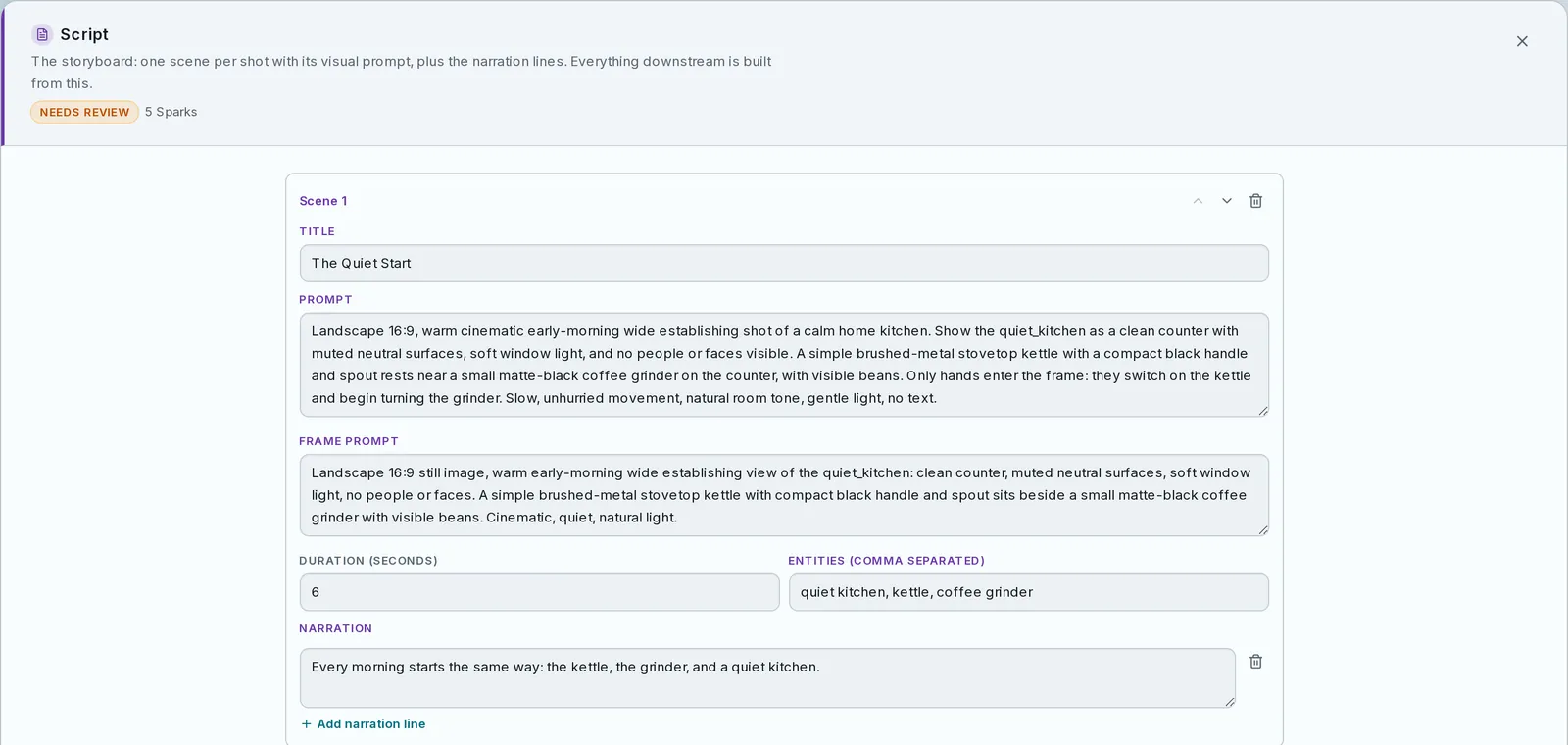
Scene 1 in the Script stage. The narration is our first line, unchanged; the prompts and the three entities were written by the assistant. This stage cost 5 Sparks.
When the storyboard reads like your script, select Approve.
Step 5: Review the subjects, the voice and the frames
Each next stage stops on Needs review. In our run, Reference images and Voiceover were both waiting once the script was approved.
Reference images. One picture per recurring subject, a character, a place or an object, so it looks the same in every scene. The assistant found five subjects in our script: the kitchen, the kettle, the grinder, the press and the cup. You can upload your own picture for a subject, pick one from your assets, or add a subject.
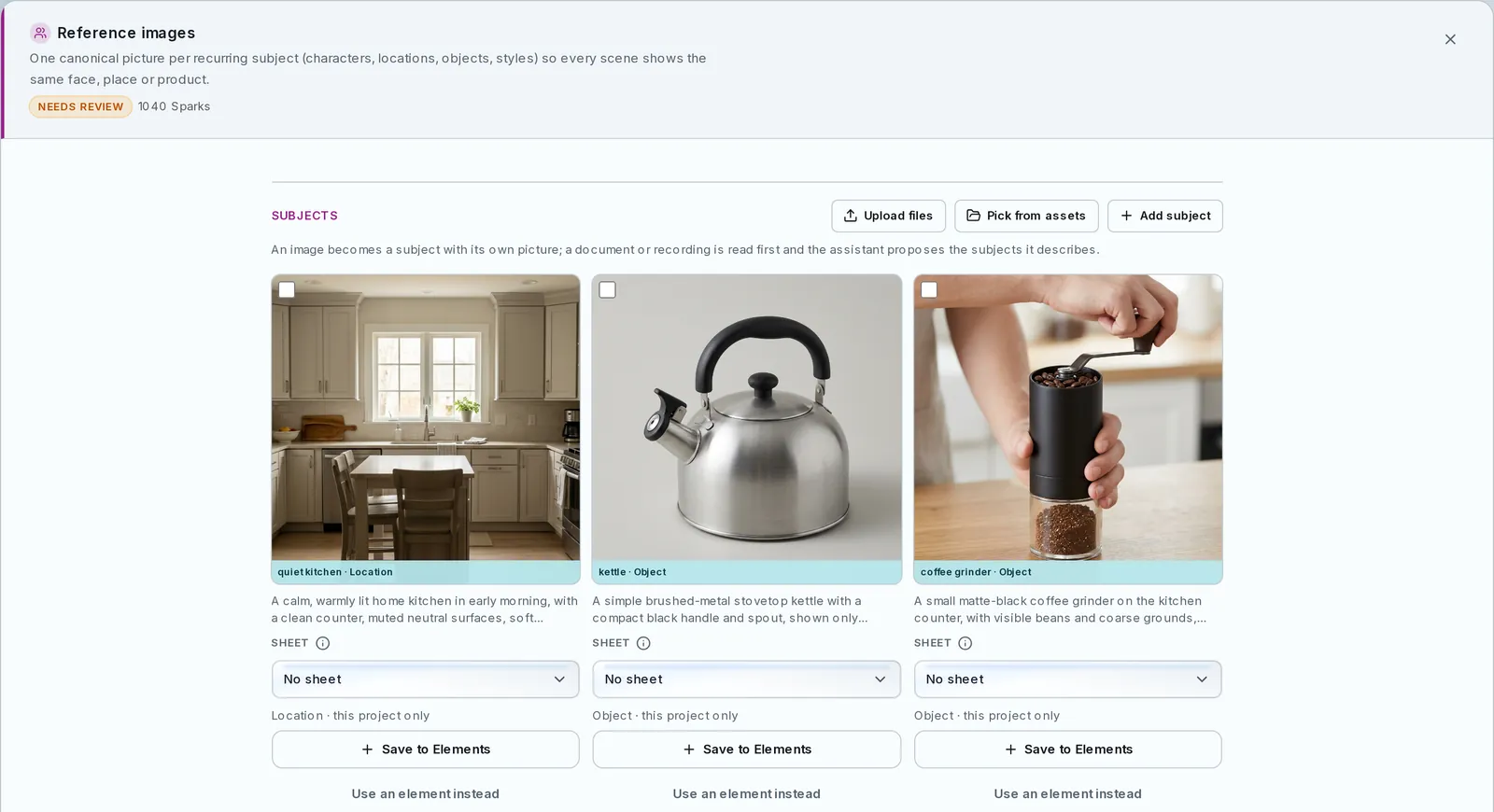
Three of the five subjects the assistant pulled from the script. This was the largest stage after the clips: 1,040 Sparks.
Voiceover. Your narration, read in one voice. The sheet lists every line, has a voice picker, and offers Edit in script to fix a word at the source and Regenerate to render it again. Characters marked as speaking keep their own voice. Ours cost 20 Sparks.
Scene frames. One still per scene: the opening frame the clip stage will animate. This is the cheapest place to catch a wrong look. Tick a frame and use Regenerate selected before any clip is paid for. Ours cost 700 Sparks for three frames.
Changing an earlier stage marks the later ones outdated, so you can update them together instead of starting over.
Step 6: Generate the clips, check the captions, export
Scene videos animates each frame into its clip with the model from the cost card. Ours took 2,000 Sparks for three P-Video clips. Play each one; tick any that drifted and use Regenerate selected, or pick another model for the next run of the stage.
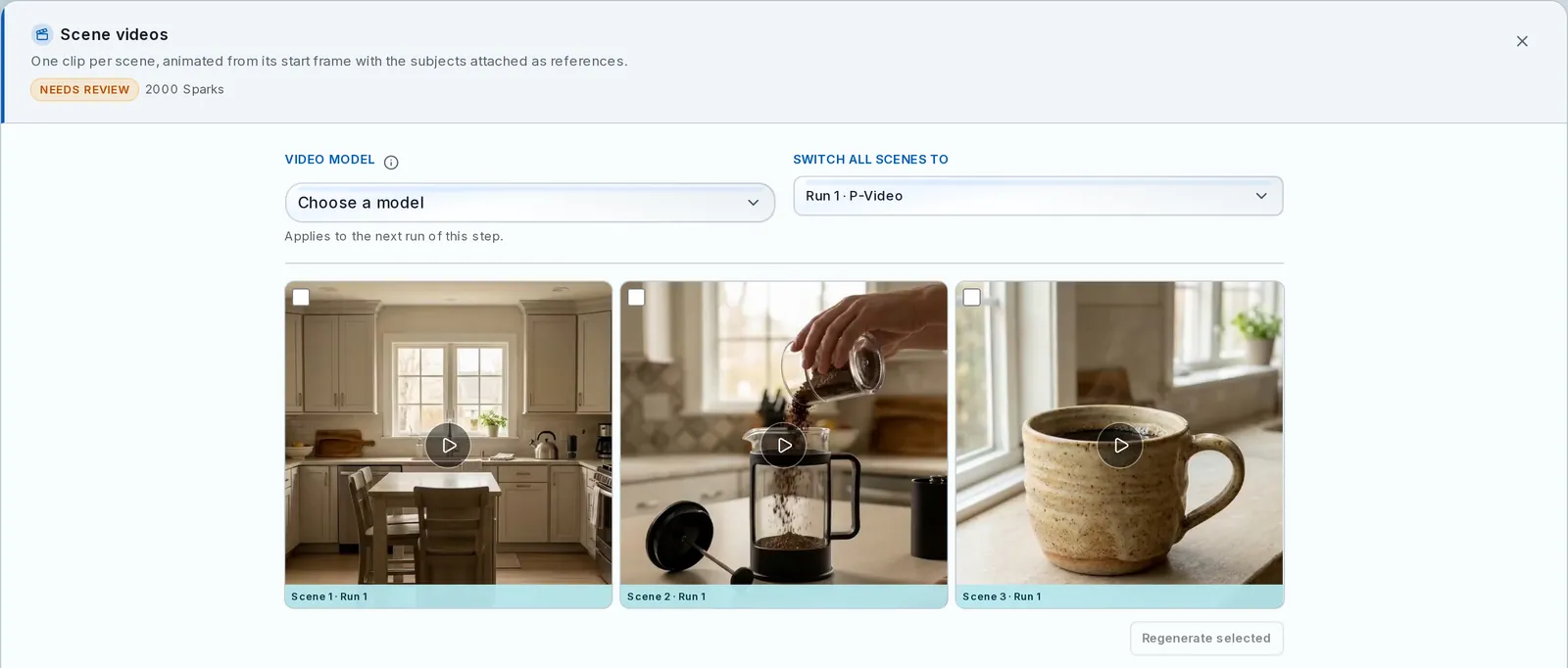
The three scene clips, one per script line, ready for review.
Captions transcribes the finished voiceover into timed cues. Read them before you approve, because they are a transcription of the audio, not a copy of your script. Ours heard "ground coarse" as "ground course", wrote "Four minutes" as "4 minutes" and "Then the first cup" as "In the 1st cup". The sheet has no text fields for the cues. Regenerate from voiceover transcribes the audio again, and you can untick Burn captions into the video there if you would rather not burn them in.
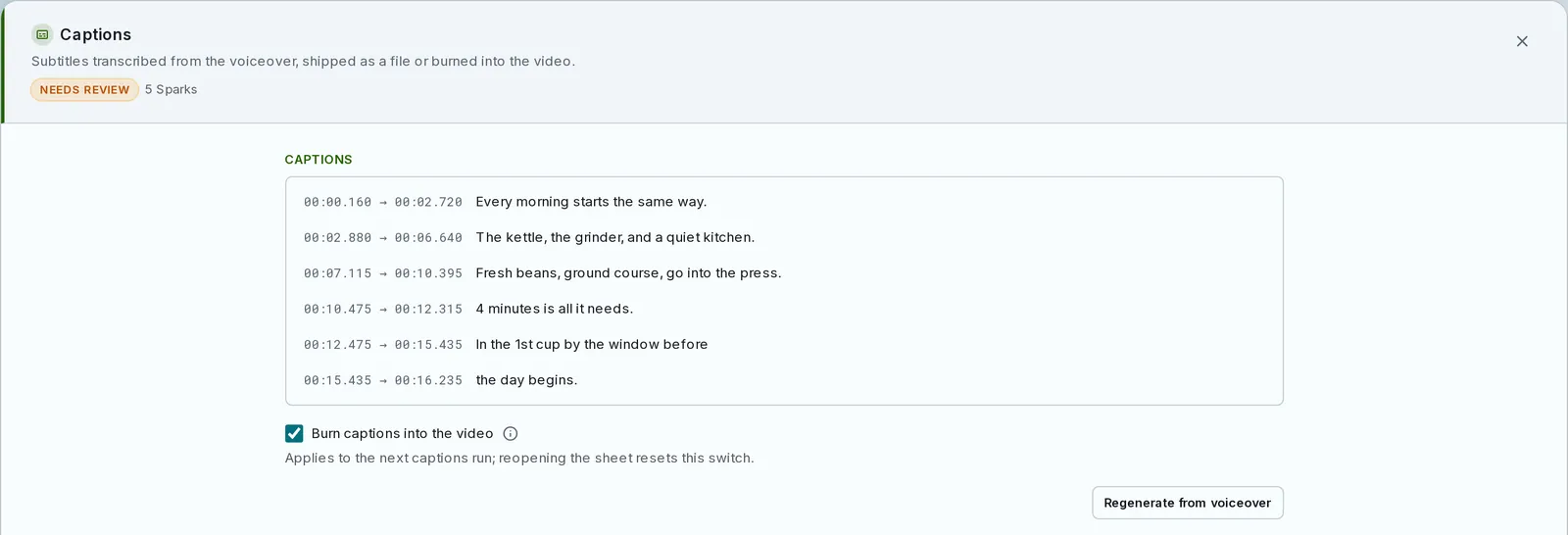
The transcribed cues from our run. Three of the six differ from the script in wording.
Export stitches the clips in storyboard order with the voiceover and captions. The sheet lists the clips it used and has a player, Render again and Download. Approve it, download the file, and upload it wherever it is going.
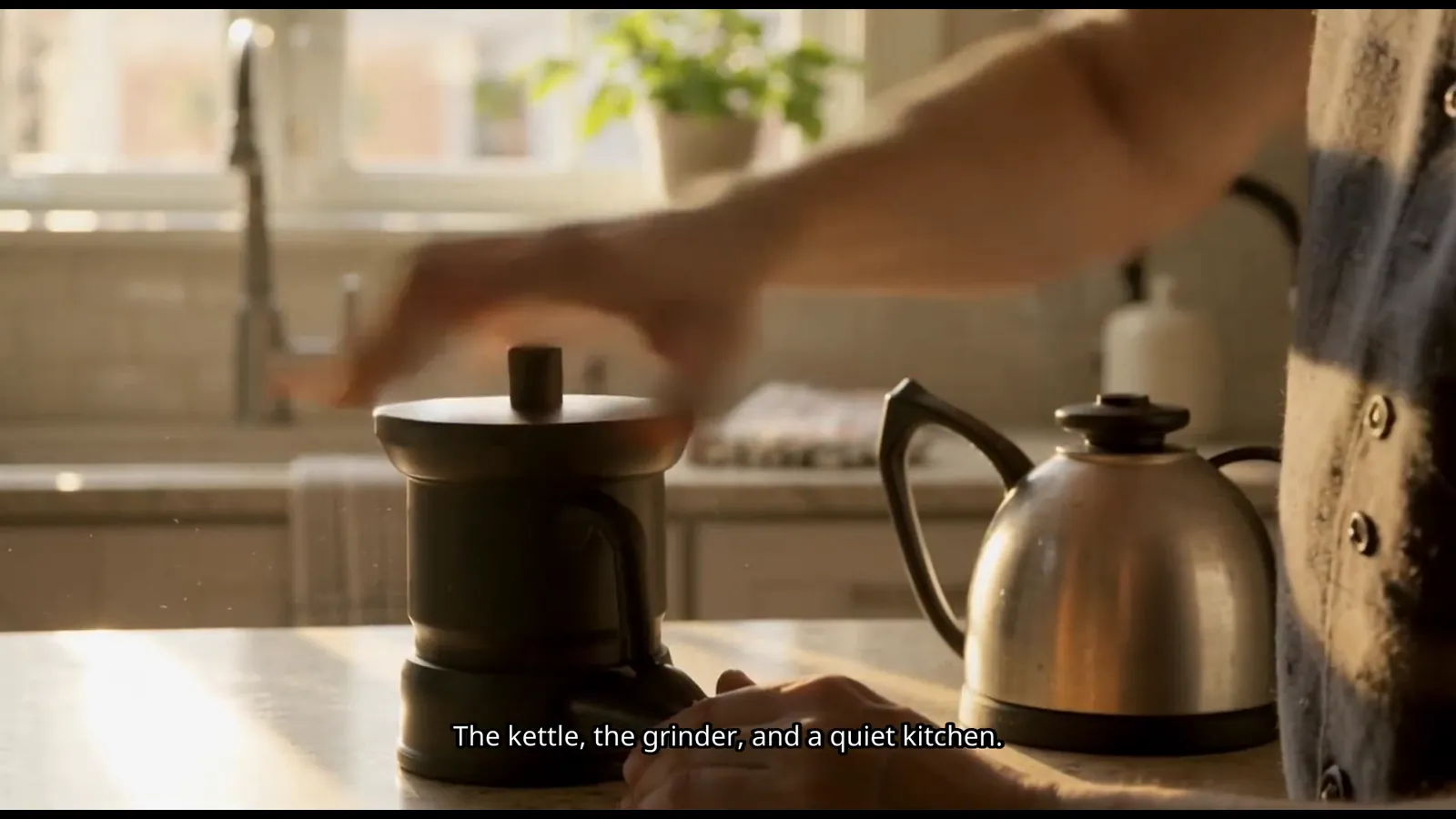
A frame from the finished 1920×1080 export, 4.5 seconds in, with the burned-in caption.
Our finished run used 3,770 Sparks against the 3,470 estimate, under its 4,164 cap. If a run reaches the cap, runs low on Sparks, or needs a model your plan can't use, it pauses instead of overspending. Raise cap & resume or a model switch picks it up where it stopped.
Tips for a script that turns into good video
- Say "word for word" in the request. It is the difference between your narration and a rewrite.
- Write for the eye. Viewers can't see "our commitment to quality". Give each line something visible: an object, a place, an action.
- Name recurring subjects the same way every time, so the pipeline treats them as one subject with one reference picture.
- Fix the look at the frame stage. Each clip is animated from its frame, so a frame regenerated early costs far less than a clip regenerated late.
- Watch for words that sound alike. Captions come from the audio, so "coarse" and "course" can swap. Read the cues before approving.
Common mistakes to avoid
- Choosing Run automatically for a script you care about. You only see the result once every clip is paid for.
- Packing paragraphs into one scene. One scene is one generated clip, and a long line spills its narration onto the next shot.
- Expecting an on-camera presenter. SmileToAI generates scenes, not a talking avatar reading your script; Speaking Head Video is not available yet.
- Choosing the shape last. The Video shape is set on the cost card and every frame and clip is rendered at it.
Wrapping up
Script-to-video works best when the script is already a shot list: short lines, one picture each, in the order they should be heard. In SmileToAI's AI Video Creator, you paste that script into the canvas assistant, confirm one cost card with a spend cap the run pauses at, check your words in the Script stage, and approve each stage before the next one spends Sparks. Our three-line test came out as a 19-second landscape video with narration and burned-in captions for 3,770 Sparks.
If you only need the voice, without generated footage, Narration Studio turns the same script into an AI voiceover you can lay over your own footage. Our guide to adding AI voiceover to YouTube videos covers that route.
FAQ
Can AI make a video from my exact script, word for word?
Yes. Ask the AI Video Creator assistant to keep your narration word for word, one scene per line, and choose Step-by-step on the cost card. The run then stops at the Script stage, where every narration line is an editable field, and nothing else is generated from it until you approve.
How long can a script-to-video run be?
One pipeline plan covers up to 24 scenes and up to 600 seconds (10 minutes). Each scene is one generated clip, so a long script becomes many short shots.
How many words fit in one scene?
SmileToAI paces narration at 2.55 words per second and fills about 85% of each shot, leaving the end of the shot quiet. That works out to about 13 words for a 6-second shot and 17 for an 8-second one. Longer lines push later narration onto the wrong picture, so split them into more scenes.
Does it use stock footage or an AI presenter?
Neither. Every scene is new footage generated from that scene's prompt, animated from a generated opening frame. There is no stock library and no talking avatar presenter; talking-head video (Speaking Head Video) is a separate SmileToAI product that is not available yet.
Can I get subtitles?
Yes. The Captions stage transcribes the finished voiceover into timed cues. On the cost card you choose whether to burn them into the picture; otherwise they download as a separate .srt file. Read the cues before approving: they are a transcription, so a word that sounds like another can come out wrong.