
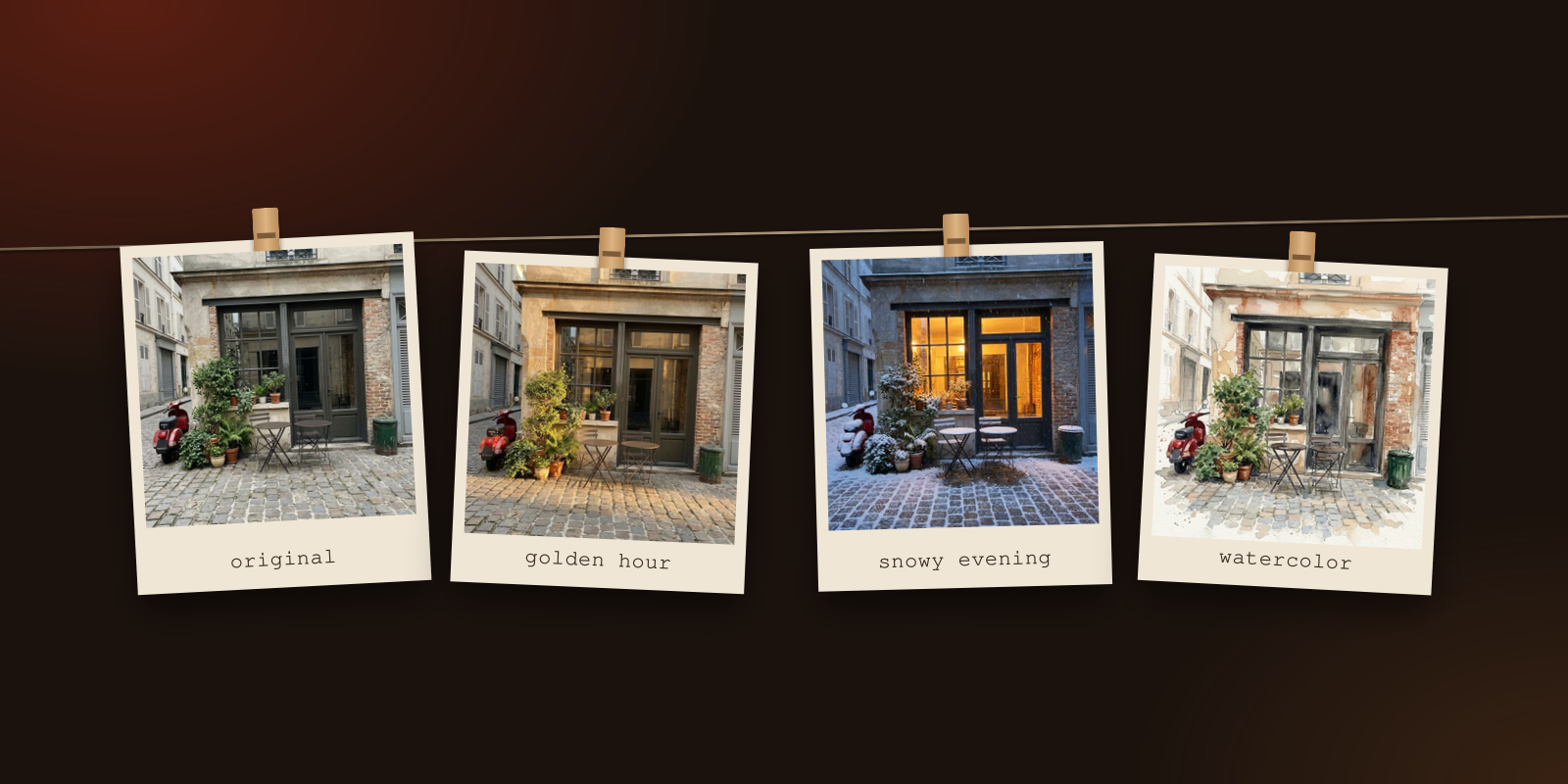
An AI photo editing prompt works when it says four things: what should change, where, what it should look like, and what must stay the same. "Change the light to warm golden-hour sunshine coming from the left, with long soft shadows across the cobblestones. Keep the tables, chairs, scooter, plants and building exactly as they are." is a good prompt. "Make this photo better." is not, and below you can see what it did to our photo.
We ran seven prompts on two photos in the Prompt Edit tool of SmileToAI's AI Image Generator and kept every result as it came back: no retouching and no second tries. Each section gives the exact prompt, the before and after, and what changed that we did not ask for. You upload your photo, open it in the editor, choose Prompt Edit, paste or adapt a prompt, and select Run 1 Edit. Each result is saved as a new version, so the original stays as it was.
The two test photos, a café doorway and a golden retriever on a sofa, were generated in SmileToAI so that every image in this guide is ours to publish. With your own photo, every step is the same.
The four parts of a prompt that works
| Part | What it does | Example from our test |
|---|---|---|
| The change | Names the one thing you want different | "Change the light to warm golden-hour sunshine" |
| Where | Points at the part of the photo it applies to | "across the cobblestones", "the living room" |
| The look | Describes the result, not the technique | "long soft shadows", "slightly faded colors, soft grain" |
| The keep rule | Lists what must not move or change | "Keep the tables, chairs, scooter, plants and building exactly as they are." |
The keep rule is the part people leave out, and it does the most work. A model that is told only what to change is free to redraw everything else, and some models do.
How to run a prompt in SmileToAI
- Open the AI Image Generator and upload your photo: in the generation settings, find References, choose Upload images, then select Add reference to gallery so the photo becomes a gallery image you can edit. Uploads can be PNG, JPG, GIF or WebP, up to 20 MB. Our Christmas photo guide shows this step with a screenshot.
- Hover over the photo in the gallery and select Edit image (the pencil icon), then choose the Prompt Edit tab.
- Write your prompt in Edit prompt. Improve prompt rewrites it with more detail and Suggest edits proposes ideas for the photo; both are optional, and we did not use them for this test.
- To limit the change to one area, pick Box or Brush under Mask tools and mark the area.
- Choose how many variations to run with the arrow next to the run button (1, 2, 4, 8 or 16), then select Run 1 Edit (the label follows the count). The model picker above the tools was left on Auto, which picks a model that can run the edit.
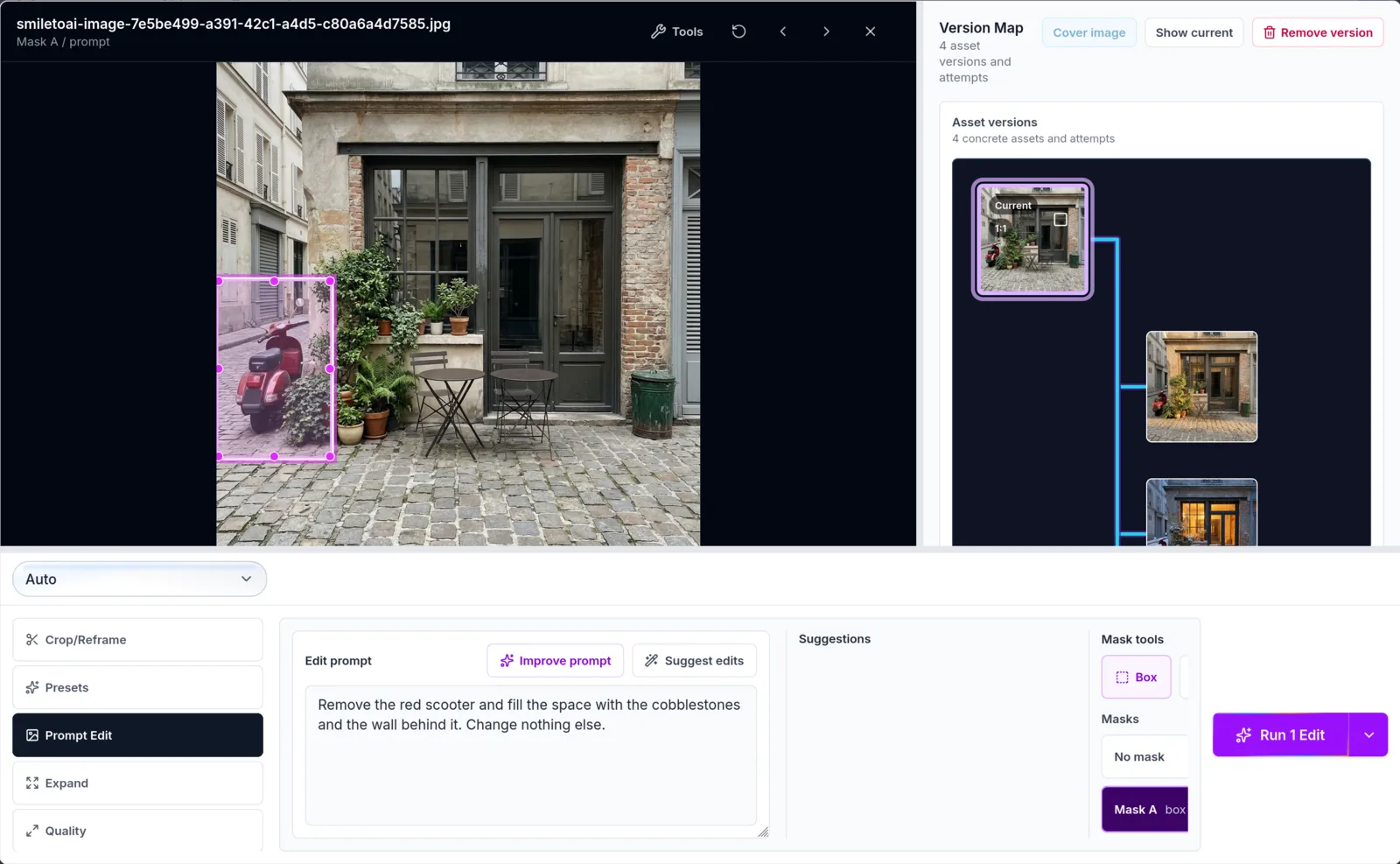
The editor before the removal edit below: a Box mask over the scooter (Mask A), the prompt in Edit prompt, and the Version Map on the right holding the earlier versions of the same photo.
Every run in our test was one variation and finished in between about half a minute and two and a half minutes.
1. Change the light: golden hour
Change the light to warm golden-hour sunshine coming from the left, with long soft shadows across the cobblestones. Keep the tables, chairs, scooter, plants and building exactly as they are.
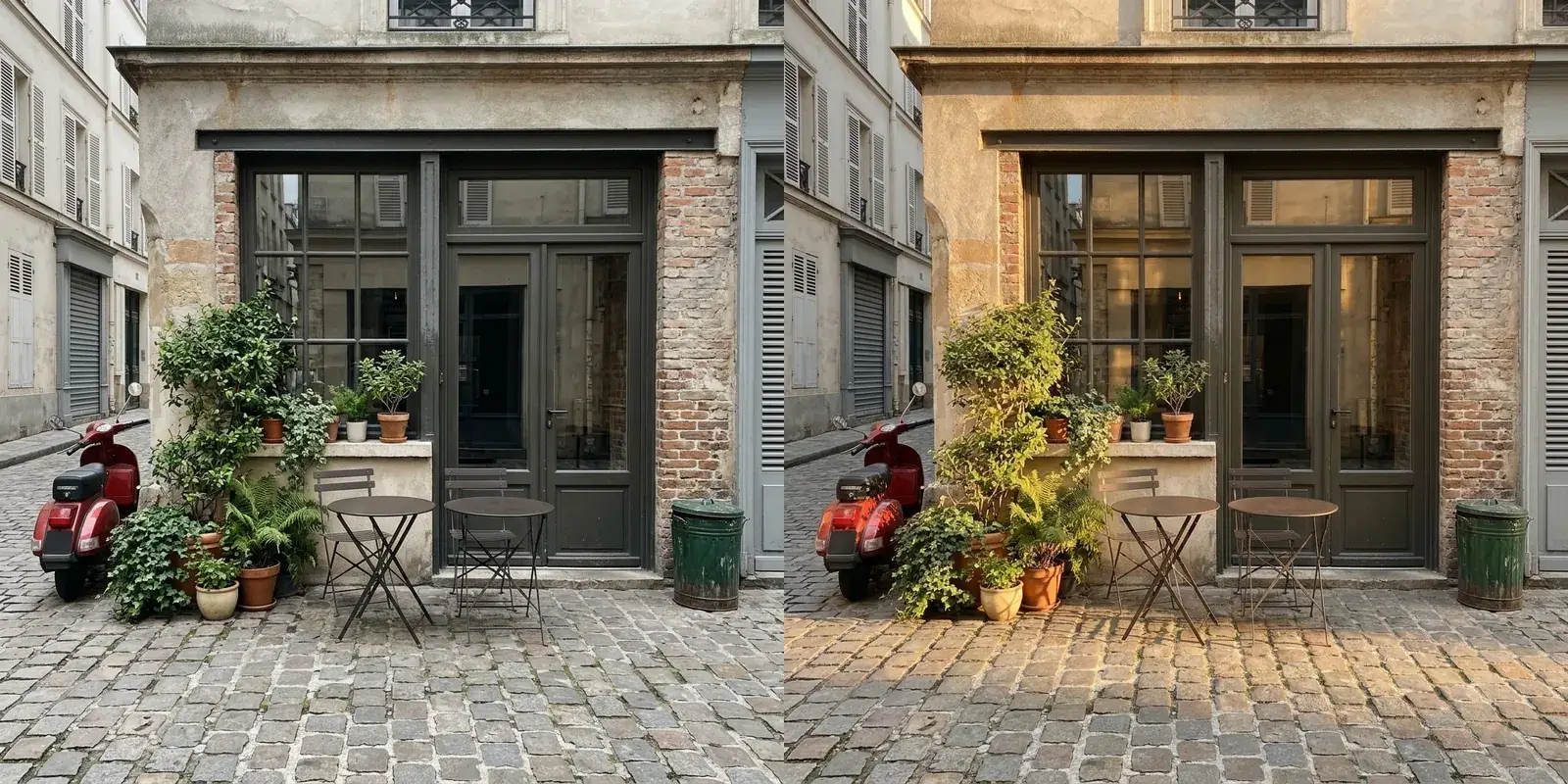
Left, the original; right, the golden-hour edit. 185 Sparks.
The light warmed and the cobblestones picked up long highlights, while the door, windows, tables, scooter and bin stayed where they were. The plants were not kept as they were: the shrub on the left became a taller, different plant and the pots shifted, even though the prompt listed the plants. If a detail matters, run two or more variations, or mask the area you want changed.
2. Change the season: a snowy evening
Make it a snowy winter evening: a thin layer of fresh snow on the tables, chairs, plant pots and cobblestones, light snowfall, and warm light glowing from the windows. Keep the building, door, scooter, tables and plants in the same places.
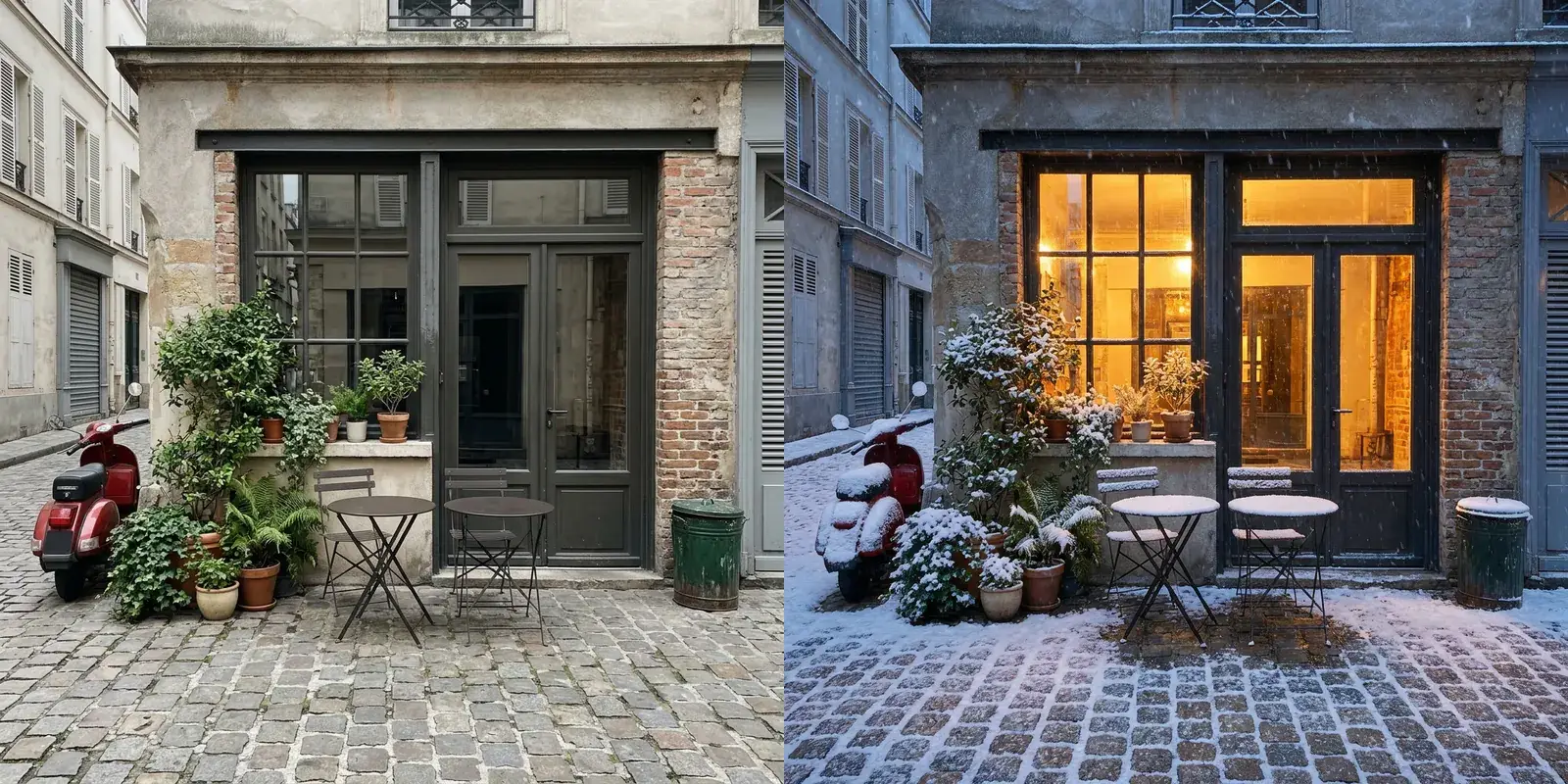
Left, the original; right, the winter-evening edit. 255 Sparks, the most expensive run of the test.
Every object stayed in its place, and the snow settled on the surfaces the prompt named, tables, pots and ground, plus the scooter. Naming surfaces tells the model where the change goes. The windows also show a lit interior that the original photo did not have, which is what "warm light glowing from the windows" asks for.
3. Change the style: watercolor
Turn this photo into a loose watercolor painting on textured paper, with soft washes and visible brush edges. Keep the same composition, objects and colors.
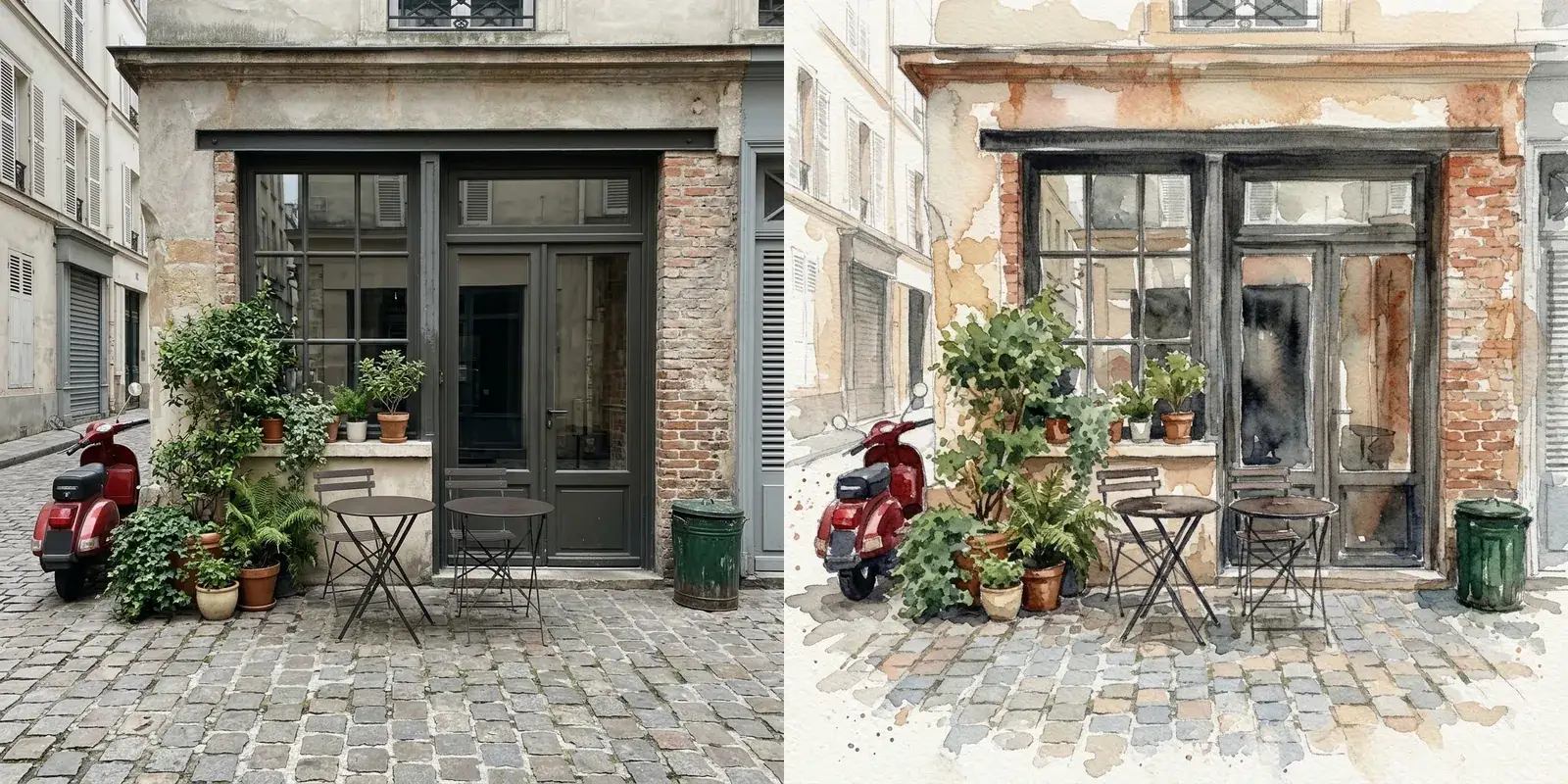
Left, the original; right, the watercolor edit. 200 Sparks.
A style prompt changes everything on purpose, so the keep rule here protects the composition rather than the pixels. The doorway, the tables, the scooter and the green bin all survived the change of medium, and the paint fades into white paper at the edges the way a real sketch would.
4. Remove an object with a mask
Remove the red scooter and fill the space with the cobblestones and the wall behind it. Change nothing else.
This one ran with a Box mask drawn over the scooter, as in the editor screenshot above.
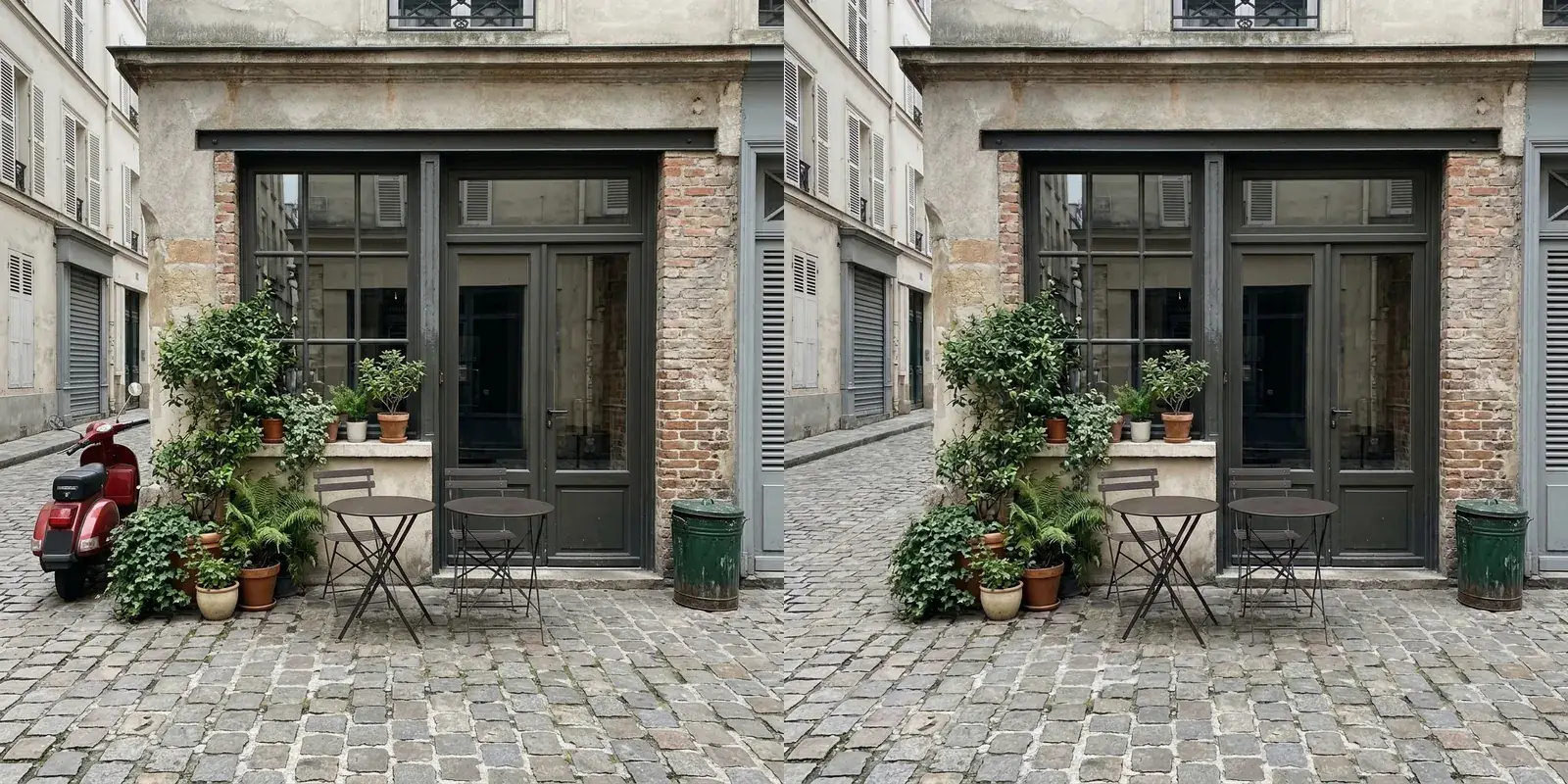
Left, the original; right, the masked removal. 190 Sparks.
The scooter is gone and the street behind it continues naturally. Comparing the two files, about 4% of the pixels changed noticeably, and about 70% of those are inside the box. The box also covered the edge of the plants, and that edge was redrawn, and the plants just outside it changed a little too, so draw the mask around the object only. For removals and small fixes, a mask matters more than wording: the prompt says what to do, and the mask says where it may happen.
5. Replace the background and keep the subject
Replace the living room with a sunny beach at the water's edge in the late afternoon, with soft waves and a clear sky. Keep the dog exactly as it is: same pose, fur, face and expression, now sitting on the sand. Match the light on the dog to the new scene.
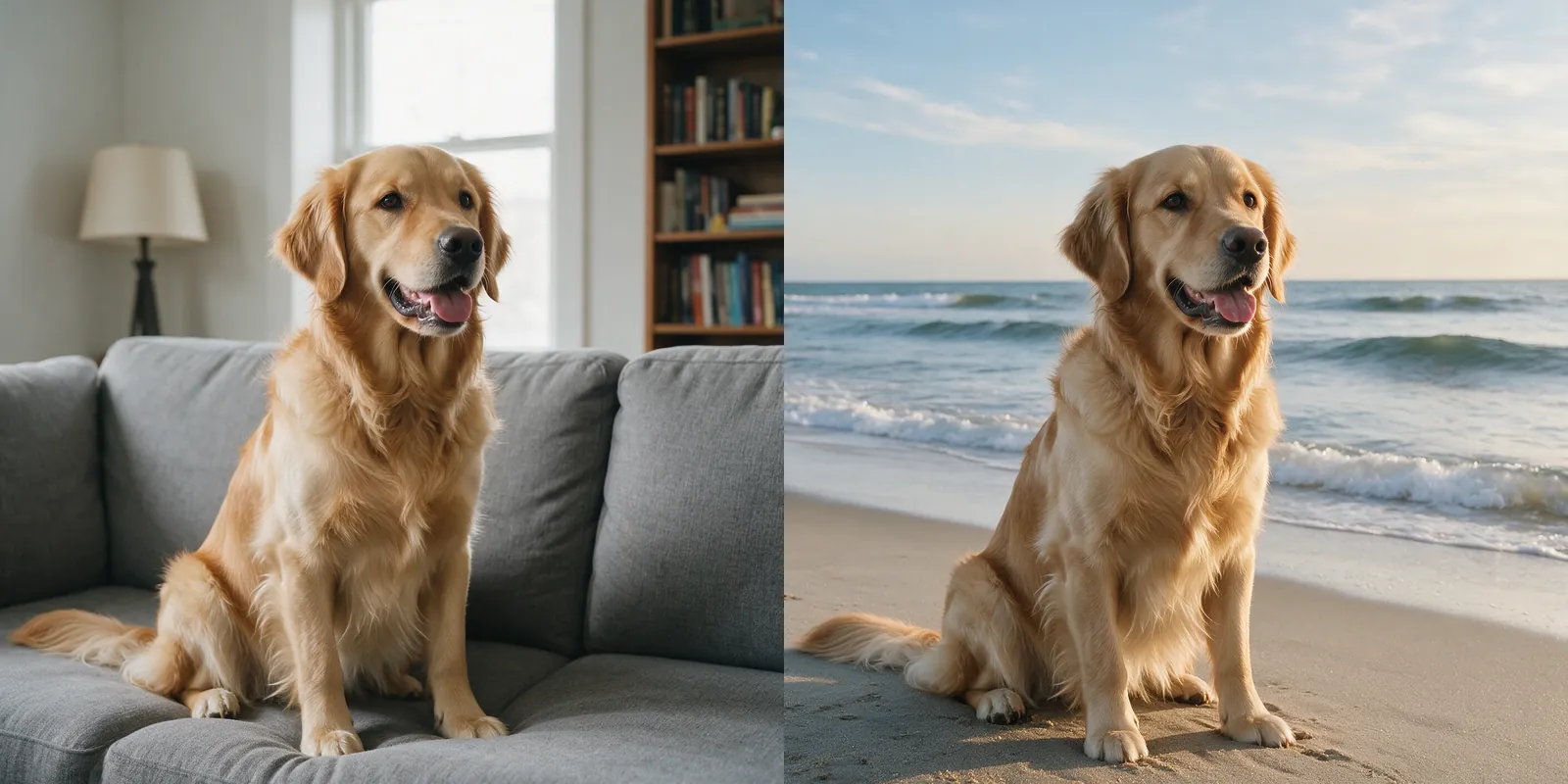
Left, the original; right, the beach background. 225 Sparks.
The dog kept its pose, face and coat, and the light on its fur matches the open sky instead of the indoor lamp. That is what the last sentence of the prompt asks for, and it is worth including whenever the new scene's light differs from the old one. If you need a transparent background rather than a new one, use a background remover instead; our guide on making a background transparent covers that.
6. Color grade: a 1970s film look
Give the photo a warm 1970s film look: slightly faded colors, soft grain and lifted blacks. Do not change the dog, the sofa or the room.
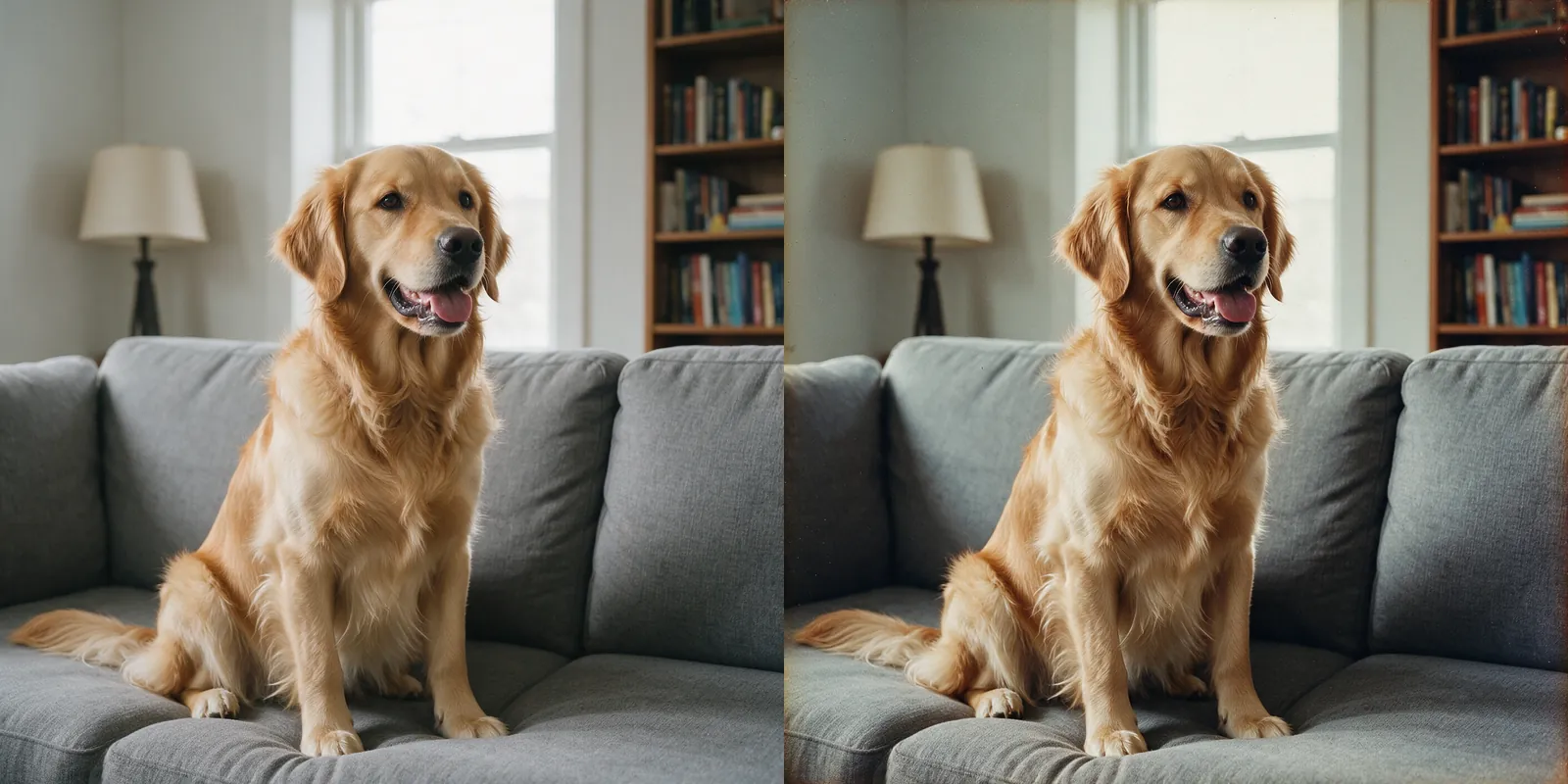
Left, the original; right, the film-look edit. 225 Sparks.
A grading prompt is a list of film words the model knows: faded colors, grain, lifted blacks. The dog, the sofa, the lamp and the books stayed where they were, and only the color and texture changed. This is the kind of edit people usually do with sliders, and a sentence gets you most of the way there.
7. What a vague prompt does
Make this photo better.
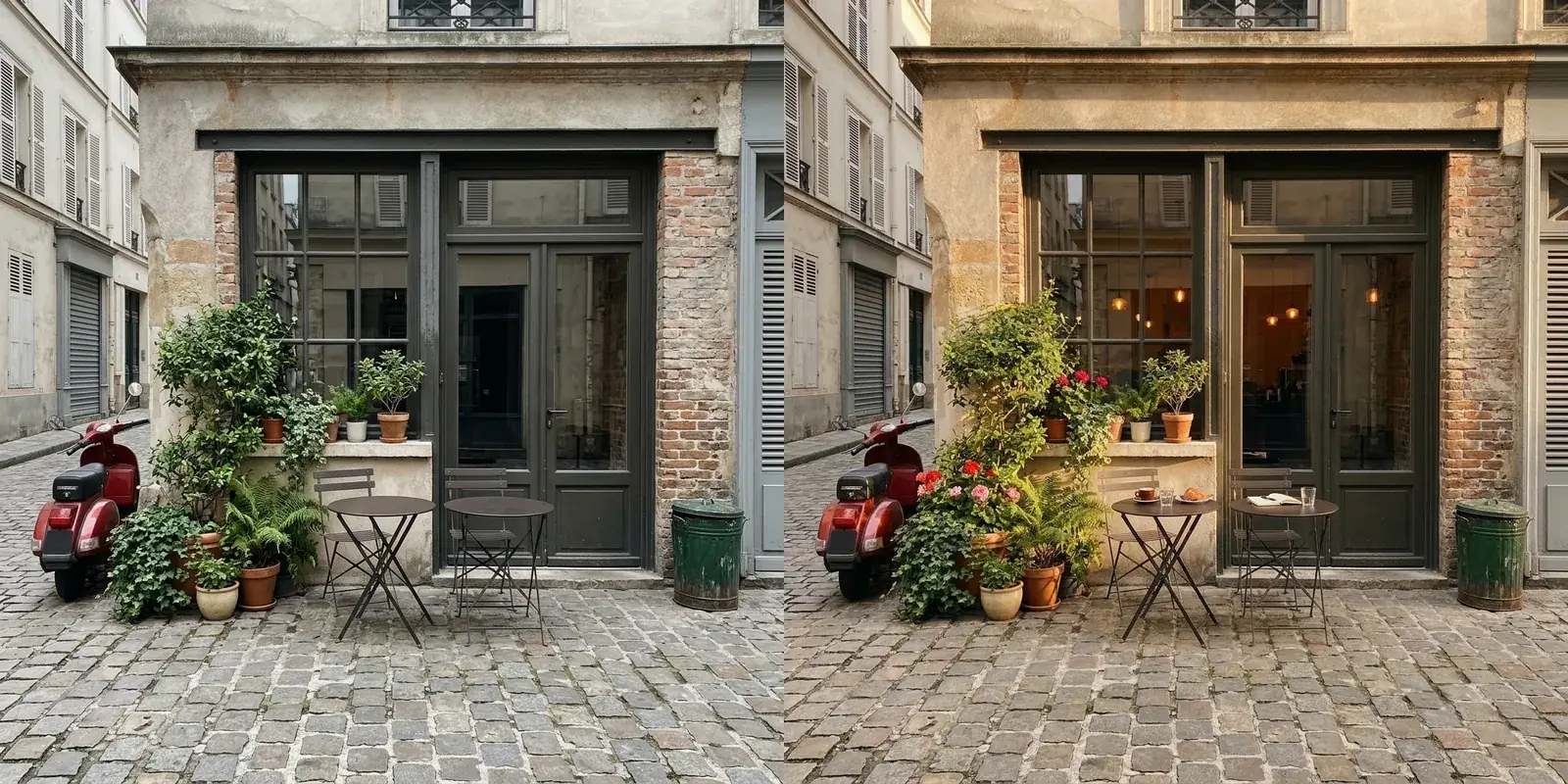
Left, the original; right, the result of "Make this photo better." 210 Sparks.
The photo did get warmer and brighter. It also gained red and pink flowers, a cup of coffee, two glasses of water, a croissant on a plate, an open book and lamps glowing inside the café, none of which we asked for. "Better" gives the model permission to decide what is missing. If you only want the light improved, say so and add a keep rule, as in prompt 1.
Tips that held up in the test
- One change per prompt. Each of our prompts asked for one kind of change. To combine several, run them one after another on the new version instead of writing one long prompt.
- Name surfaces and objects. "Snow on the tables, chairs, plant pots and cobblestones" tells the model where the change goes, and in our run the snow landed on exactly those surfaces.
- Describe the look, not the tool. "Long soft shadows" and "lifted blacks" work; "increase contrast by 20%" asks for a slider the model does not have.
- Mask small jobs. Removals, a single object's color or a sign are mask jobs. Keep the mask tight around the object.
- Run more than one variation when it matters. One variation is cheaper, but results differ between runs, and with a face or a pet you care about, two or four give you a choice.
- Fix the frame separately. All seven of our results kept the original photo's size and shape. To change a photo's shape to 4:5 or 16:9, use Crop/Reframe in the same editor; our aspect ratio guide shows how.
Once a photo looks right, you can also turn it into a short moving clip; see how to animate a photo.
What it cost
Edits use Sparks, SmileToAI's credits. The Free plan includes 5,000 Sparks a month. Our seven single-variation edits cost 185, 190, 200, 210, 225, 225 and 255 Sparks, 1,490 Sparks in total. Generating the test photos (two prompts, four images each, of which we used one each) cost another 1,580 Sparks, which you do not need when you edit your own photo.
FAQ
What makes a good AI photo editing prompt?
Say what should change, where in the photo, what it should look like, and what must stay the same. The last part matters most: in our test, the vague prompt "Make this photo better." added flowers, a coffee cup, a croissant and a book that were never asked for, while the prompts that ended with a keep rule kept the layout: doors, tables and furniture stayed where they were, though plants were sometimes redrawn.
How do I edit only one part of a photo?
Draw a mask. In SmileToAI's Prompt Edit, choose the Box or Brush mask tool, mark the area, and the edit is limited to it. In our test a Box mask over a scooter removed the scooter and changed about 4% of the image's pixels, most of them (about 70%) inside the box.
How do I keep a person or pet unchanged when I replace the background?
Name the subject and list what must not change, for example "Keep the dog exactly as it is: same pose, fur, face and expression." Then ask for the light on the subject to match the new scene so it does not look pasted in. Run two or more variations when the subject matters to you, because the result can vary between them.
Do these prompts work in ChatGPT, Gemini or other editors?
We ran them only in SmileToAI, so the results shown here are from SmileToAI. The prompts are plain sentences with no tool-specific syntax, so you can paste them into any editor that changes a photo from a text instruction, but other models may treat the keep rule and masks differently.
Is AI photo editing free?
Edits in SmileToAI use Sparks, its credits. The Free plan includes 5,000 Sparks a month. Each single edit in our test cost between 185 and 255 Sparks on a Free account.
Can I use these prompts on my phone?
Yes. The SmileToAI app for iOS and Android has the same Prompt Edit tool, with masks and the same choice of variation counts.