
To change the aspect ratio of a photo, you either cut it down to the new shape (crop), recompose it to fit (reframe), or add new picture around it until it reaches the new shape (expand). Cropping is the only option that throws part of the photo away; the other two keep the whole subject, though because they are AI edits the model redraws the image as it goes. In SmileToAI's AI Image Generator all three live in the image editor: upload your photo, open it with the pencil (Edit) icon, then use Crop/Reframe or Expand, pick an output ratio (1:1, 4:5, 3:4, 4:3, 16:9 or 9:16) and select Run Edit. Each result is saved as a new version, so the original is never overwritten. Crop uses no AI; Reframe and Expand use Sparks, and the Free plan includes 5,000 a month.
Which method is right depends on what you can afford to lose:
- Crop when the photo has room to spare around the subject. It is a plain trim with a box, runs locally, and uses no AI.
- Reframe when the new shape is very different (landscape to vertical, for example) and you want the subject kept intact. AI recomposes the image to the chosen ratio.
- Expand when nothing can be cut off. AI extends the scene to the new ratio and fills in what lay beyond the old edges.
None of the three stretches the photo. If all you need is a plain crop, any editor with a crop tool will do, including the one built into your phone; the AI options are for when cropping would cut off something you need. Not sure which ratio you need? Use 9:16 for Stories, Reels, TikTok and Shorts, 1:1 or 4:5 for a feed post, and 16:9 for YouTube (the full table is further down). This guide walks through each one, shows when to pick it, and covers the common problems: faces cut off at the edge, odd details in the generated area, and ratios that are not on the list.
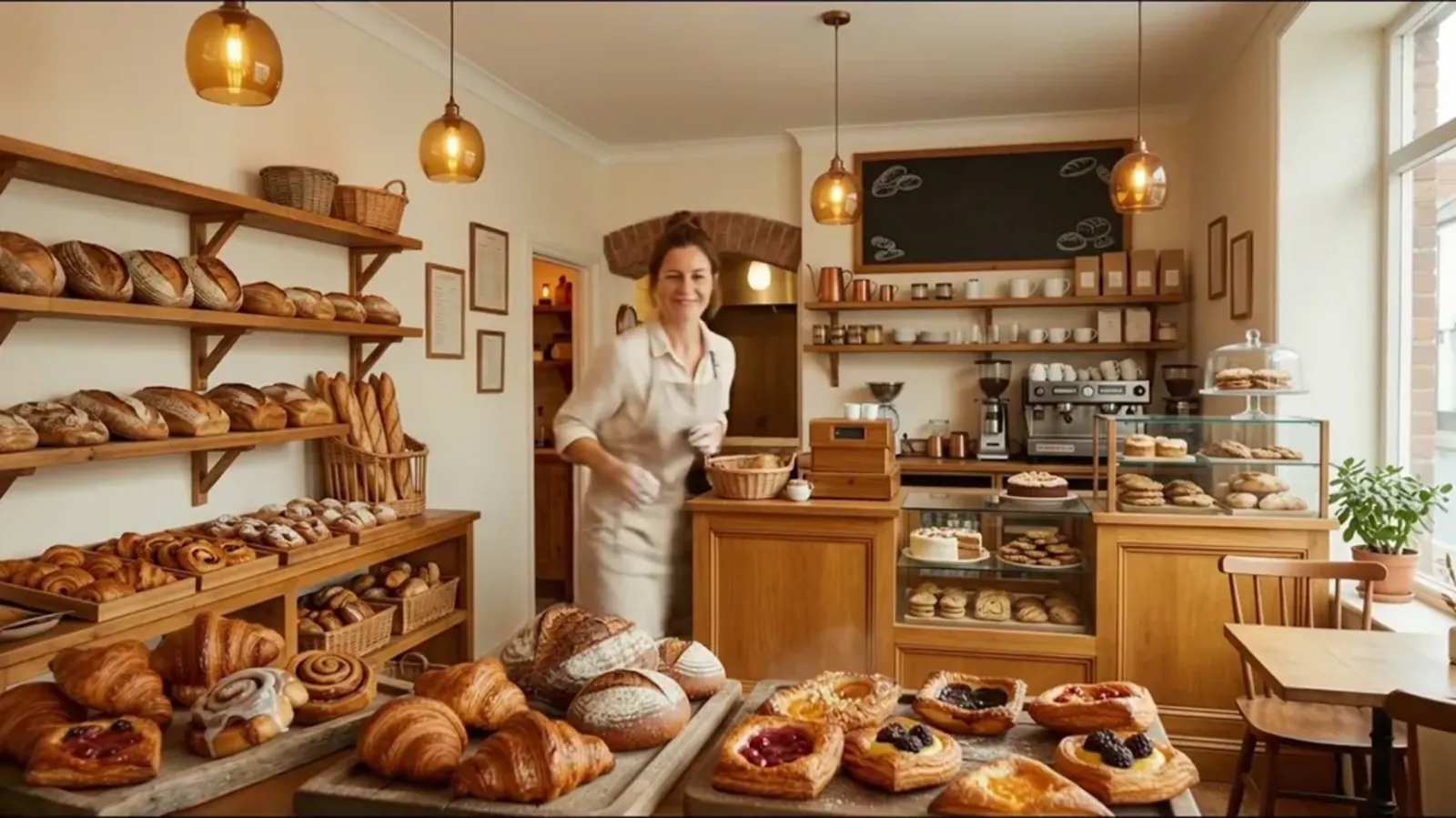
The 16:9 test photo used throughout this guide, a frame from one of SmileToAI's own showcase videos. The Reframe and Expand results further down were both run on it at 9:16.
What aspect ratio means, and why it changes the photo
Aspect ratio is the shape of an image: its width compared with its height. A 16:9 photo is wide, a 9:16 one is tall, and 1:1 is square. Pixel size and aspect ratio are different things. A photo can be resized from 4000 to 1000 pixels wide and keep the same shape, but changing its shape always means one of three things happens to the picture:
- Part of it is removed. That is cropping.
- It is squeezed or pulled. That is stretching, and it makes faces and products look wrong. Avoid it.
- New picture is added. That used to mean adding plain bars or a blurred copy at the sides. AI expansion now generates matching content instead.
AI reframing sits between the first and third: the model rebuilds the composition at the new shape and keeps the main subject and important details.
The ratio you need usually comes from where the photo is going. Vertical 9:16 is the shape of TikTok, Reels, Shorts and Stories. Square 1:1 suits a feed post, and landscape 16:9 suits YouTube or a website banner. 4:5 is the common tall shape for a feed post, and 4:3 and 3:4 are the classic camera and phone photo shapes.
What you'll need
- A photo in PNG, JPG, GIF or WebP format, up to 20 MB.
- A SmileToAI account. The Free plan includes 5,000 Sparks a month, which Reframe and Expand draw on.
- A browser for the full set of tools. The SmileToAI app on iOS and Android can crop and expand to the same ratios, but AI Reframe and multiple variations are on the web editor.
Step 1: Upload your photo and open the editor
- Open the AI Image Generator.
- Open the generation settings (the sliders button in the composer), choose All settings, and under References select the plus button (Pick from library), then Upload images. The composer's plus menu also has Upload references.
- In the References list, select Add reference to gallery next to your photo so it becomes a gallery image you can edit.
- Hover over the image in the gallery and select Edit image (the pencil icon) to open the editor.
The editor has tabs along the side. The two that change the shape are Crop/Reframe and Expand.
Step 2: Choose crop, reframe or expand
Look at the photo and ask one question: is there anything near the edges that must stay?
| If your photo... | Use | What happens |
|---|---|---|
| Has empty space around the subject | Crop | You keep a box and the rest is trimmed. No AI, no new pixels. |
| Needs a very different shape and the subject must survive | Reframe | AI recomposes the image to the new ratio, keeping the main subject. |
| Can't lose anything at the edges | Expand | AI extends the scene to the new ratio, keeping the whole original frame in view. |
A quick rule of thumb: going from a wide photo to a tall one usually rules out Crop, because a 16:9 photo cropped to 9:16 loses most of its width. Reframe or Expand will keep far more of the scene.
Step 3a: Crop to the new shape
- Open the Crop/Reframe tab and choose Crop.
- Use the Crop mask tools to draw one box over the area to keep. You can move or resize the box before you run it.
- Select Run Edit.
Cropping happens locally and does not use AI, so the pixels inside your box are exactly the pixels you started with. The trade-off is that everything outside the box is gone from that version. Your original stays in the version history.
Step 3b: Reframe with AI
- Open the Crop/Reframe tab and choose Reframe.
- Under Output ratio, pick 1:1, 4:5, 3:4, 4:3, 16:9 or 9:16.
- Choose how many variations to run (1, 2, 4, 8 or 16 on the web).
- Select Run Edit.
Reframe asks the model to recompose the whole image at the new ratio while preserving the main subject. It is the better choice when a straight crop would cut through a person or a product, for example turning a wide group photo into a vertical story frame. Because the model rebuilds the composition, check the result closely: small background details can move or change even when the subject looks right. Running two or four variations gives you a choice.
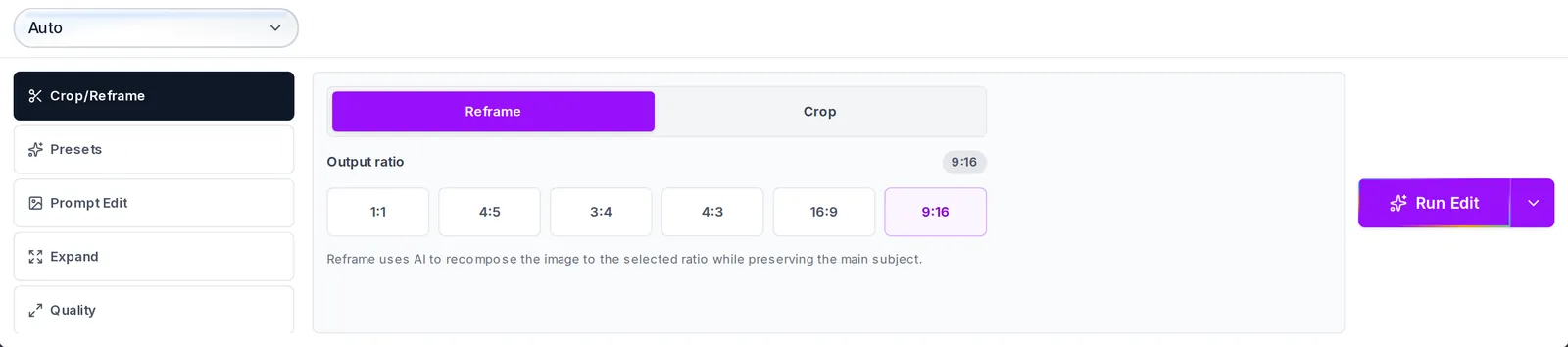
Reframe set to a 9:16 output ratio, ready to run.
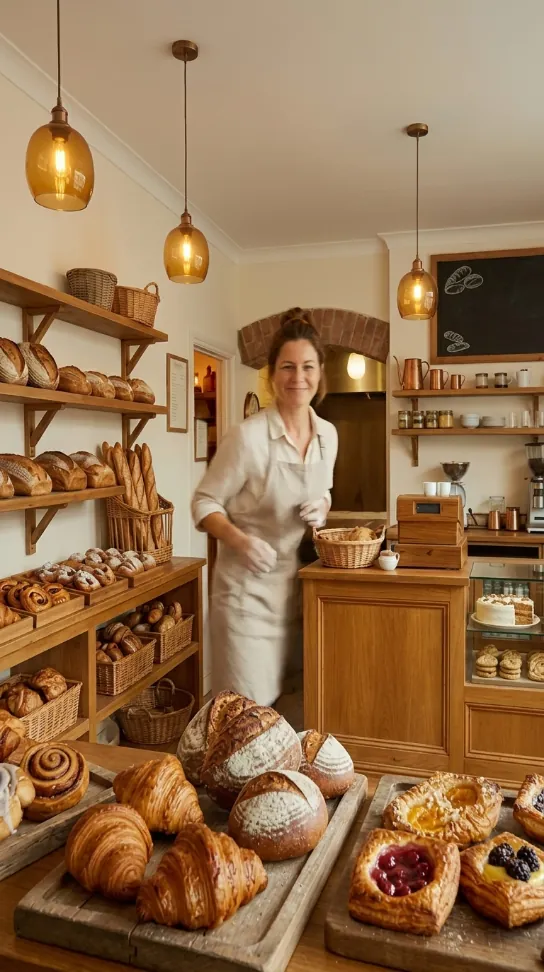
The Reframe result. The baker and the shelves stay in view, but the scene is rebuilt rather than cut: the pastry trays in the foreground are laid out differently from the original.
Step 3c: Expand the canvas so nothing is cut off
- Open the Expand tab (Expand canvas).
- Pick the target ratio from the same six options.
- Choose the number of variations (on the web) and run it.
Expand creates a new, full-bleed version at the target ratio and extends the scene's background, lighting and texture into the new space, without stretching or shrinking the subject. Where Reframe rebuilds the composition around the subject, Expand keeps the whole original scene and adds to it. That makes it the right tool when the full frame matters, such as a landscape you want as a vertical phone wallpaper, or a product shot that needs more empty space for text.
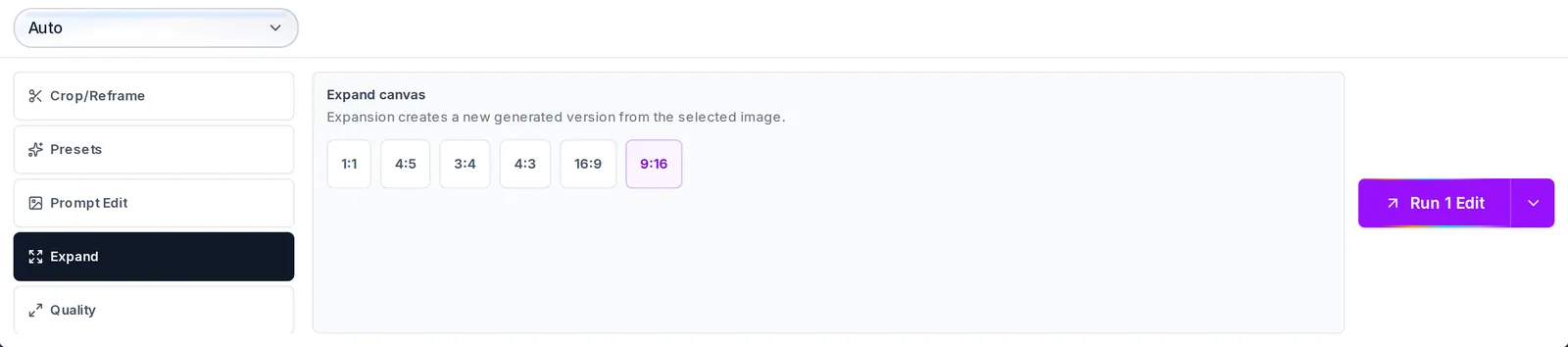
Expand canvas with the 9:16 ratio chosen.
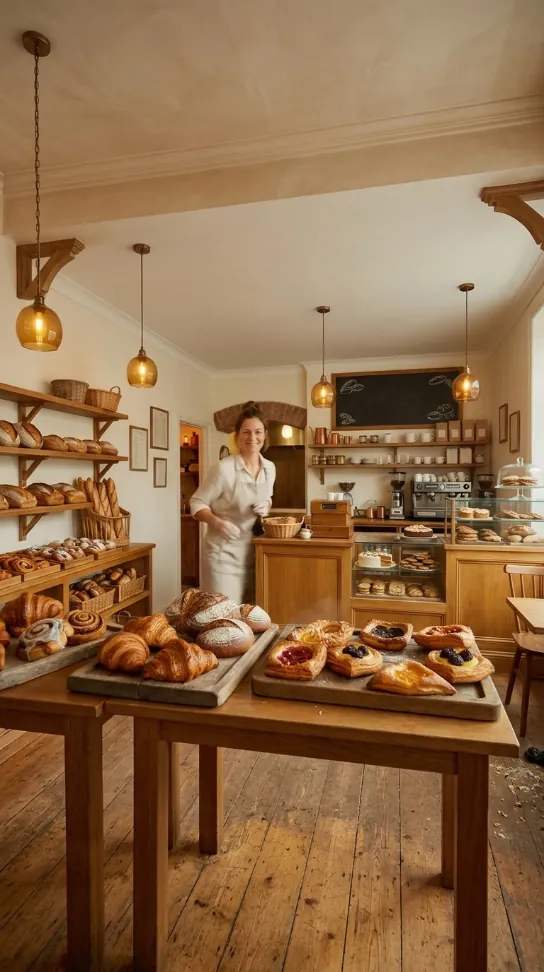
The Expand result. The whole original shop is still there in the middle band; the ceiling above it and the table and floorboards below are new.
Expand is still an AI edit, not a pixel-for-pixel paste of your photo into a bigger canvas: the model redraws the image as it extends it, so compare small details with the original before you use it.
Expand always works toward a ratio. You cannot ask it for an exact number of pixels, or to extend only the left side, for example.
Step 4: Compare versions and download
Every Crop, Reframe and Expand run is saved as a new version of the image, so you can try all three on the same photo and keep the one that works. In the Version Map, select the version you want and choose Set as cover, which makes it the version the gallery shows for that image. Then close the editor and use Download on the image in the gallery (on a narrow card it may sit under More).
Then place the file where it is going: upload it to Instagram or TikTok, set it as a YouTube thumbnail, or drop it into a slide. Those steps only place the finished image; all of the reshaping happens in the editor.
Which ratio for which platform
| Where it's going | Ratio to pick |
|---|---|
| TikTok, Reels, Shorts, Stories | 9:16 |
| Feed post (square) | 1:1 |
| Feed post (tall) | 4:5 |
| YouTube video frame, website banner | 16:9 |
| Classic camera or phone photo shape | 4:3 or 3:4 |
If you need 2:3, 3:2 or an ultrawide shape like 21:9, SmileToAI's editor can't produce it: those ratios are not on the list.
Common problems and fixes
The subject's head or hands are cut off after cropping. The crop box was too tight for the new shape. Switch to Reframe, or Expand first and crop afterwards.
The generated area doesn't match the photo. Expansion works best when the edges of the original are simple: sky, wall, floor, grass. Busy edges with text or faces cut by the frame are harder. Run more variations and keep the cleanest one, or start from an earlier version and try Reframe instead.
Reframe changed a background detail. Reframe recomposes the image, so it can redraw parts of the scene. If every original pixel matters, use Crop: it is the only option that never changes the pixels inside the box. Expand keeps the whole scene in view, but as an AI edit it can redraw details too.
The ratio I need isn't offered. Reframe and Expand are limited to 1:1, 4:5, 3:4, 4:3, 16:9 and 9:16. Pick the nearest one.
In the bakery test above, the bottom edge of the original cut straight through two trays of pastries. Expand finished them on a wooden table standing on a plank floor and added a beamed ceiling, hanging the pendant lamps lower, which reads naturally at phone size. Up close, the table's legs don't line up the way a real table's would, and a scatter of crumbs appeared on the floor that was never in the photo. That is the typical trade-off: busy edges get a plausible continuation, not a faithful one.
What the editor doesn't do
- Ratios other than the six listed above.
- Expanding by a set number of pixels, or in one direction only.
- Stretching or squashing a photo to a new shape (deliberately: it distorts the image).
The short version
Crop when there is room to lose, Reframe when the subject must survive a big change of shape, and Expand when nothing can be cut off. In SmileToAI, all three sit in the web image editor (the mobile app has Crop and Expand), and each result is saved as a new version, so you can try them side by side on the same photo.
FAQ
How do I change the aspect ratio of a photo without cropping it?
Use Expand in the SmileToAI image editor. Pick the target ratio and run it: AI extends the scene into the new space at that shape instead of trimming it, so the whole original frame stays in the picture. Reframe is the other no-crop option; it recomposes the whole image to the new ratio while keeping the main subject.
Which aspect ratios can I choose?
Reframe and Expand offer 1:1, 4:5, 3:4, 4:3, 16:9 and 9:16. Ratios outside that list, such as 2:3 or 21:9, are not available, and Expand always targets a ratio rather than a number of pixels or one side of the image.
Will changing the aspect ratio stretch my photo?
No. Crop trims the image with a box and never distorts it, Reframe recomposes the image to the new ratio without stretching it, and Expand extends the scene into new space instead of pulling it out of shape.
Does it cost anything?
Reframe and Expand are AI edits that use Sparks, SmileToAI's credits; Crop is a plain trim and uses no AI. The Free plan includes 5,000 Sparks a month. In our test on a Free account, one Reframe and one Expand used 380 Sparks together.
Can I do this on my phone?
Partly. The SmileToAI app for iOS and Android can crop a photo and expand it with AI to the same six ratios, one result per run. AI Reframe and running several variations at once are on the web editor.