
To transcribe a voice memo or any other M4A file, upload the M4A as it is: there is no need to convert it to MP3 first. In SmileToAI's AI Audio Transcription you drop the file on the page (up to 150 MB), correct any names it misheard, and download the text as TXT, SRT or VTT. It works with a free account: the free plan's 5,000 Sparks a month cover about 250 minutes of transcription at the 20 Sparks a minute that SmileToAI's pricing page quotes.
On an iPhone 12 or later there is also a built-in option: the Voice Memos app makes a transcript itself. Tap the recording, tap the More button, then choose View Transcript or Copy Transcript. When you want more than that, such as a transcript you can correct, a downloadable file, speaker labels, subtitles, or one of the 24 languages, transcribe the memo file instead. The same five steps work for an M4A from Voice Memos or from any other recorder app:
- Get the memo off your phone as a file. In Voice Memos, tap the recording, tap the More button, tap Share, then Save to Files, or send it to your computer with AirDrop, Mail or Messages. It arrives as an
.m4afile. - Open AI Audio Transcription and keep Language on Auto-detect, unless you know the language.
- Drop the M4A on the page or select Choose file. Transcription starts when the upload finishes.
- Read the transcript and fix it. Search for names the model misheard, click the paragraph and correct it.
- Select Download TXT for plain text, or Download SRT / Download VTT for subtitles.
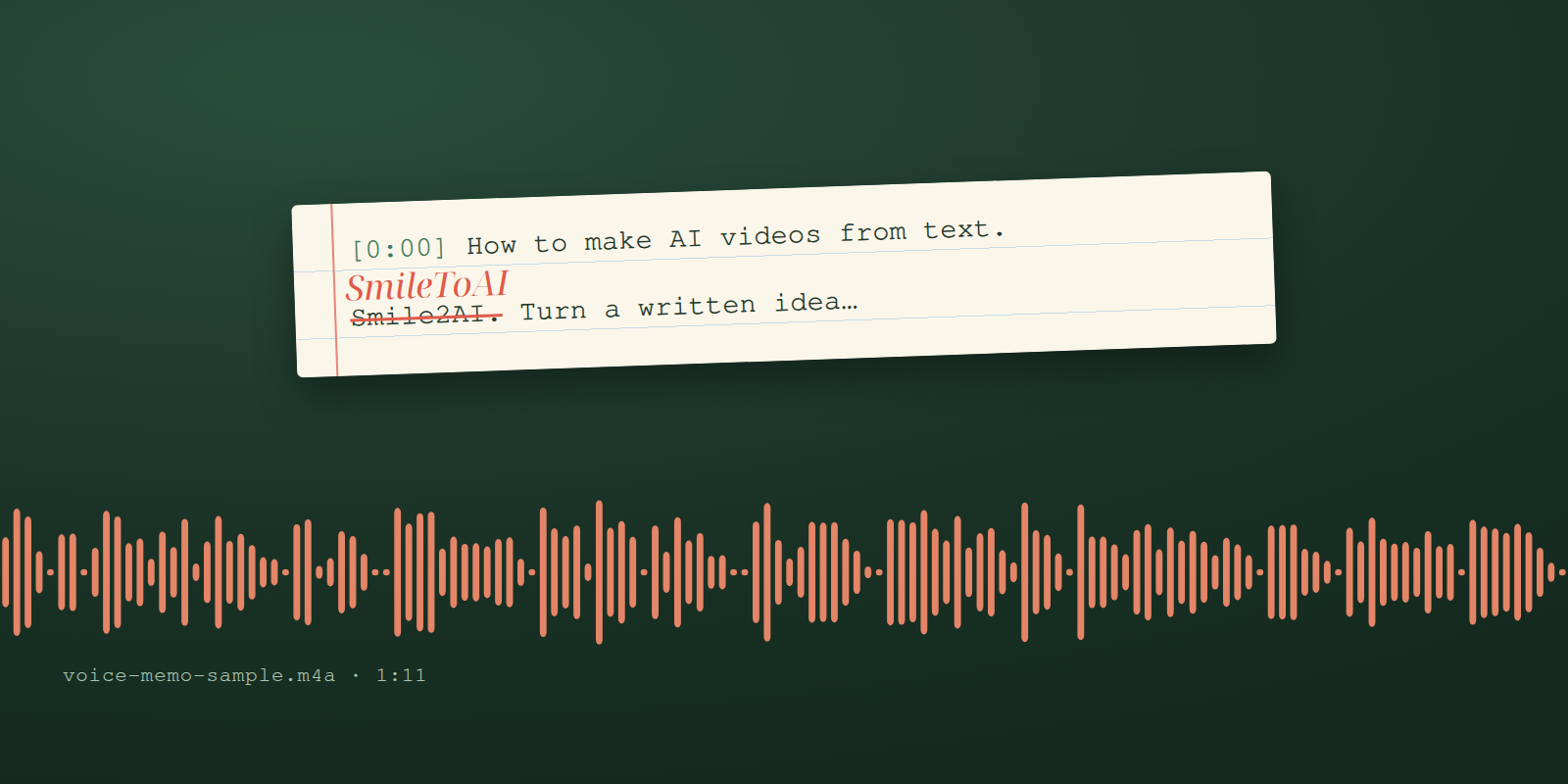
We tested this on a 1 minute 11 second M4A memo on 2026-11-14. It took about 26 seconds from the start of the upload to the finished transcript and was charged 30 Sparks, on a free account, under the price list of that day. The free plan includes 5,000 Sparks a month. This is the memo we transcribed:
Below are the screens from that run, the name it misheard, and how to fix that before you download.
Voice Memos' own transcript or a transcription tool?
Use the iPhone's built-in transcript when you only want to read a memo or copy its text into a note. Apple's guide describes it like this: on iPhone 12 or later, Voice Memos transcribes speech in 10 languages (English, Spanish, Portuguese, Italian, French, German, Japanese, Korean, Simplified Chinese and Traditional Chinese). You can watch the transcript while you record, and afterwards you can view it, copy part or all of it, and search your recordings by the words in them. It is not available in every country or region. If you do not see View Transcript, the iPhone is older than an iPhone 12, the memo is in another language, or the feature is not offered where you are; transcribe the file instead.
Upload the file to a transcription tool when you need any of these:
| You need | Voice Memos on iPhone 12 or later | AI Audio Transcription |
|---|---|---|
| Read or copy the text | Yes | Yes |
| A memo recorded on Android, an older iPhone or a separate recorder | No | Yes, from an M4A, MP3, WAV, AAC, OGG or FLAC file |
| A language outside Apple's 10 | No | 24 languages, plus Auto-detect |
| Correct the text, then download it as a file | Copy only | Edit in place, then TXT, SRT or VTT |
| Speaker labels for a memo with more than one voice | Not described in Apple's guide | Yes, with Speaker diarization |
| Cost | Included with the phone | Charged in Sparks by audio length |
Transcribing an M4A file from any recorder or app
Everything in this guide works for an M4A file that did not come from Voice Memos. AI Audio Transcription takes .m4a files directly, alongside MP3, WAV, AAC, OGG and FLAC, so there is no conversion step:
- Find the file. Copy it from the recorder app, the Files app or your computer. The name ends in
.m4a. - Check the size. The limit is 150 MB per audio file. For scale, our 1 minute 11 second test file was 588 KB.
- Upload it as it is. Converting it to MP3 first only adds a step. Steps 2 and 3 below show the settings and the upload.
- Fix and download. Steps 4 and 5 below show how to find and correct misheard names, then download TXT, SRT or VTT.
Our test file is an M4A holding one channel of AAC audio at about 66 kbps. If the file you have is a video that ends in .m4v or .mp4, upload it the same way: the tool takes video files too and transcribes their sound, as our guide to transcribing a video to text shows.
Step 1: Get the memo off your phone
Transcription tools work on files, so the first step happens on the phone. On an iPhone, Apple's guide gives two routes:
- Save it to Files. Open Voice Memos, tap the recording, tap the More button, then tap Share. Scroll down, tap Save to Files, pick a folder, and tap Save.
- Send it to your computer. From the same Share button, pick AirDrop, Mail or Messages.
Either way you get an .m4a file, the format Voice Memos exports by default. Under Options, keep Rendered, which mixes any layers and effects into that single .m4a. Editable shares a file whose layers and effects can still be adjusted on a compatible Apple device, which a transcription tool does not need.
Recorded on Android? Share or copy the file your recorder app saved, and check that it is one of the six audio formats this tool takes: MP3, WAV, M4A, AAC, OGG or FLAC.
You can also skip the computer. AI Audio Transcription is in the SmileToAI app on iOS and Android: save the memo to Files, open the tool in the app, and choose the file from there.
Step 2: Open AI Audio Transcription and check the settings
Open AI Audio Transcription from the SmileToAI workspace. Three settings sit above the upload area.
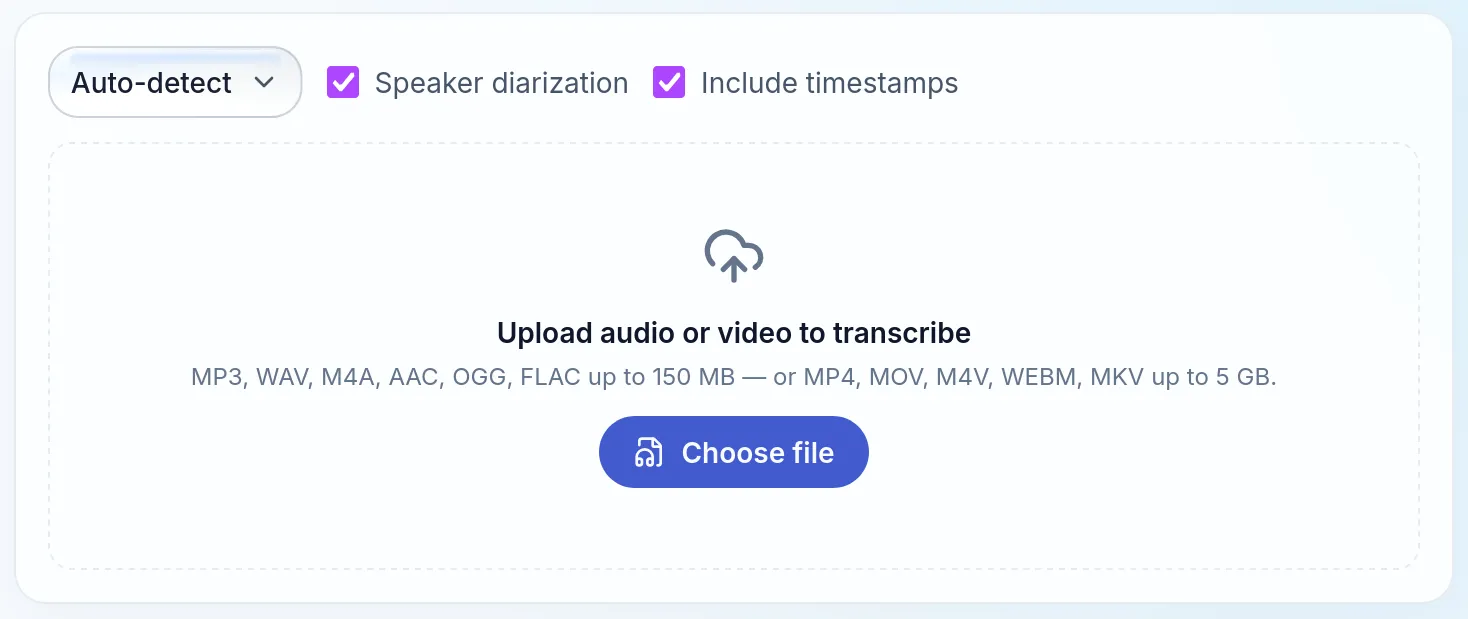
The upload panel with the default settings, which we kept for the test.
- Language. Auto-detect is the default. If the memo is in one language and you know it, pick it from the list of 24.
- Speaker diarization. On by default. It labels each voice ("Speaker 1", "Speaker 2"). A memo of just you comes back as one speaker; keep it on for a memo that recorded a conversation, a meeting or an interview. SmileToAI's price list charges a minute of audio the same with or without speaker labels.
- Include timestamps. On by default. It puts the start time of each turn in the transcript and in the TXT download. Untick it before the upload if you want the TXT file without times.
Step 3: Upload the M4A
Drag the memo onto the page or select Choose file. The settings lock while the file is uploaded and transcribed.
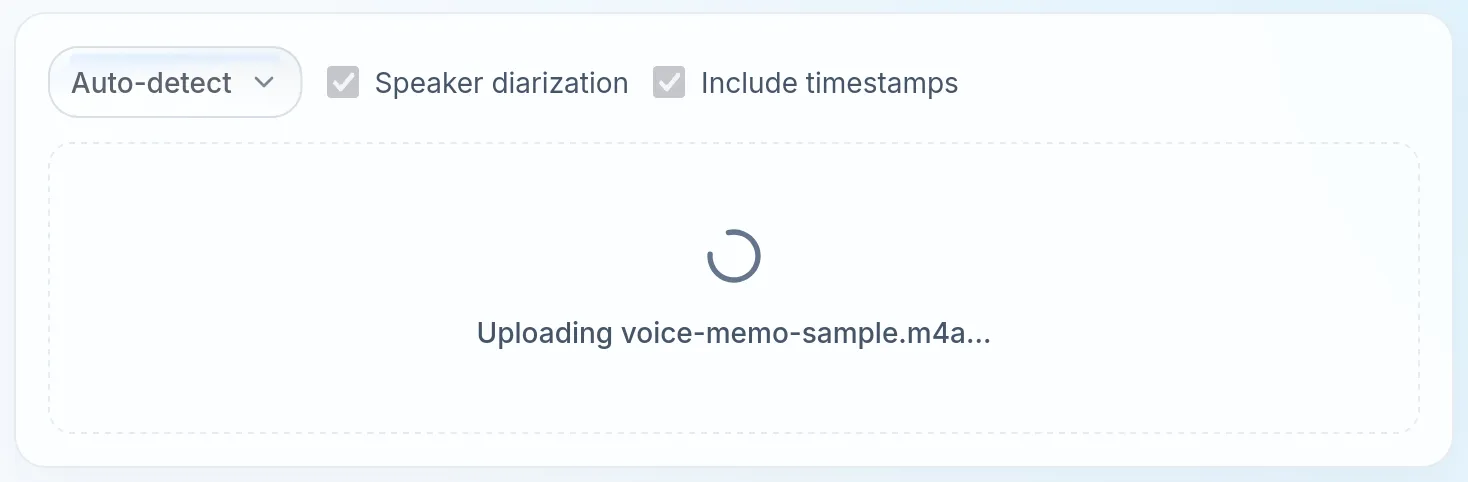
Uploading our 588 KB M4A.
Our 71-second memo was uploaded and transcribed in about 26 seconds. You do not have to wait on the page for a long one: each transcript is saved as its own session in the sidebar, under the file's name.
Step 4: Read the transcript and fix what it misheard
The finished transcript shows the file name, the length of the audio and the Sparks the run cost, above the download buttons. Our memo has one voice, so it came back as a single turn under Speaker 1, starting at 0:00.
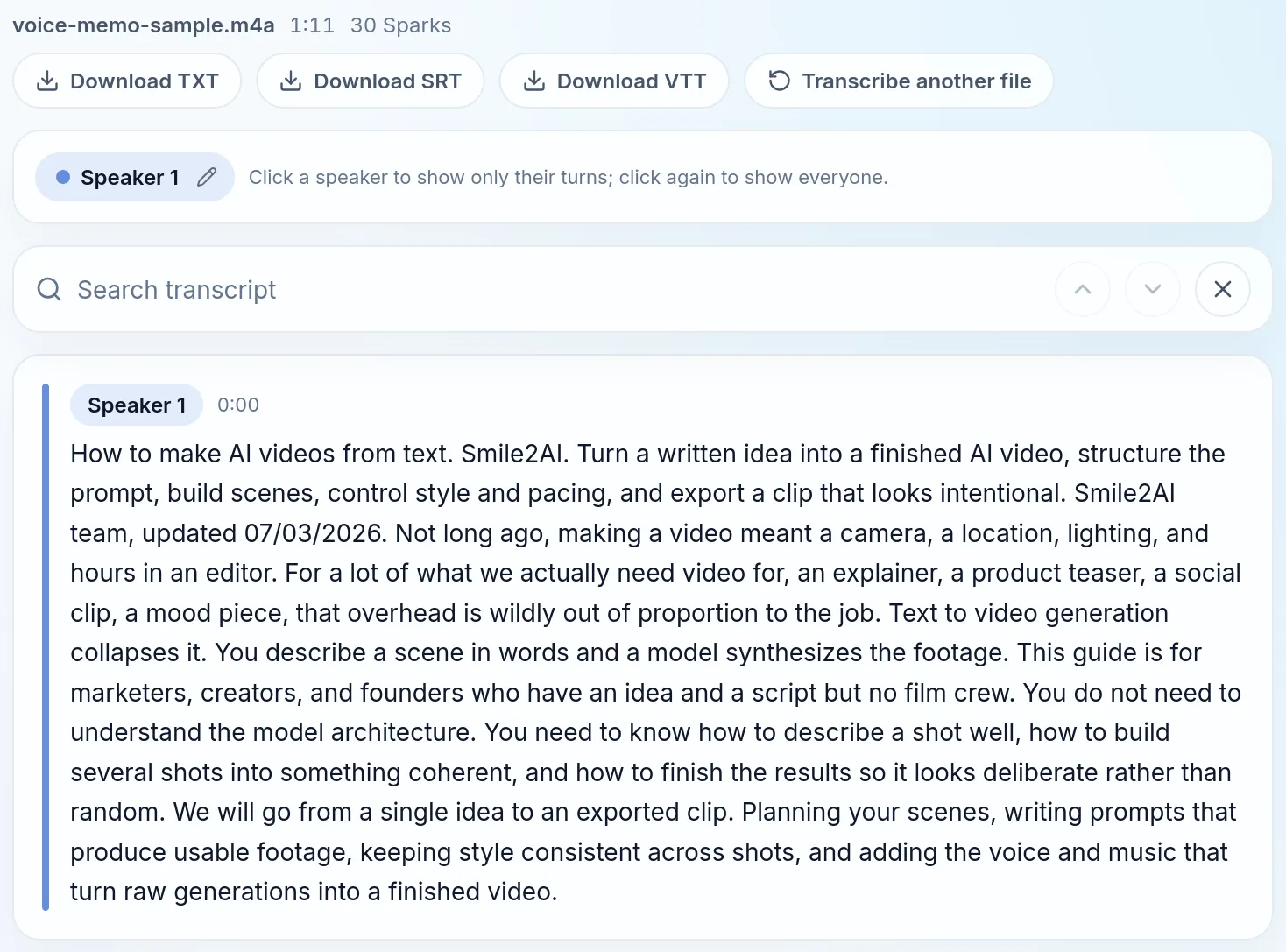
The transcript exactly as it came back: 1:11 of audio, charged 30 Sparks.
Most of the text came back with sensible punctuation and capital letters. The clearest mistake was the product name: the memo says "SmileToAI", and the transcript wrote it as "Smile2AI", twice. Names of people, companies, products and places are a typical weak spot for speech-to-text, because the model has to guess how an unfamiliar word is spelled, and in our memo it made the same guess both times. There is no custom vocabulary list to teach it a name in advance, so correct names in the editor, then read the rest through for smaller slips such as a singular heard as a plural.
Find every copy of the word. Type it into Search transcript. The matches are highlighted, and the arrows step through the turns that contain them.
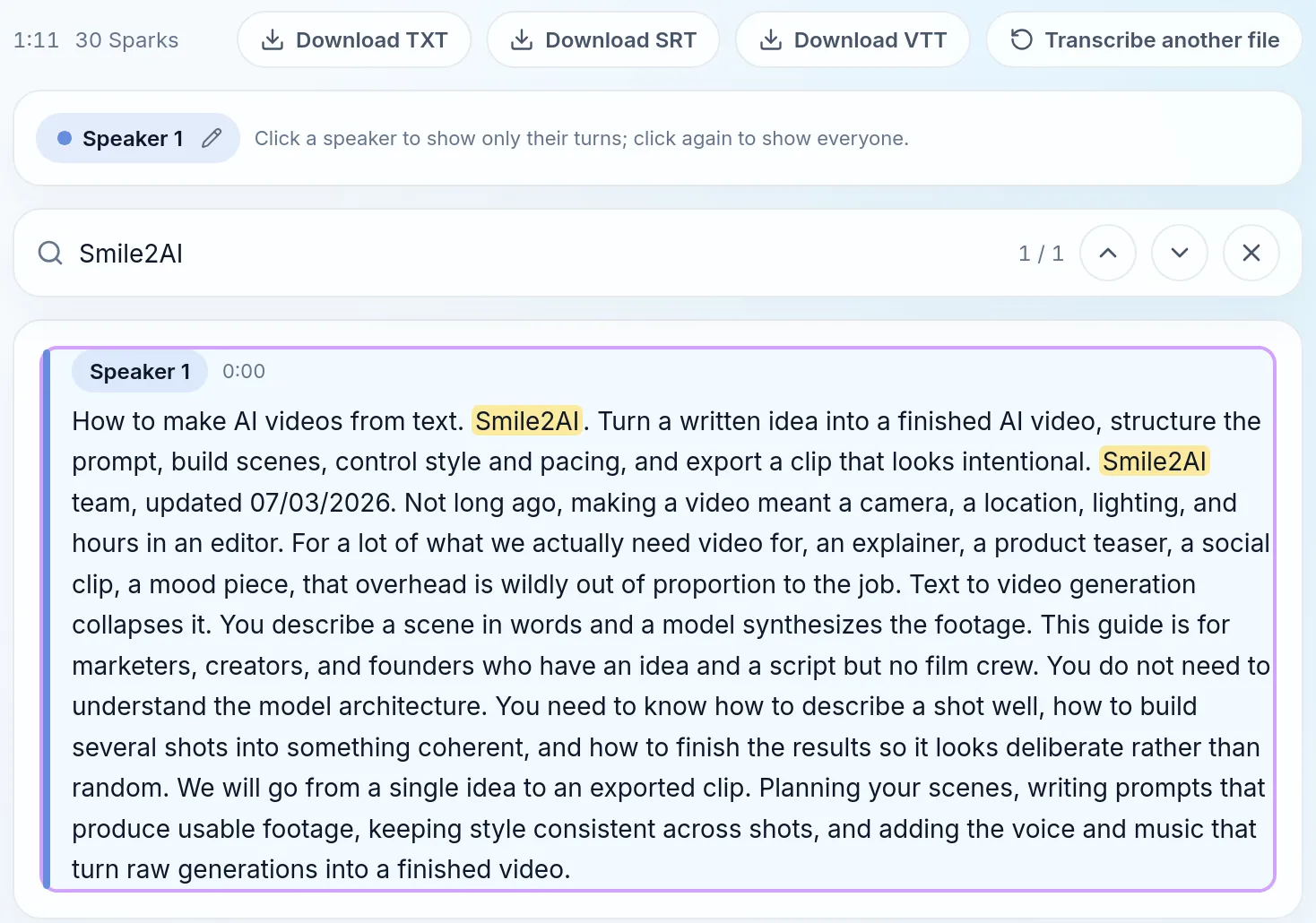
Searching for the misheard name highlights both places it appears.
Correct it in place. Click the paragraph to open it as a text box, fix the words, then press Ctrl+Enter (Cmd+Enter on a Mac) or click outside the box to save. Escape cancels the edit.
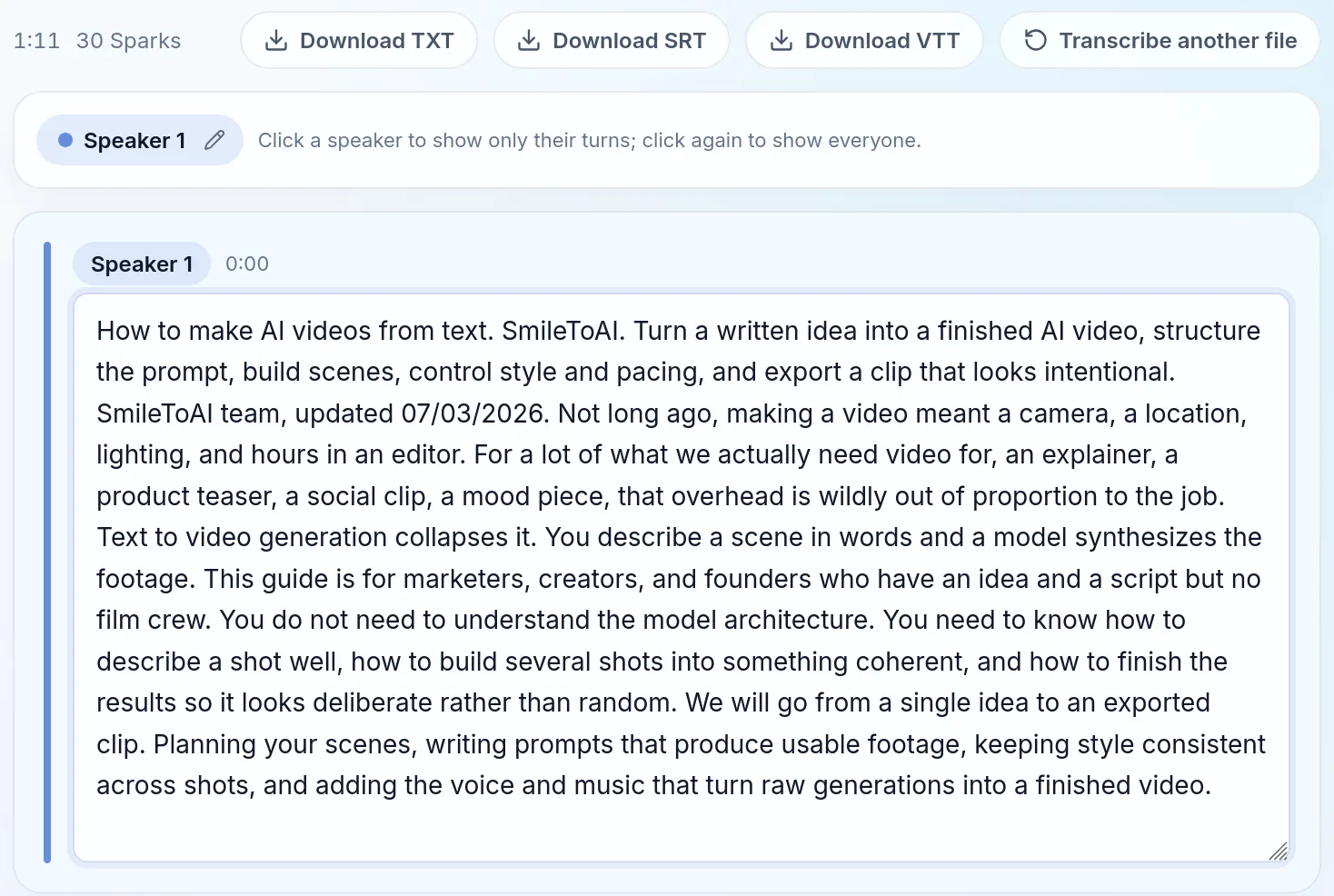
The paragraph open for editing, with both names corrected.
Your corrections are saved with the session, so the downloads use the corrected text. Two more fixes are worth doing:
- Rename the speaker. Select the pencil next to Speaker 1 in the legend and type your name, or "Me". The name replaces the label everywhere, including in the downloads.
- Read the numbers. Dates, prices and phone numbers may come back written differently from how you would type them. Our memo's date came back as "07/03/2026".
Step 5: Download the text
Select Download TXT for text you will paste into notes, an email or a document. A small panel opens first with a Keep speaker labels switch. For a memo of one voice, turn it off: the label adds nothing.
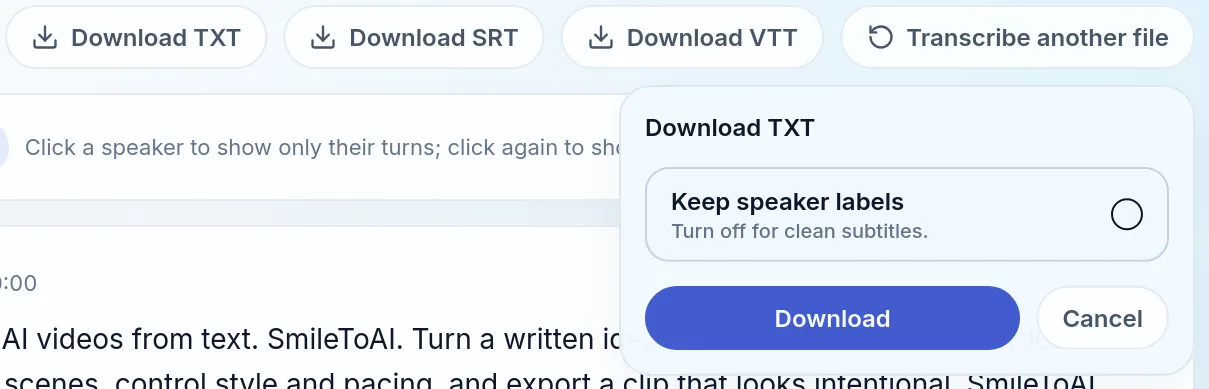
Downloading the corrected transcript as TXT, with speaker labels off.
This is the start of the TXT file we downloaded after the fix, with labels off and timestamps left on:
[0:00] How to make AI videos from text. SmileToAI. Turn a written idea into a finished AI video, structure the prompt, build scenes, control style and pacing, and export a clip that looks intentional. SmileToAI team, updated 07/03/2026. Not long ago, making a video meant a camera, a location, lighting, and hours in an editor.
Download SRT and Download VTT give subtitle files instead, timed to the audio, for when the memo becomes the voice-over of a video. Our guide to auto-generating subtitles covers putting them on a video.
Tips for memos that transcribe cleanly
- Hold the phone close and keep still. A voice close to the microphone gives the model less to guess, and wind or rustling over the microphone gives it more.
- Say hard names clearly. If a memo names someone or something unusual, say it slowly. Then search for it in the transcript and fix every copy at once.
- One memo per subject. A long memo is fine (files up to 150 MB), but separate memos give you separate transcripts, each in its own session with its own name.
- Pick the language for a memo in one language. Auto-detect works, but choosing the language yourself removes one guess.
What this tool does not do
- No live transcription. It works on finished recordings, not on a microphone as you speak.
- No direct access to Voice Memos or iCloud. Export or share the memo as a file, then upload it.
- No links. It cannot fetch a recording from a cloud link; upload the file.
- No custom vocabulary. Names and jargon are corrected in the editor.
- 150 MB per audio file.
Transcribing a voice memo or an M4A in short
For a quick read on an iPhone 12 or later, open the memo in Voice Memos and choose View Transcript. For text you will correct, keep and reuse, share the memo as an .m4a (or take the M4A your recorder saved), upload it to AI Audio Transcription without converting it, search for the names it got wrong and fix them, then download TXT. Our 71-second memo took about 26 seconds and 30 Sparks, and its most visible fix was the product name. For recordings with several voices, such as interviews, meetings and podcasts, see our guide to transcribing audio to text, which covers moving lines between speakers.
Sample used in this guide: the first 71 seconds of a Voice Studio narration made in SmileToAI for our PDF to audiobook guide, cut from the published file and saved as M4A, the format Voice Memos exports. We used one of our own recordings because a real person's voice memo is private. The voice is an AI voice. The screenshots show SmileToAI's output; the only change made is the name correction shown in the editing screenshot. iPhone steps are from Apple's iPhone User Guide: View a Voice Memos transcription, Export a recording to Files and Share a recording.
Questions fréquentes
Can my iPhone transcribe voice memos by itself?
Yes, on iPhone 12 or later. Apple's Voice Memos app transcribes recordings in English, Spanish, Portuguese, Italian, French, German, Japanese, Korean, Simplified Chinese and Traditional Chinese, and lets you view, search and copy the transcript. It is not available in every country or region.
What file format is an iPhone voice memo?
Voice Memos exports a recording as an .m4a file by default. AI Audio Transcription accepts M4A, along with MP3, WAV, AAC, OGG and FLAC, up to 150 MB.
Do I need to convert an M4A file to MP3 before transcribing it?
No. AI Audio Transcription takes M4A files as they are, up to 150 MB, so upload the file your phone or recorder saved. Our test file was a 1 minute 11 second M4A of AAC audio, uploaded without any conversion.
How much does it cost to transcribe a voice memo?
Transcription is charged in Sparks by the length of the audio. Our 1 minute 11 second memo was charged 30 Sparks on a free account, and the free plan includes 5,000 Sparks a month.
Can I transcribe a voice memo on my phone without a computer?
Yes. Save the memo to the Files app, then open AI Audio Transcription in the SmileToAI app on iOS or Android and choose the file. The settings, the editor and the TXT, SRT and VTT downloads are the same as on the web.
Can SmileToAI read my Voice Memos library or iCloud directly?
No. AI Audio Transcription works on files you upload. Export or share the memo as a file first, then upload it.
Can it transcribe a memo while I am still recording?
Not in this tool. AI Audio Transcription works on finished recordings. On iPhone 12 or later, Voice Memos can show a live transcript while you record.