What is an MCP client?
MCP client — An MCP client is the part of an AI app that connects to a Model Context Protocol (MCP) server, reads the list of tools that server offers, and calls those tools on the model’s behalf during a conversation.
An MCP client is the piece of an AI application that talks to a Model Context Protocol (MCP) server. The server exposes tools, such as "search my issues" or "look up a calendar event". The client connects to it, asks which tools exist, passes those tool descriptions to the language model, and runs a tool when the model decides it needs one. The result goes back to the model, which uses it to answer you.
You rarely see the client itself. It lives inside an app you already use: a chat assistant, a code editor, or an agent platform. So in practice, "which MCP client should I use?" means "which AI app will let me plug in MCP servers?". SmileToAI Chat is one of them. You paste a remote MCP server's address under Add custom connector, sign in if the server asks, and the assistant can call that server's tools in your next message. You don't need to write any code.
Client, server and host
MCP splits the work three ways:
- Server: a service that publishes tools (and sometimes data) in the MCP format. A project tracker, a CRM or a docs site can each run one.
- Client: the connection to one server. It handles the protocol: listing tools, sending calls, and returning results.
- Host: the app you actually use. It owns the chat window and the model, and it can hold several clients at once, one per connected server.
When people say "MCP client" in everyday use, they usually mean the host app. That's the meaning used on the rest of this page.
What happens during a chat turn
- Connect. The client opens a connection to the server's URL. If the server needs you to sign in, the client runs the sign-in flow first.
- Discover. It asks the server for its tool list. Each tool has a name, a description and the inputs it expects.
- Offer. The tool descriptions are given to the model, either all at once or only when the model asks for them.
- Call. When your question needs live data, the model picks a tool and fills in its inputs. The client sends the call and waits for the server's reply.
- Answer. The reply is returned to the model, which writes the answer you see.
Step 3 has a cost. Every tool description takes up space in the model's context, so a client that preloads a long tool list on every message leaves less room for your conversation. SmileToAI Chat lets you choose. Under Tool access, "Load tools only when needed" (the default) holds tool descriptions back until the model needs them. "Tools are already loaded" sends them up front.
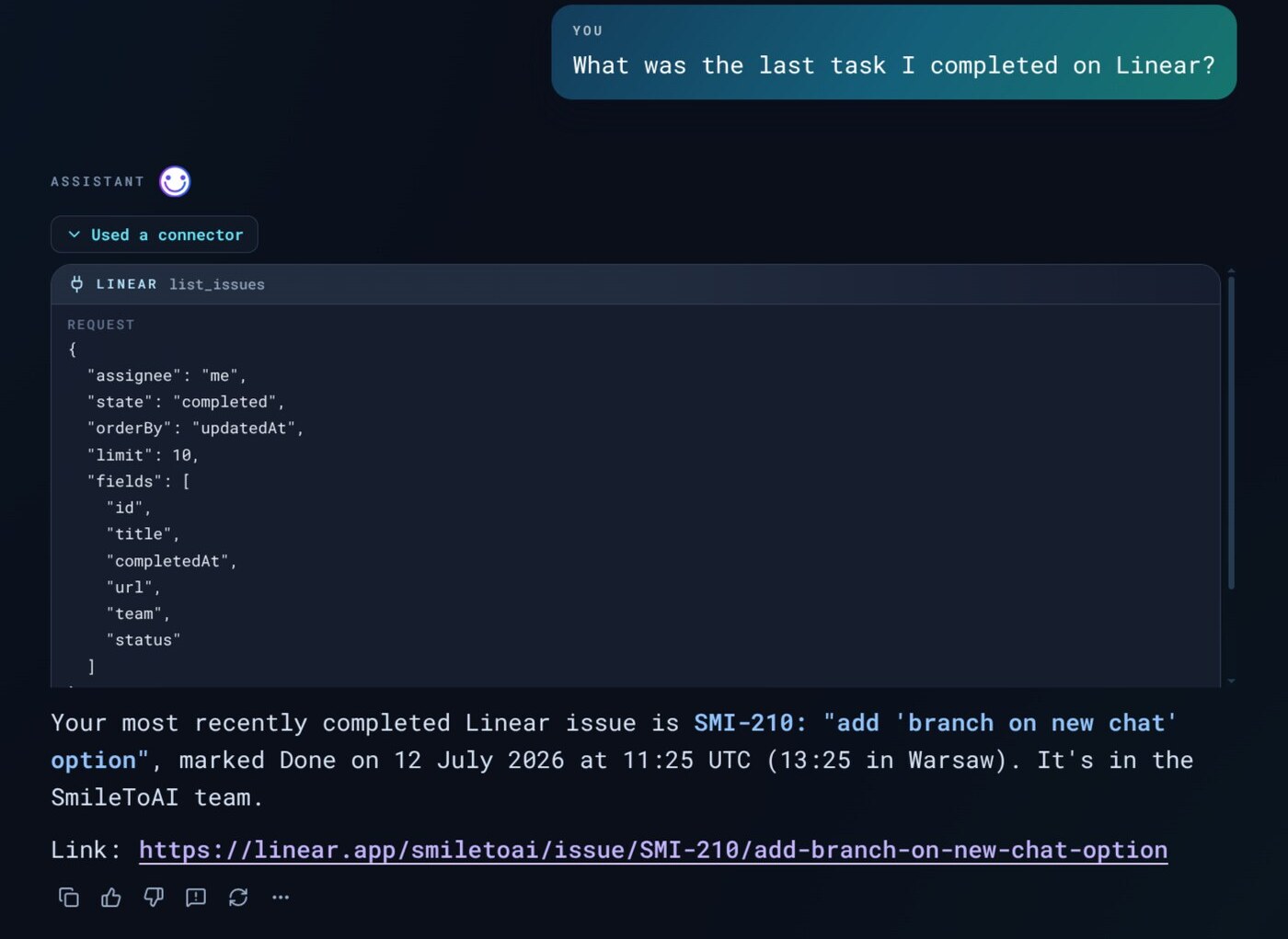
Here is one turn with the Linear MCP server connected. The question needed live data, so the model picked Linear's list_issues tool and filled in its inputs: issues assigned to me, completed, newest first. SmileToAI shows that call under Used a connector in the reply, with the request it sent, so you can check what the assistant asked the server before you trust the answer.
Local and remote MCP servers
MCP servers come in two shapes, and this decides which clients can use them.
- Local servers run on your own computer and talk to a desktop app through standard input and output. Most developer tutorials start here.
- Remote servers run on the internet and are reached by URL, over the Streamable HTTP transport or the older SSE transport.
A web-based client can only reach remote servers, because it can't start programs on your machine. SmileToAI Chat is one of these. It accepts https:// server URLs on the public internet, tries Streamable HTTP first and falls back to SSE. It does not run local servers, and it rejects URLs that point at private or local network addresses.
Using an MCP client without writing code
Building your own client is a programming project: you install an SDK, manage connections, and wire tool calls into a model's API. If you only want an assistant that can use your tools, an app with a built-in client does that for you. In SmileToAI Chat:
- Open Connectors from the + menu in the chat composer, or go to Settings → Connectors.
- Open Add connector and choose Add custom connector. Give it a name and paste the Server URL. If the server needs your own OAuth app, enter its OAuth client ID and OAuth client secret under Advanced settings.
- Sign in when asked. Once the status shows Connected, select Manage to switch individual tools on or off. Disable turns the whole connector off without signing you out, and Remove deletes it.
- Ask your question in Chat. The assistant calls the connector's tools during the turn.
- If a connector later shows Needs reconnect, select Reconnect and sign in again.
Browse connectors lists ready-made entries, so for many services you don't need to look up a server URL yourself.
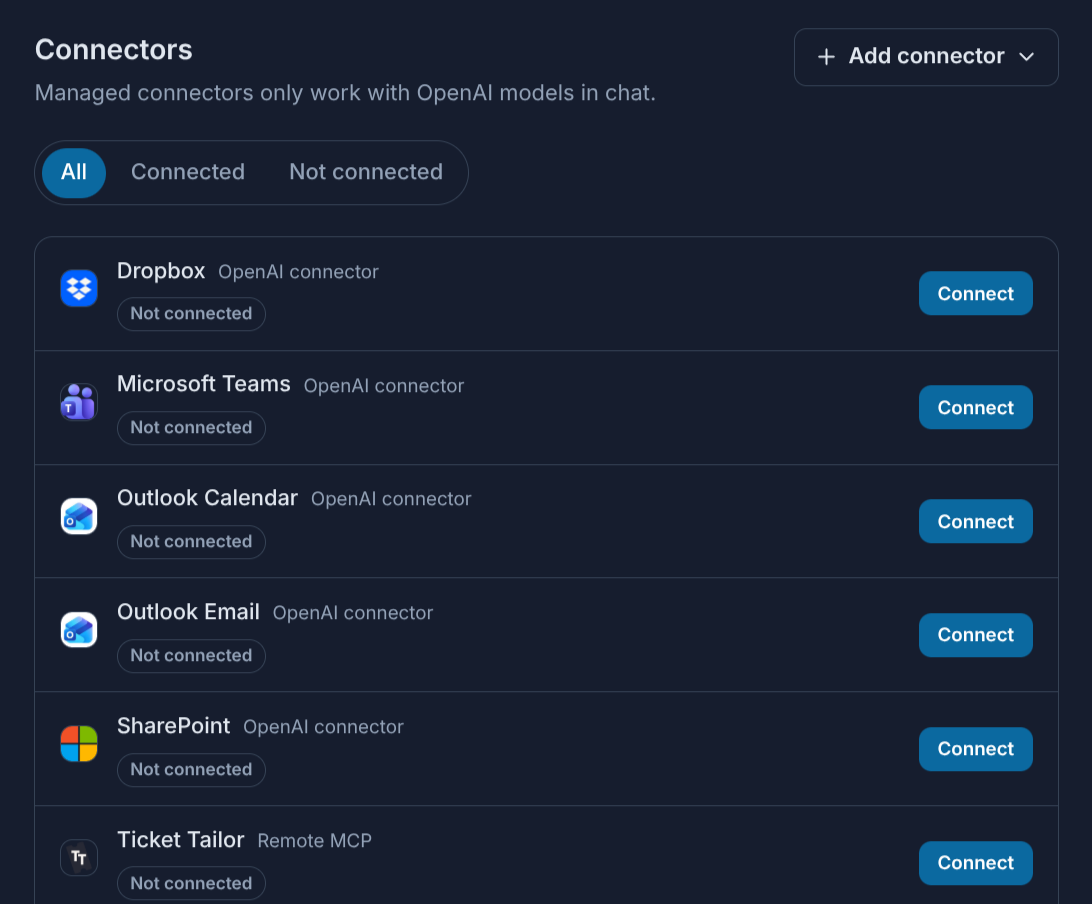
The All list mixes two kinds of entries. Ones labelled OpenAI connector are managed connectors, which only work with OpenAI models. Ones labelled Remote MCP are MCP servers from the directory, and they work with every model that supports connectors.
What to check before you connect a server
- Which models support it. In SmileToAI, custom MCP servers work with the ChatGPT, Claude and Grok models. Gemini does not support connectors. Built-in managed connectors work only with ChatGPT. The Tool access setting is hidden for Grok.
- What the server can do. A tool can only do what its server allows. Managed connectors in SmileToAI are read-only: they can search and read your data, but they can't create or change anything, such as adding a calendar event. A custom server can make changes only if it offers tools that do so.
- Whether you trust it. A connected server can read and act on whatever you share with it in the chat. Connect only servers from providers you trust, and switch off tools you don't need.
- What it called. Every tool call shows up in the reply under Used a connector, with the tool's name and the request it sent. If an answer looks wrong, that is the first place to look.
- Where it applies. Connectors work in ordinary Chat. Conversations inside a Knowledge notebook answer only from the notebook's sources and don't use connectors.
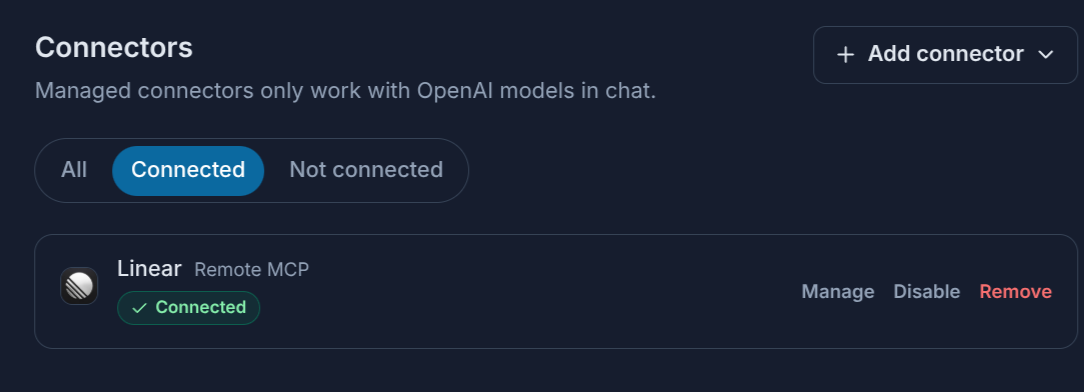
The Connected tab lists what the assistant can use right now. If a connector stops working, it shows Needs reconnect here instead of Connected.
MCP client versus plugins and API integrations
Before MCP, each AI app built its own integrations, and every service had to be connected separately to each app. MCP standardizes the connection. A service publishes one server, and any MCP-capable client can use it. That's why the same server URL can work in a desktop assistant, a code editor and a web chat like SmileToAI.
It works in the other direction too. SmileToAI is also an MCP server: on paid plans you can add https://api.smiletoai.com/mcp as a connector in Claude, ChatGPT, Cursor or another MCP client and sign in with your SmileToAI account. That assistant can then price and start SmileToAI tools, such as upscaling or colour grading an image, after asking you first. Runs spend your team's Sparks, and the results land in your Library. The developer docs have the setup steps for each client.