
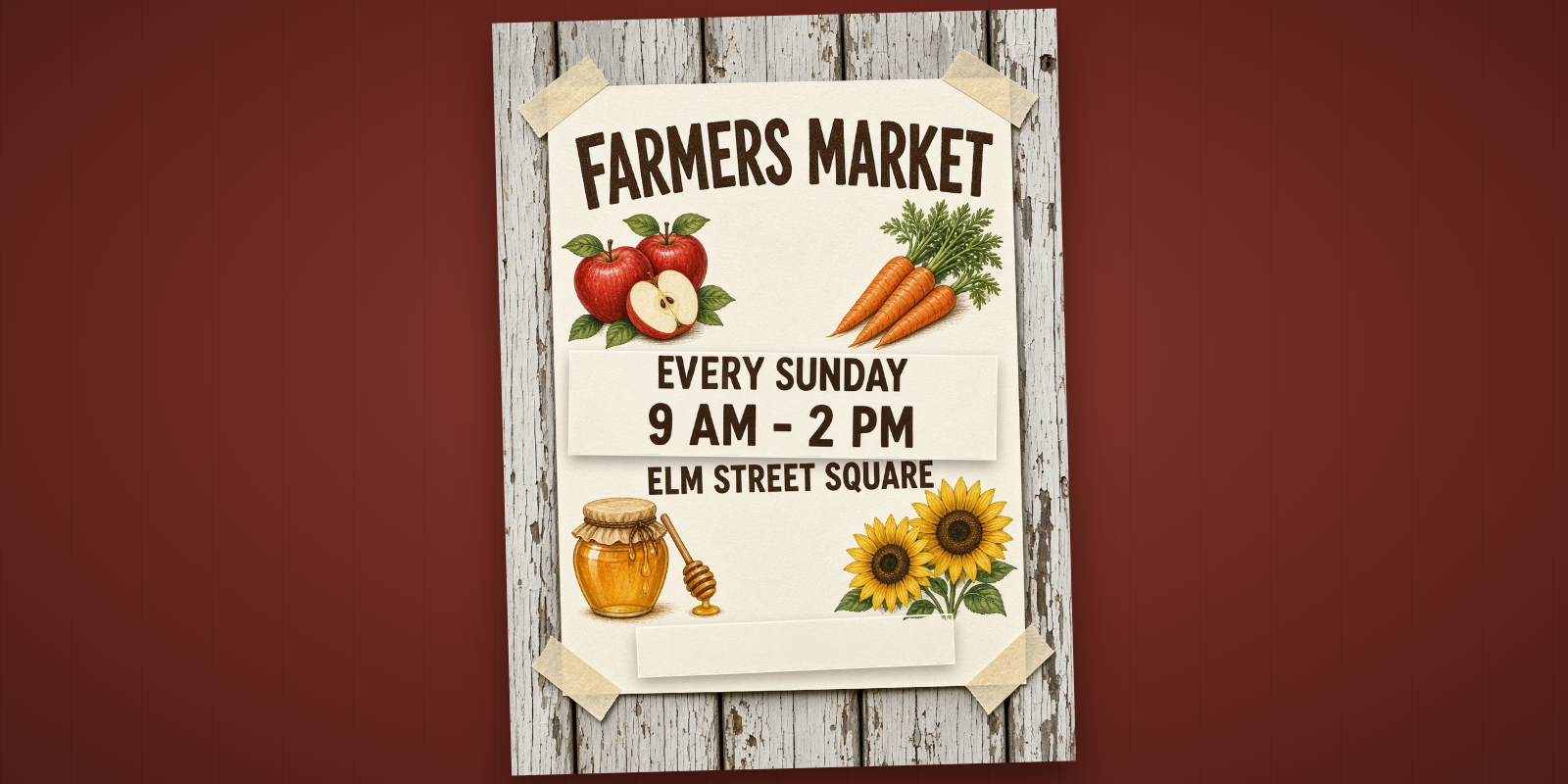
We erased the bottom line of a farmers market poster, moved the market from Saturday to Sunday and shifted its hours, all in one 22-second run that cost 300 Sparks. Where the line was, plain paper filled in; the new words kept their font and ink. We did it with Edit text in SmileToAI, which lists the lines of text it finds in a picture; you delete or retype the ones you want, and at Standard quality only those lines are redrawn. We tested it on a poster's plain paper, not on a busy photo. It sits in the Tools menu of every picture in your gallery, generated or uploaded, and it needs a paid plan. The steps, for changing a line or removing it:
- Hover over the picture in your gallery and open Tools, then Edit text.
- Wait while it finds every line of text and numbers it on the picture (under 15 seconds in our test). This part costs no Sparks.
- Select the bin icon to remove a whole line, or type new words into a line to change it. To drop a single word, retype its line without it.
- Pick Standard (300 Sparks, about 19 cents at the Plus plan's rate) or Best quality (640 Sparks) and select Rewrite the text.
- The result arrives as a new version beside the original, which is left alone.
The poster was made in SmileToAI. EVERY SATURDAY became EVERY SUNDAY, 8 AM - 1 PM became 9 AM - 2 PM, and the small line at the bottom went. SUNDAY is shorter than SATURDAY, and the tool re-centred it rather than leaving a gap. The new words came back in the same condensed capitals, size and dark brown ink, and nothing outside those three lines changed.
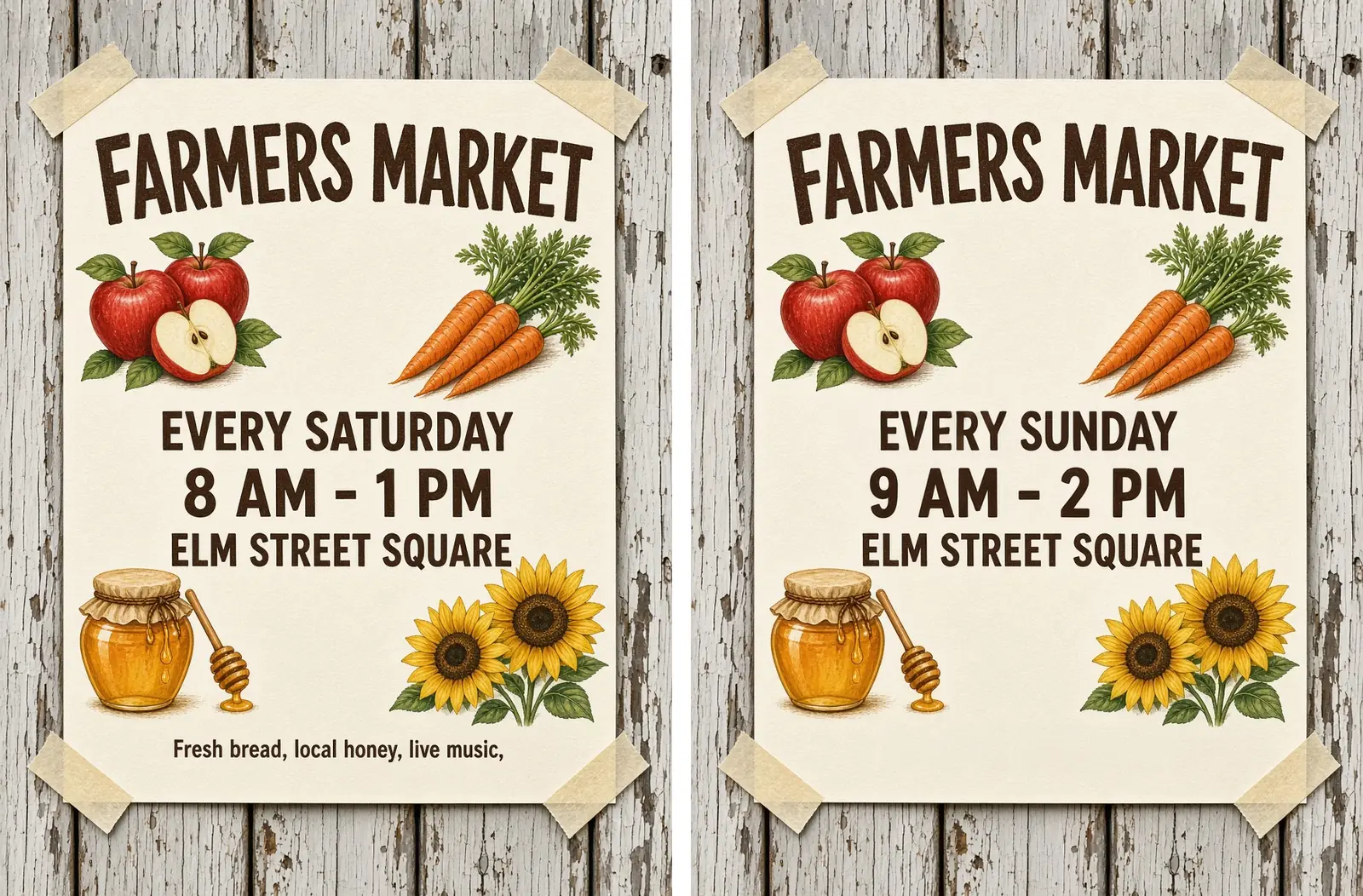
Left, the poster as generated. Right, the version Edit text made: two lines rewritten and one removed in a single Standard run. Both files are 864×1152 pixels and shown unedited.
Edit text needs a Plus, Pro or Team plan; on the Free plan the tool is shown locked and cannot be opened.
How we removed a line of text from the poster
We didn't type anything for this one. Instead of new words, we selected the bin icon next to line 5, and you do the same for any line you want gone. The line is struck through and marked Will be removed, and Undo brings it back if you change your mind. Then run it as usual with Rewrite the text.
What happens to the gap? SmileToAI asks the model to take out exactly that text and fill its place with the surface behind it, and at Standard quality it edits only a small area around the lines you named. Best quality redraws the whole picture. On our poster that surface was cream paper:
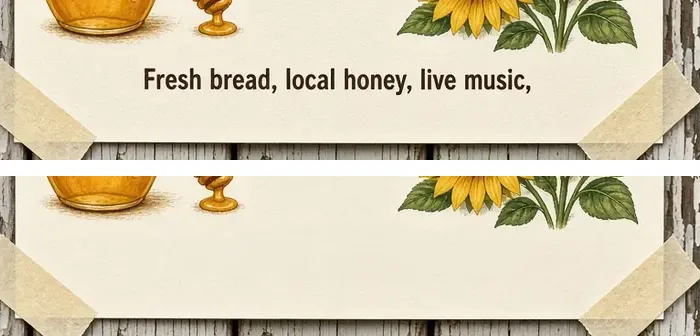
Top, the original poster. Bottom, after Edit text removed the line in the same run as the two rewrites. Both crops come from the unedited output files.
We could not find the seam. The paper texture runs straight through, the honey jar and sunflowers above are untouched, and the tape at the corners is where it was. Our pixel comparison agreed: outside the edited lines, nothing changed.
Where our test stops, and where your picture may differ:
- Removal costs the same as a rewrite. One price per picture, 300 Sparks at Standard or 640 at Best quality, whether you remove one line, rewrite three or mix both, up to 12 changes per run.
- It removes only lines it found. If a word isn't in the list, Edit text can't take it out, and anything it doesn't read as text, such as a logo with no letters, is out of its reach.
- Our removal sat on a plain surface. A line across a busy photo has more to rebuild behind it, so look closely at the result before you use it.
- Watermarks are someone else's call. Remove text only from pictures you made or are allowed to edit.
Before you start: a picture, a plan, a device
- A picture with text in it: a poster, flyer, sign, label, menu or product shot. The tool takes PNG, JPEG and WebP files up to 16 megapixels.
- A SmileToAI paid plan. On the Free plan the Tools menu lists Edit text as "Available on paid plans". Plus is $19 a month with 30,000 Sparks, so one Standard run uses 1% of a month's Sparks, about 19 cents at that rate.
- A browser, or the SmileToAI app for iOS and Android, which has the same Edit text tool.
Our sample is SmileToAI's own. We asked the AI Image Generator for a farmers market poster taped to a wooden fence, with five lines of text, and got the poster above: 225 Sparks for the image, plus about 86 for the Image Assistant that planned it. It went straight into the gallery. To use your own picture, upload it first: in the AI Image Generator, open the generation settings, choose All settings, then under References select Pick from library and Upload images, and finally Add reference to gallery.
Step 1: Open Edit text from the picture's Tools menu
Hover over the picture in the gallery. A row of icons appears along its bottom edge, and only while the pointer is there, so the wrench is easy to miss. Select Tools (the wrench) to open the list of tools that work on that picture, and choose Edit text.
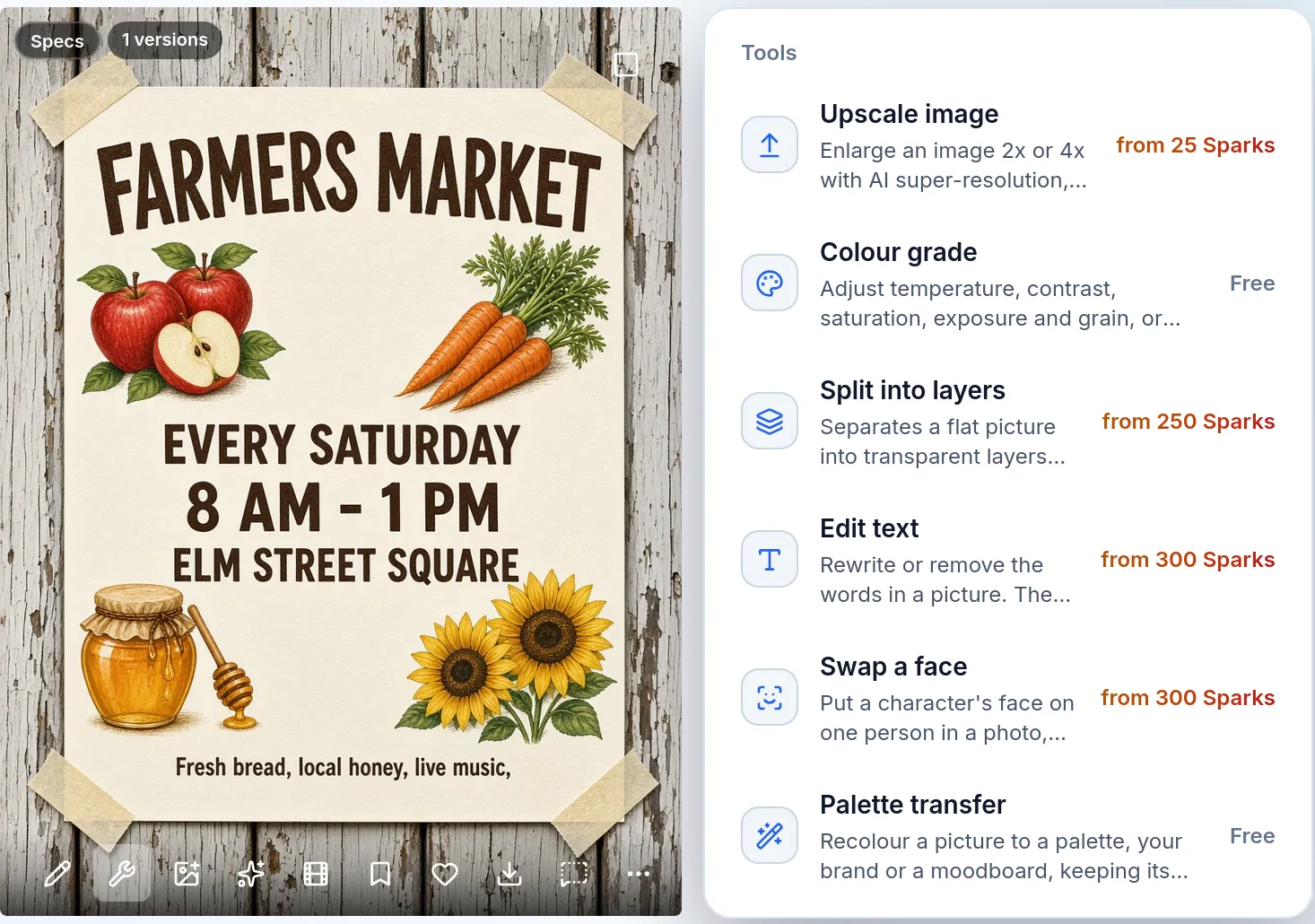
The Tools menu on a paid plan. Edit text shows its starting price, from 300 Sparks.
You can also reach it from the Apps catalog, where it is listed as Edit text in a picture.
Step 2: Let it find the text
The Edit text window opens with your picture on the left. While it reads the picture, it says "Finding the text in your picture… Finding the text is free." On our poster this took under 15 seconds. It then drew a numbered box around each line it found and listed the lines on the right:
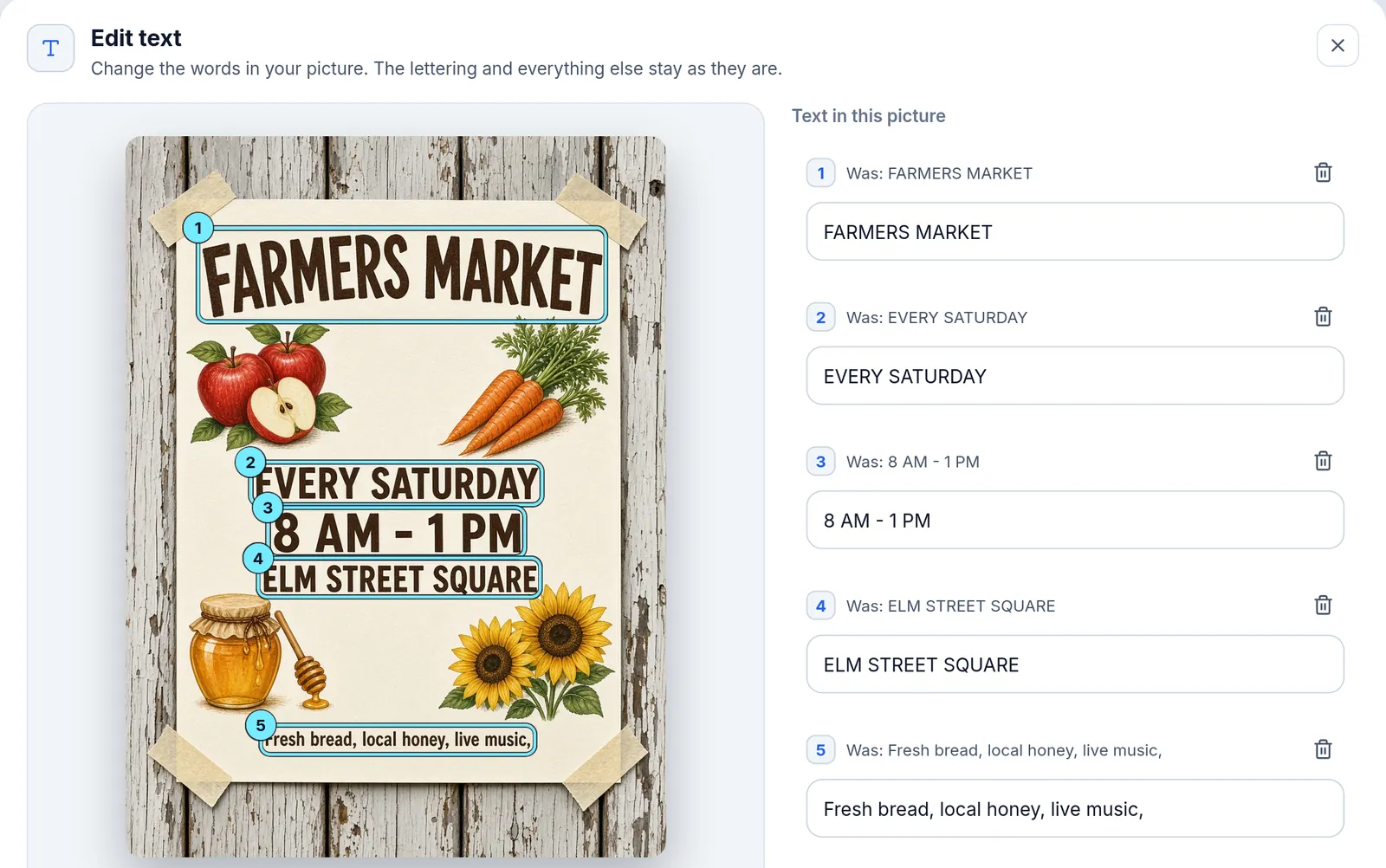
All five lines were found, including the small one at the bottom, and read exactly as printed, down to its trailing comma.
Each row shows what the picture says now, gives you a box to rewrite it and puts a bin icon beside it. Point at a row or click it and its box lights up on the picture, which matters when lines sit close together, as ours did. If the tool finds nothing, it says "We found no readable text in this picture." Try a picture with clearer, larger lettering.
Step 3: Rewrite or remove the lines
Click into a line and type what it should say instead. To delete a line, select its bin icon.
We made three changes:
- Line 2, EVERY SATURDAY, became EVERY SUNDAY.
- Line 3, 8 AM - 1 PM, became 9 AM - 2 PM.
- Line 5, the small "Fresh bread, local honey, live music," line, is removed.
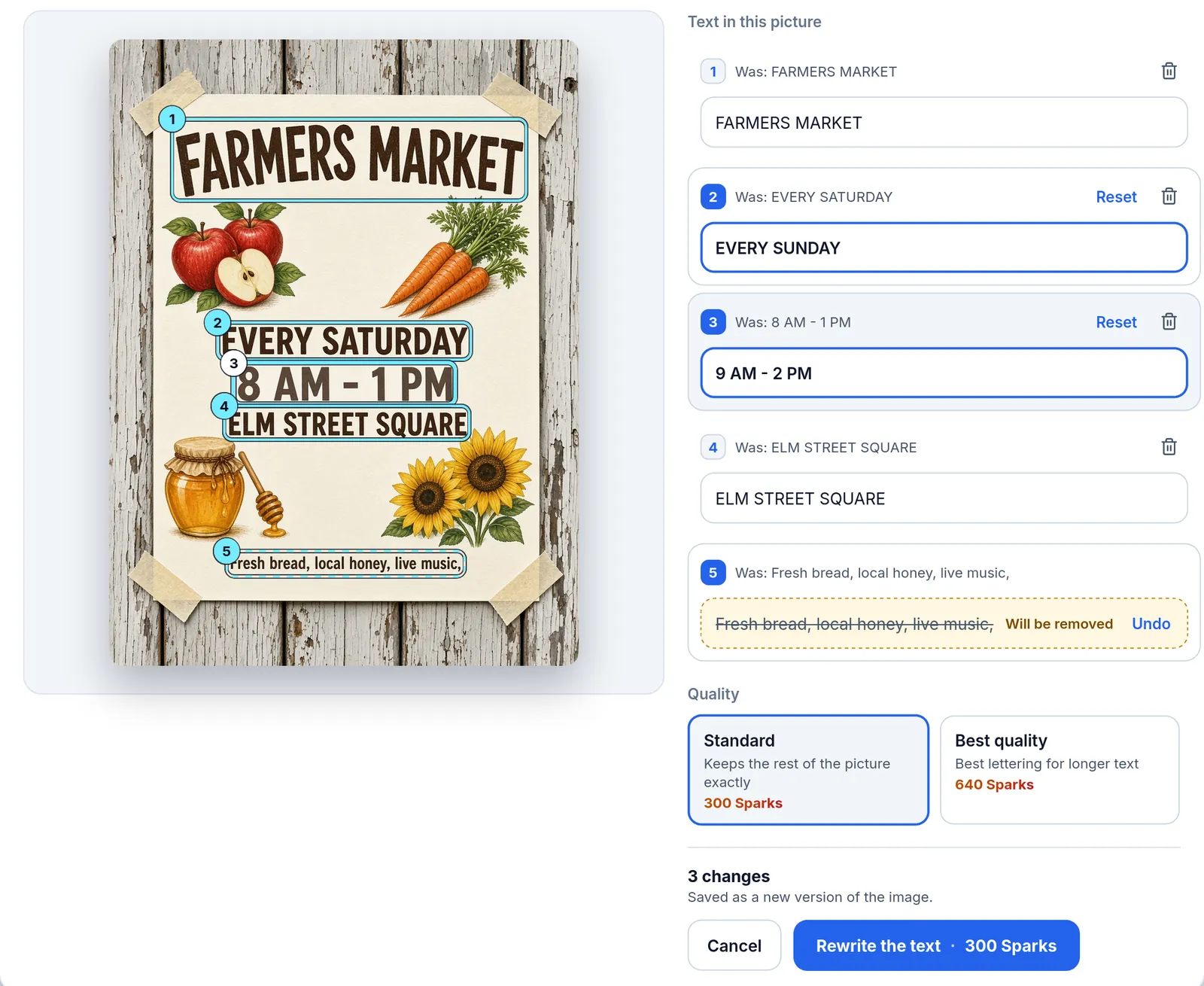
Changed lines show Reset, and a removed line shows Will be removed with Undo. The counter reads 3 changes and the button shows the price before you spend anything.
The limits, from the tool's own checks:
- Up to 12 changes per run, and up to 200 characters per line.
- A line can't contain "=>", because the tool uses that sign to separate the old text from the new.
- It only changes text it found. You can't add a new line where there was none. A change that names text the picture doesn't show is refused before any Sparks are spent.
Step 4: Pick a quality and run it
Under Quality there are two options, each with its price:
- Standard, 300 Sparks: "Keeps the rest of the picture exactly." This is the one we used.
- Best quality, 640 Sparks: "Best lettering for longer text." Use it when your new words are much longer than the old ones, or when Standard's lettering doesn't match well enough. It redraws the whole picture rather than only the named lines, so check the rest of it afterwards.
The price is per picture, not per line. Our three changes cost the same 300 Sparks one change would have. Select Rewrite the text. Ours finished 22 seconds later with "Done. Saved as a new version of the image." and the 300 Sparks it charged:
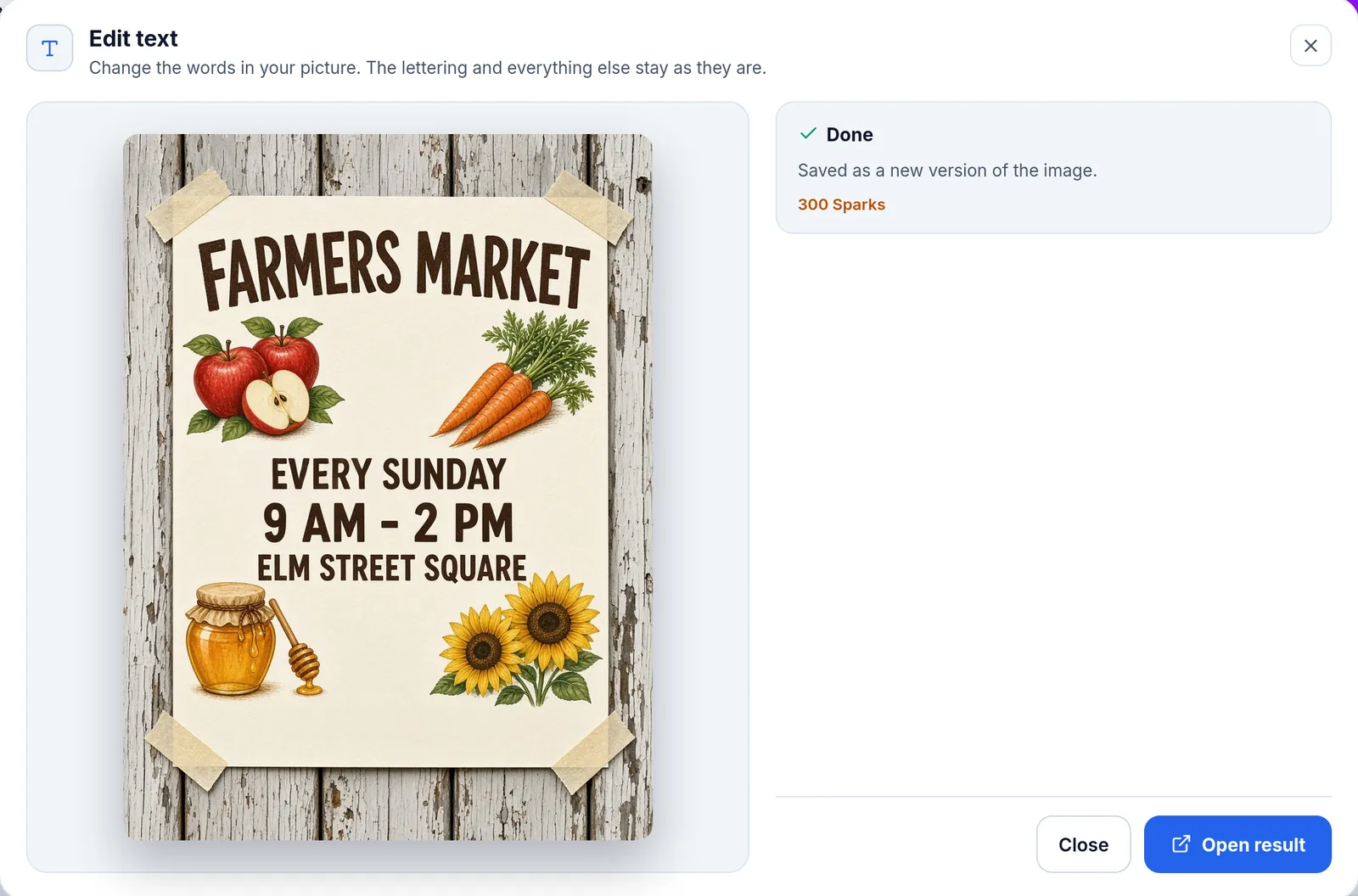
The finished run. Open result takes you to the new version.
Here are the two changed lines up close, from the original and the edited files at full size:
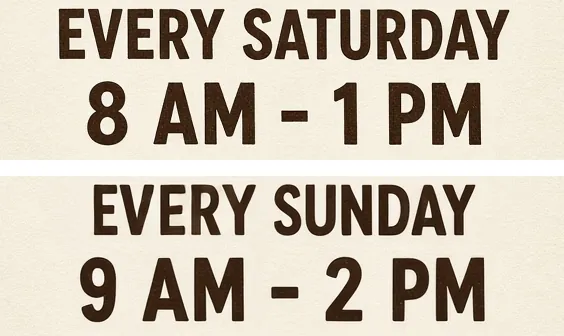
Top, the original. Bottom, after Edit text. Same letter shapes, weight, colour and spacing; the shorter word is re-centred on the poster.
We also checked the claim that the rest stays put. Comparing the two files pixel by pixel, the only rows that changed were the two edited lines and the removed one. The apples, carrots, honey jar, sunflowers, tape and fence were untouched. Where the bottom line was, the tool filled in plain cream paper that matches the poster.
Step 5: Find the new version and download it
Your poster is still there after the run. The result is a new version linked to the original, which you can see in the Version Map (hover over the picture and select Open Version Map):
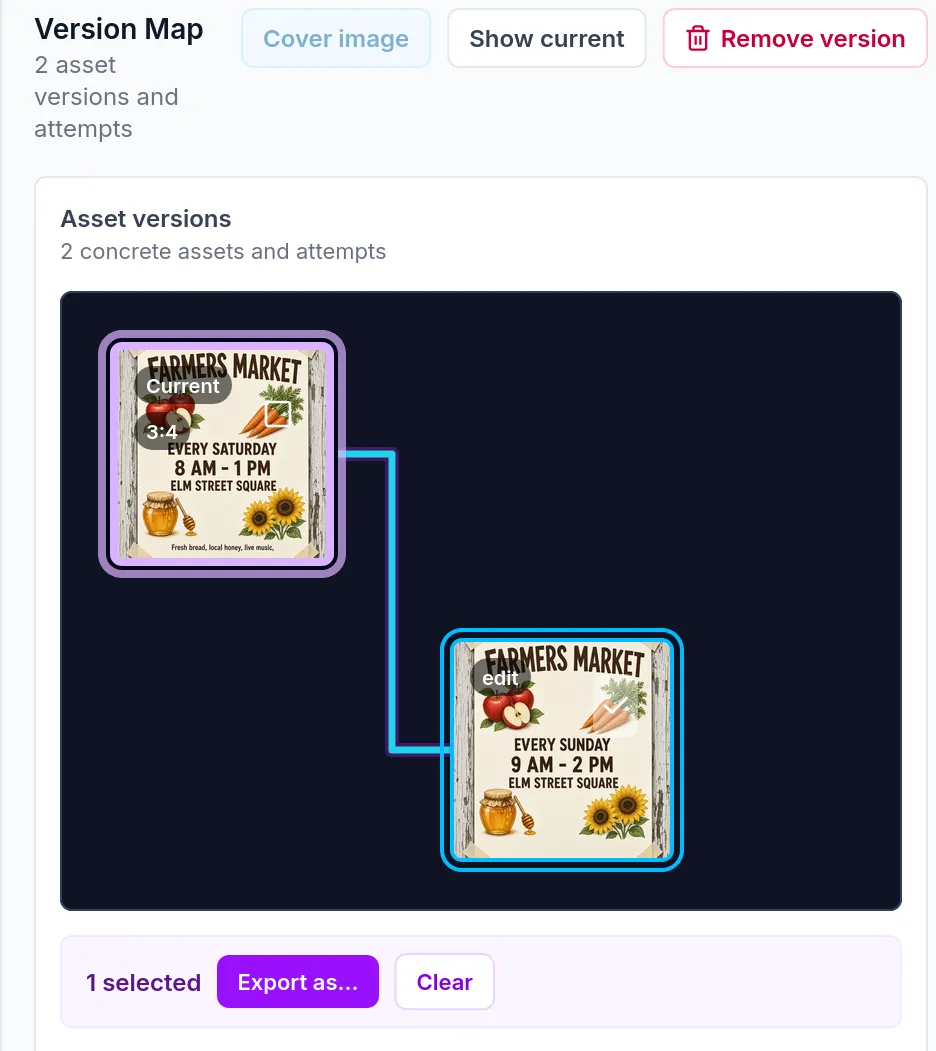
The original, marked Current, and the edit hanging under it. Selecting a version shows Export as...
To download the edited version:
- In the Version Map, select the edited version so it shows "1 selected".
- Select Export as....
- Choose Original (source dimensions) to get the file at full size. The same window offers ready-made sizes for Instagram, YouTube, LinkedIn, Pinterest, Facebook and X, and a custom size as PNG, JPEG or WebP.
Our edited poster downloaded as an 864×1152 PNG, the same size as the original. If you'd rather the gallery show the edit, make it the picture's cover in the Version Map.
If the new words don't come out right
We hit none of these on the poster, so this list comes from how the tool works, not from a failed run of ours.
The new text looks off: wrong spacing, or squeezed letters. Standard redraws the new words in the space the old ones used. A much longer replacement has to fit the same width. Try Best quality, which is made for longer text but redraws the whole picture, or shorten the wording.
A line wasn't found. Edit text can only change the lines it lists. If one is missing, try a sharper or larger copy of the picture, then open Edit text on it again.
You want a different font, colour or size. Edit text deliberately keeps the lettering. To restyle text, describe the change in Prompt Edit in the image editor instead. Our AI photo editing prompts show how to word an edit so the rest of the picture stays put.
A removed line left a mark. Your original is untouched, so nothing is lost. Describe the clean-up in Prompt Edit in the image editor, which takes a sentence about the whole change.
The Tools menu says "Available on paid plans". Edit text needs a Plus, Pro or Team plan, for finding the text as well as rewriting it. On those plans, only the rewrite costs Sparks.
Edit text or Prompt Edit: which fits your change
Use Edit text when the design is right and only the words are wrong: a date or time that changed, a price, a name, a typo, a line you no longer need. For a finished poster or flyer whose design file you no longer have, it spares you rebuilding the layout, and you type the exact words instead of describing them in a prompt. On our poster the lettering matched, and the pixel check found nothing else had moved.
Reach for something else when you want to add text that isn't there, restyle it, or change much of the picture around it. For those, Prompt Edit in the same editor takes a sentence describing the whole change. To swap the scene behind the words, see how to change the background of a photo.
FAQ
How do I change text in an image without changing the font?
Use an AI tool that finds the text in the picture and redraws only the words you change, in the same lettering. In SmileToAI, open the picture's Tools menu, choose Edit text, type the new words into the line you want to change, and select Rewrite the text. In our test, EVERY SATURDAY became EVERY SUNDAY in the same condensed capitals, and the rest of the poster stayed as it was.
How do I remove text from an image?
Open Edit text from the picture's Tools menu, wait for it to list the lines it found, select the bin icon next to each line you want gone, and select Rewrite the text. The tool fills the space with the surface behind the words. In our run the bottom line of a poster disappeared and plain paper took its place, for the same 300 Sparks a rewrite costs.
Is Edit text free?
No. Edit text is a paid-plan tool: on the Free plan the Tools menu shows it as Available on paid plans and it cannot be opened. On Plus, Pro or Team, finding the text costs no Sparks. A run costs 300 Sparks at Standard quality or 640 Sparks at Best quality, one price per picture however many lines you change.
Can I pick a different font or colour for the new text?
No. Edit text keeps the lettering of the line you change: the same font, size, colour and position. There is no font picker. If you want new styling, describe the change in Prompt Edit in the image editor instead.
Can I add text that is not in the picture yet?
Not with Edit text. It only changes or removes lines it found in the picture. A change that names text the picture does not show is refused before anything is charged.