
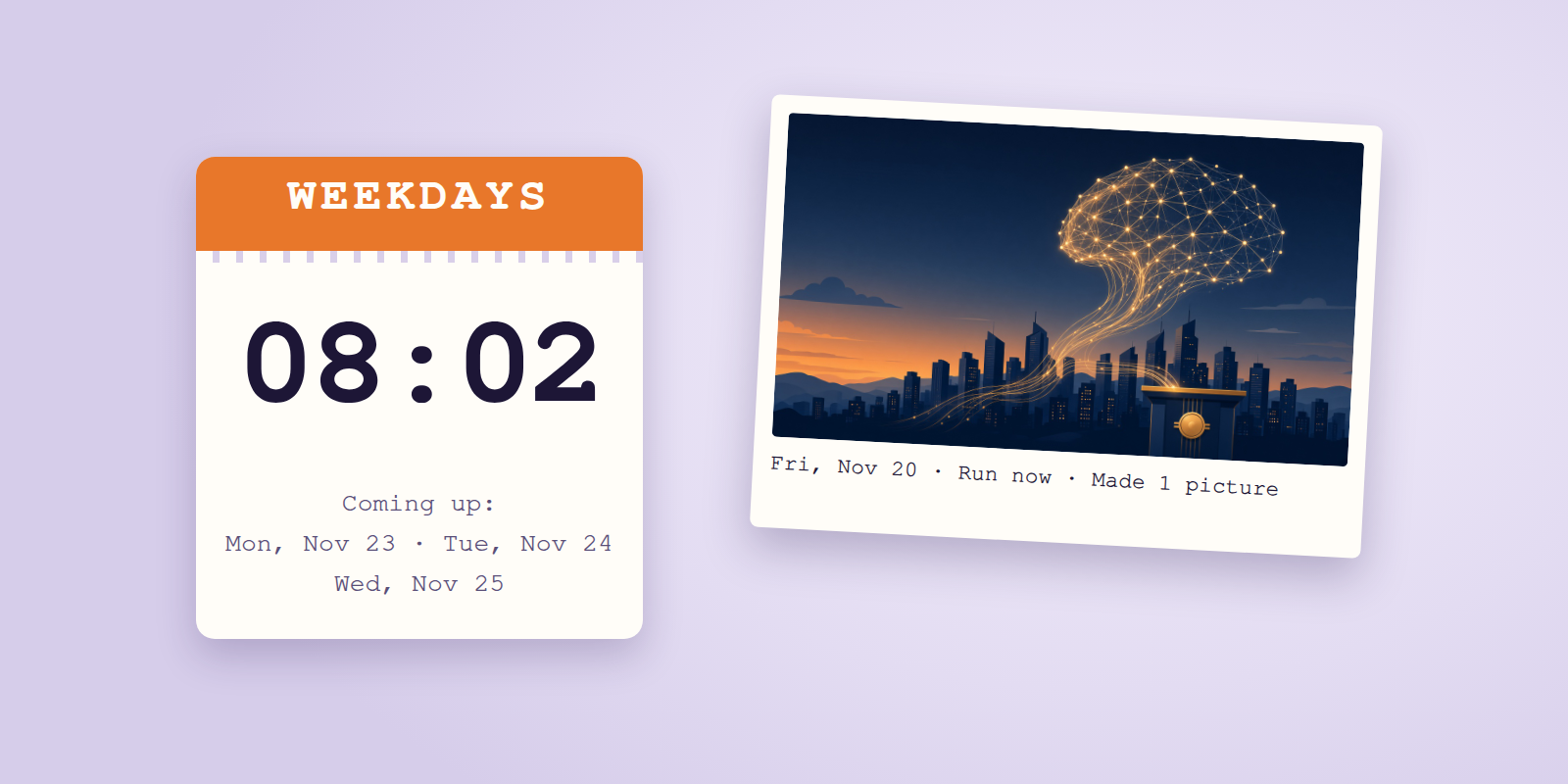
We typed one sentence into SmileToAI Chat: "Every weekday at 8:00, give me the three biggest AI news stories in one line each, and make one picture for the top story." Forty seconds after we pressed Run now, a fresh chat held three news lines, four sources and an illustration. ChatGPT scheduled tasks do the same kind of job: according to OpenAI's help center, you ask ChatGPT in a chat (or open Scheduled), and it runs the prompt once or on a repeat, then notifies you by push, email or both. Free and Go accounts can keep 3 active tasks, Plus 5, Business and Edu 10, Pro and Enterprise 15.
Below are ChatGPT's setup steps and limits as OpenAI states them. After that comes our SmileToAI run, step by step, with the Sparks it actually charged and the line it got wrong.
How to set up a ChatGPT scheduled task
These steps come from OpenAI's help article on scheduled tasks in ChatGPT, read on 20 November 2026. We haven't run ChatGPT's version for this page, so we only repeat what OpenAI says.
- Ask for it in a chat. Describe the action and when, the way OpenAI's own example does: "Let me know when my package is delivered." You can also start from the Scheduled page.
- Allow notifications. ChatGPT asks for browser permission; choose push, email or both under Settings > Notifications. Phone push needs the task to be created in the ChatGPT mobile app.
- Manage it later. Select the task title in its conversation, or open Scheduled, to edit, pause, resume or delete it.
If Scheduled doesn't show up in the desktop app, OpenAI suggests using ChatGPT on the web. Plus, Pro, Business, Enterprise and Edu plans can also set event-triggered tasks that react to Gmail, Slack or GitHub activity.
How many ChatGPT scheduled tasks you get, by plan
| Free and Go | Plus | Business and Edu | Pro and Enterprise | |
|---|---|---|---|---|
| Active tasks | 3 | 5 | 10 | 15 |
Free users can schedule a one-time task, or a recurring one no more often than once a day, in flexible windows such as morning or night. Hourly repeats and exact delivery times need an eligible paid plan.
Tasks don't work in voice chats, GPTs or locked chats, and a task created in a project can't open that project's files. Two things stood out when we read this next to SmileToAI's version: ChatGPT has a free tier for tasks, which SmileToAI doesn't offer for schedules, and it can send email notifications, which SmileToAI can't.
Can you set one up with a single message?
Yes. We expected a form. Instead we wrote the sentence above in a normal chat, and Chat answered with a draft, not a schedule:
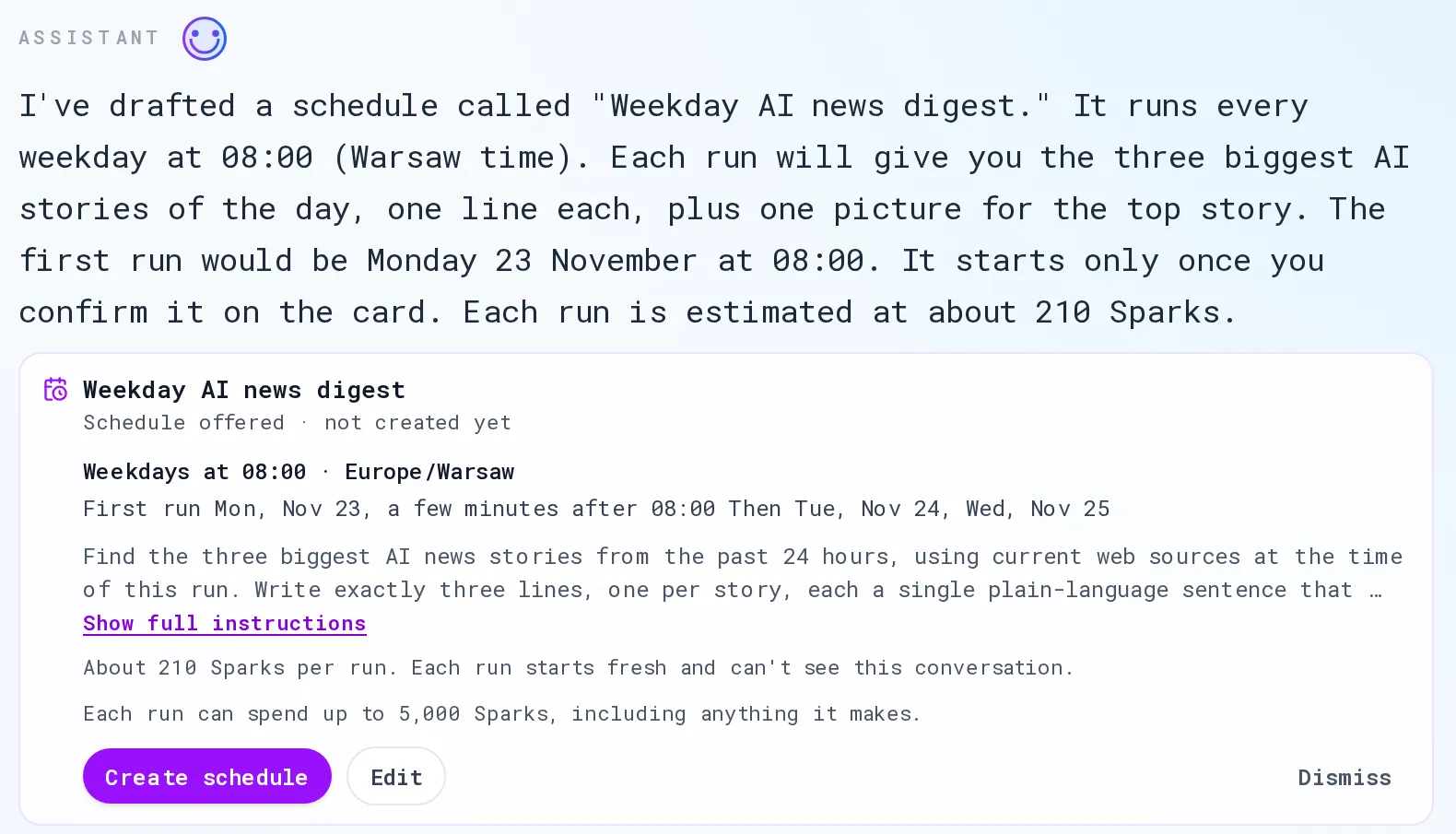
The draft card. Nothing runs until you press Create schedule.
Read the card before you press anything. It had turned our one line into a full set of instructions: find stories from the past 24 hours using current web sources, write exactly three single-sentence lines, put the biggest story first, then make one picture with no readable text in it. We kept its version, which was better than ours. It also means the wording that runs every morning is Chat's, not yours, so Show full instructions is worth a click.
The card also tells you when the first run happens and roughly what each one costs. Ours said about 210 Sparks. It said something else we liked: each run starts fresh and can't see the conversation it was set up from. So anything the task needs has to be in the instructions themselves.
We pressed Create schedule. The card changed in place:
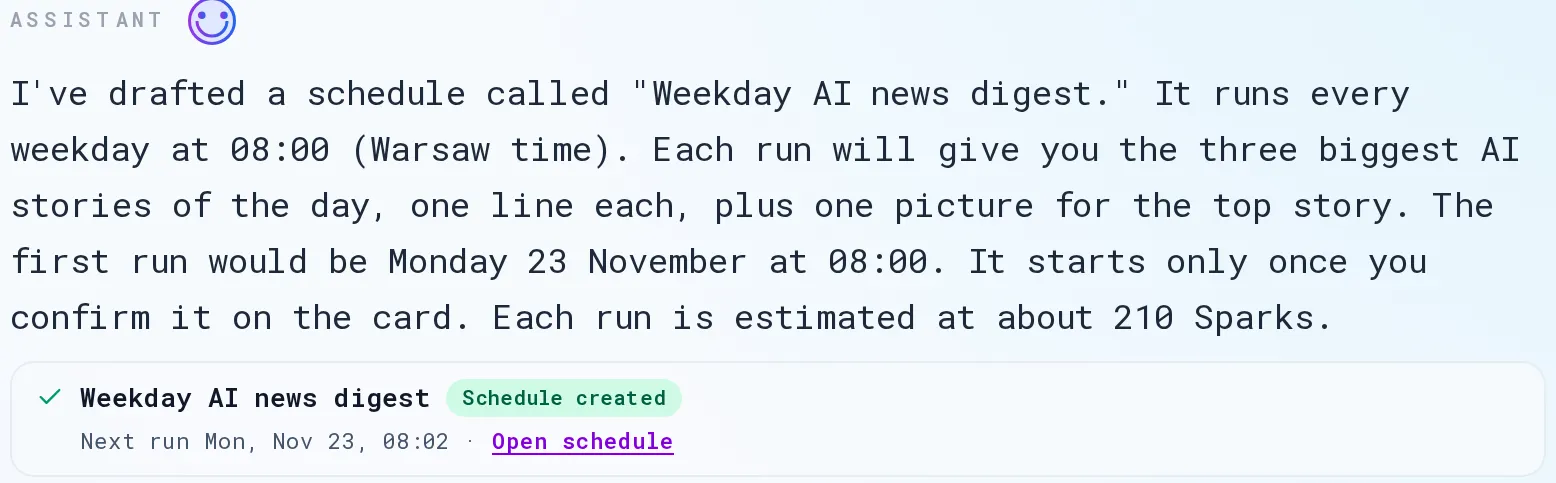
Created. The next run is set for 08:02, not 08:00.
Our first guess was a rounding bug. It isn't: each schedule gets a small fixed offset, so a repeating run starts within about 10 minutes of its set time rather than at the stroke of the hour.
Prefer a form after all? New schedule on the Schedules page also offers Set up manually, and its starter templates fill the form in for you. We didn't need them.
Did the first run do what we asked?
Mostly. We didn't want to wait until Monday, so we opened the schedule and pressed Run now, which fires it immediately without moving the timetable. The page it opens on is the one to bookmark, because every run lands in its history:
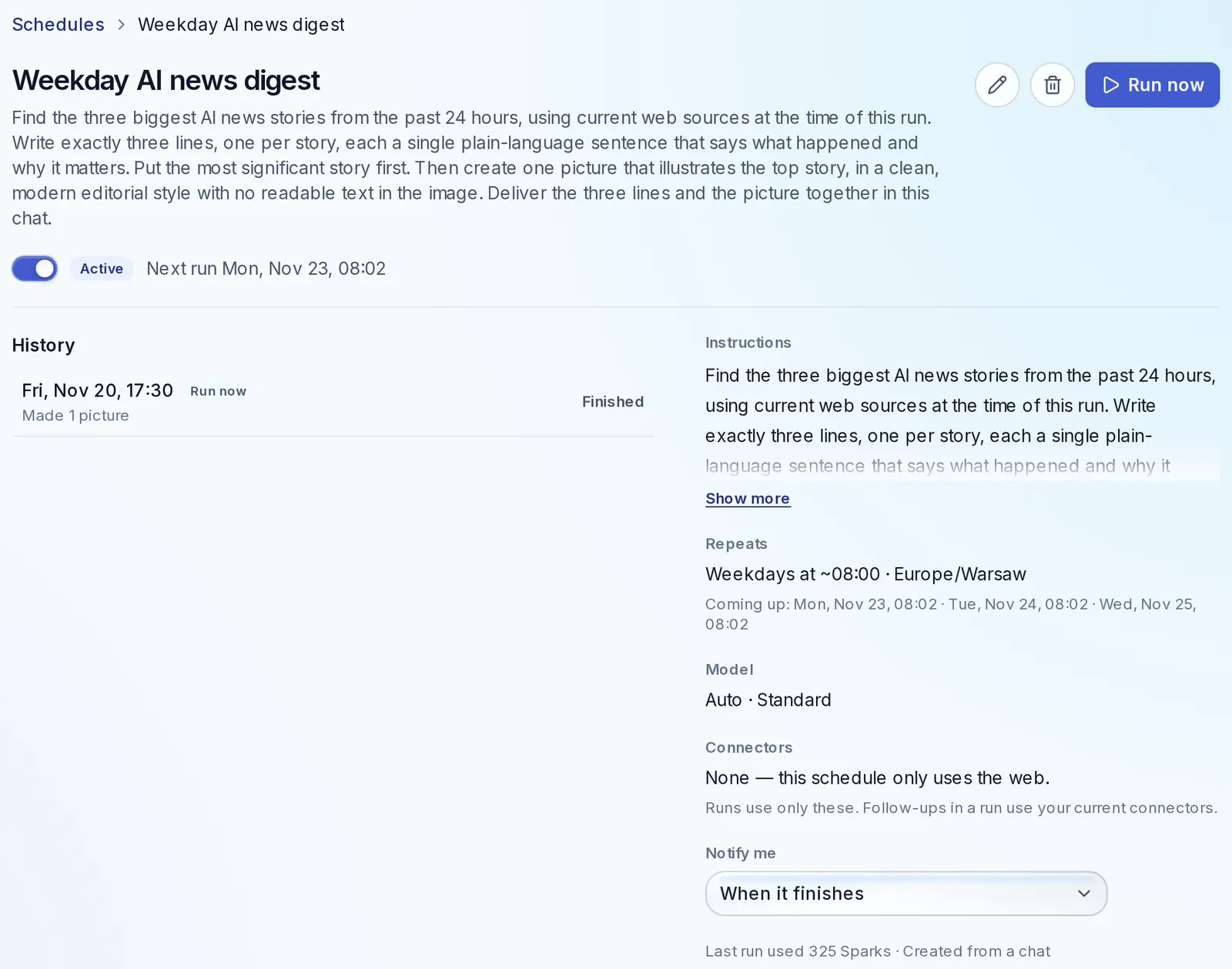
The schedule's page after one manual run.
The run took about forty seconds. Clicking its row opened the run's own chat, headed "Scheduled run · Fri, Nov 20, 17:30", with a "Searched the web" note above the answer:
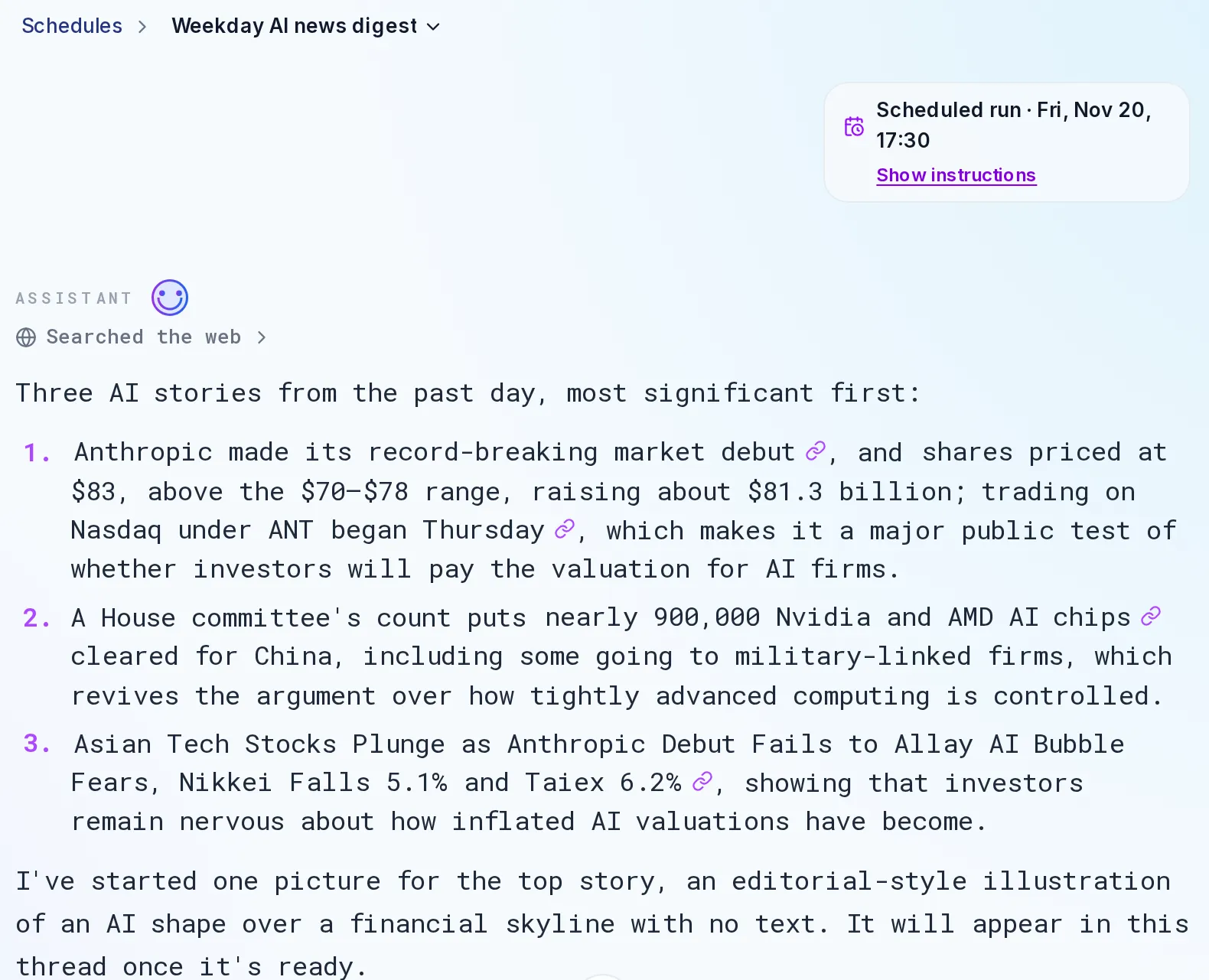
The reply, unedited. Each line links to where it came from; we didn't fact-check the news itself.
Two lines followed the instructions well. The third didn't. It came back as a pasted headline with a clause tacked on, not the plain sentence we asked for. Nobody was watching to send it back. If a run's reply looks wrong, the run's chat is an ordinary chat, so you can reply to it and ask for the fix. A run also gets a Needs a look label when an automatic check suggests it didn't do what the instructions asked. Ours didn't get one, so treat that label as a hint, not a guarantee.
Below the sources sat the picture:

The picture the run made for the top story, with Edit and download buttons.
The picture matched the top story, and it was there when we opened the chat, with no second prompt. The same schedule could make up to four images, a narration or a short video (720p, 5 seconds unless the instructions ask for more), and its history row says what each run made.
What did one run cost?
The card estimated about 210 Sparks a run. The real run used 325: 125 for the chat turn with its web search and 200 for the picture. Creating the schedule in chat cost another 15. We would rather the estimate had been closer. Plan for the real number, not the card's.
At the Plus plan's $19 for 30,000 Sparks a month, 325 Sparks is about $0.21. A weekday schedule runs about 22 times a month, roughly 7,150 Sparks, under a quarter of a Plus month's Sparks. The picture was 200 of those 325 Sparks, so it is the part to cut if the brief alone is enough.
Before you copy our setup, know where the edges are:
- Plans. Schedules are on Plus, Pro and Team. Free accounts see the Schedules area locked.
- Runs per day. 5 on Plus, 15 on Pro, 25 on Team, reset at 00:00 UTC. One-time schedules don't count; Run now does, so our test, on a Plus account, used one of the day's five.
- Timing. Hourly at most, or daily, weekdays, chosen days of the week, or a day of the month from 1 to 28. A custom cron timetable can only be set on the web.
- Spend. A run may spend at most 5,000 Sparks, everything it makes included. Three failed runs in a row pause the schedule.
- Missed times. Only the most recent missed time is caught up, and only if it is under 6 hours late.
- Connectors. A schedule created in chat starts with none. Add the ones it needs by editing the schedule; our guide to MCP clients explains what a connector can and can't do.
Some jobs are out of reach. A run can't take an input file, so there is no scheduled transcription, image edit, upscale or translation. It can't feed one result into the next, such as animating the picture it just made. There is no email delivery and no sharing a schedule with your team.
How do you hear that a run finished?
We found out from the badges. After our run, the bell and the Schedules link in the side panel each showed a 1, and the run's chat sat at the top of the chat list. We didn't test browser notifications for this page. For a ping, press Turn on notifications on the Schedules page and allow them in the browser. iPhone Safari can't show those, so on an iPhone use the SmileToAI app, where the same button turns on push notifications and the Schedules screen offers Run now, pause, Edit and Delete.
For ChatGPT's own feature, trust OpenAI's help page over any summary, ours included. To try the SmileToAI version, write your task to Chat as one sentence, then open Show full instructions on the card before you press Create schedule.
FAQ
Can ChatGPT run a prompt on a schedule?
Yes. OpenAI's help center describes scheduled tasks in ChatGPT: one-time or recurring tasks you create by asking in a chat or from the Scheduled page, with push or email notifications. Free and Go accounts can have 3 active tasks, Plus 5, Business and Edu 10, Pro and Enterprise 15.
How often can a ChatGPT scheduled task run?
According to OpenAI's help center, Free users can schedule a one-time task or a recurring task no more than once a day, in flexible windows such as morning or afternoon. Paid plans can repeat tasks up to once an hour at exact times.
How do I schedule a recurring AI task in SmileToAI?
Ask Chat in plain words, for example 'every weekday at 8:00, give me the three biggest AI news stories'. Chat shows a card with the name, the instructions, the first run time and about how many Sparks a run costs. Nothing is created until you press Create schedule.
Can a scheduled run make images or video?
Yes. A SmileToAI scheduled run can make 1 to 4 images, a narration and a short video (720p, 5 seconds unless the instructions ask for more), and its history row says what it made. Our test run made one picture and its row read 'Made 1 picture'.
Is scheduling free in SmileToAI?
No. Schedules are included in the Plus, Pro and Team plans; on Free you can see the Schedules area but cannot create or run a schedule. Runs spend Sparks like any chat turn. Our run with one picture cost 325 Sparks.
Can SmileToAI email me the result of a scheduled run?
No. SmileToAI has no email delivery for schedules. Each run opens as a chat in your account, and you can turn on browser notifications on the Schedules page or push notifications in the SmileToAI mobile app.
How many scheduled runs can I have per day?
5 a day on Plus, 15 on Pro and 25 on Team. The count resets at 00:00 UTC. One-time schedules don't count, but Run now does. You can keep up to 50 active schedules.