
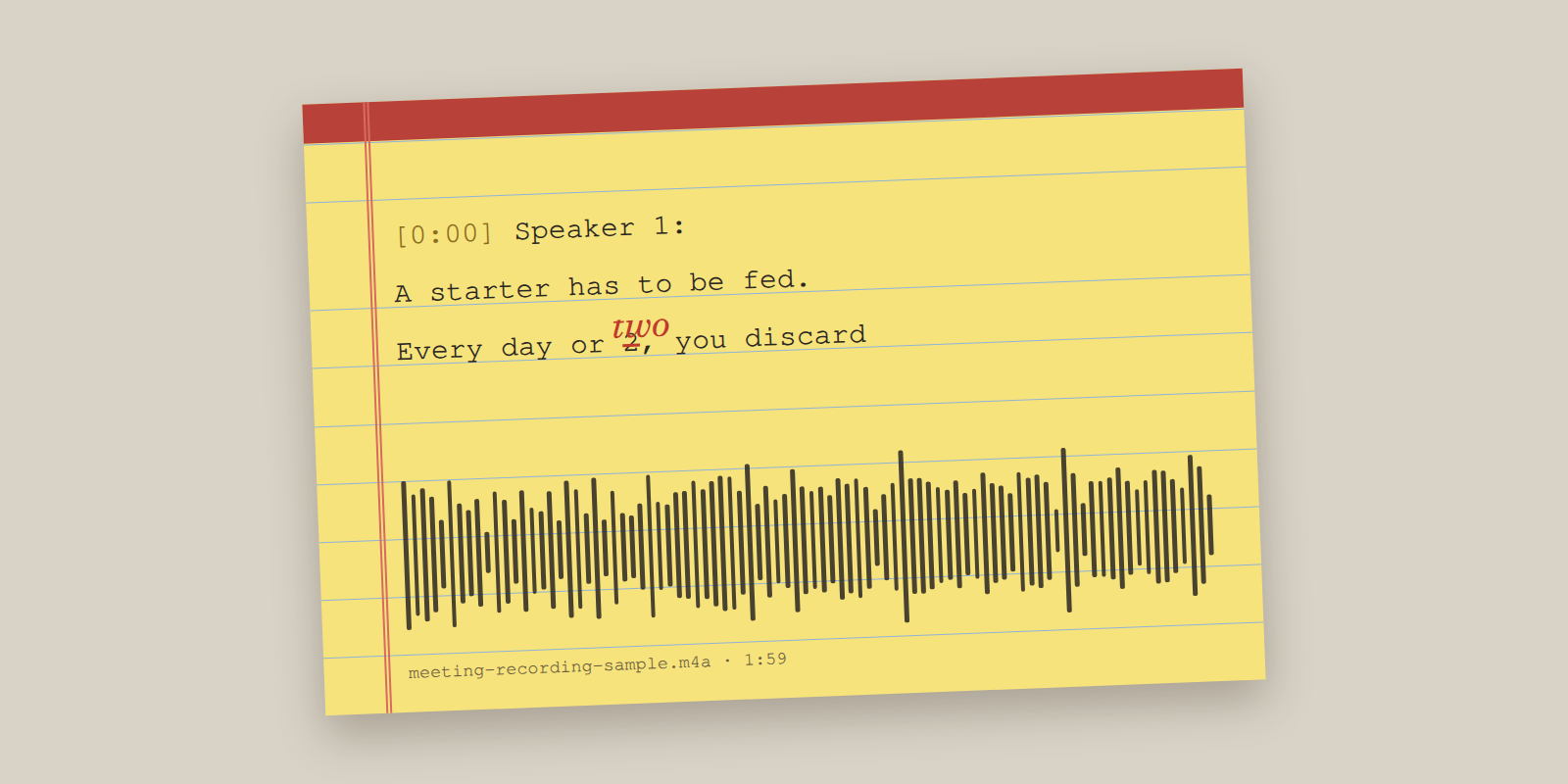
We uploaded a two-minute M4A meeting recording to SmileToAI's AI Audio Transcription, and about 19 seconds later we had text we could edit. To transcribe a Zoom recording, take the audio-only .m4a file Zoom saves next to the video, upload it unconverted, fix the words it misheard, and download TXT, SRT or VTT. No paid Zoom plan is needed for this route, because the tool only ever sees the file. Our run was charged 45 Sparks; SmileToAI's free plan includes 5,000 Sparks a month, which its price list of 20 Sparks a minute puts at about 250 minutes of audio.
Two things went wrong in our test, and both are easy to catch: the transcript wrote spoken numbers as digits ("1st", "2"), and Speaker diarization put both voices under one label. Step 4 shows how we found and fixed them.
Zoom has its own transcript too. It needs a paid account and a cloud recording: you switch on the audio transcript setting in the Zoom web portal before the meeting, and Zoom saves a VTT file beside the cloud recording afterwards. A recording saved to your computer never gets one. For every other case, the steps are the same for a local or a cloud recording:
- Find the recording. Local ones sit in
Documents/Zoom; cloud ones come down from the Zoom web portal. - In that folder, the file you want starts with
audioand ends in.m4a. - Open AI Audio Transcription; we kept its default settings.
- Upload the M4A, then search the text for names and numbers and correct them.
- Download TXT once it reads right (SRT and VTT are there for subtitles).
We could not publish a real Zoom call, because a meeting's voices belong to the people in it. So the recording above is two minutes of a two-voice conversation made in SmileToAI, saved as M4A, the file type Zoom uses for its audio-only file. Below are that run's screens, and the one thing it got wrong.
When Zoom's built-in transcript is enough
If you pay for Zoom and record to the cloud, you may not need us. According to Zoom's support pages, it needs a Pro, Business, Education or Enterprise account, cloud recording, and the audio transcript setting switched on before the meeting. Zoom then saves the transcript as a VTT file beside the cloud recording and emails you when it is ready. The recording itself generally takes about twice its length to process, and occasionally up to 24 hours.
Everything else needs a tool:
| Your situation | Zoom's audio transcript | Upload the file to AI Audio Transcription |
|---|---|---|
| Free (Basic) Zoom account | Not included | Yes |
| Meeting recorded to your computer | Not supported: cloud recordings only | Yes, from the M4A or MP4 |
| Correct the transcript, then download it | Edit it in the Zoom web portal; it downloads as VTT | Edit in place, then TXT, SRT or VTT |
| Meeting in a language other than English | Zoom's two support pages disagree on which languages it covers | 24 languages, plus Auto-detect |
| Cost | Part of the paid Zoom plan | Charged in Sparks by audio length |
For a meeting recorded on your own computer, we would go straight to the M4A.
Step 1: Find the M4A that Zoom saved
A local recording. When the meeting ends, Zoom converts the recording and saves it. By default the files go into a Zoom folder in your Documents:
- Windows:
C:\Users\[Username]\Documents\Zoom - Mac:
/Users/[Username]/Documents/Zoom
Zoom's default file names are video plus a number for the MP4 (sound and picture) and audio plus a number for the M4A (sound only), for example audio98796876.m4a. If your recordings are somewhere else, the desktop app shows the folder under Settings, Recording, Local recording storage.
We would upload the M4A every time. A transcript is made only from the sound, so the video adds upload size and nothing else.
A cloud recording. Sign in to the Zoom web portal, find the meeting among your cloud recordings and download it. Then upload the downloaded audio or video file the same way.
No audio file in the folder? Upload the MP4 instead. AI Audio Transcription takes MP4, MOV, M4V, WEBM and MKV up to 5 GB on the web and transcribes their sound; our guide to transcribing a video to text covers that path. For a one-hour call, though, the M4A is the lighter upload, and the audio limit is 150 MB.
Step 2: Open AI Audio Transcription and check three settings
Open AI Audio Transcription in the SmileToAI workspace. Three settings sit above the upload area; we left all of them alone.
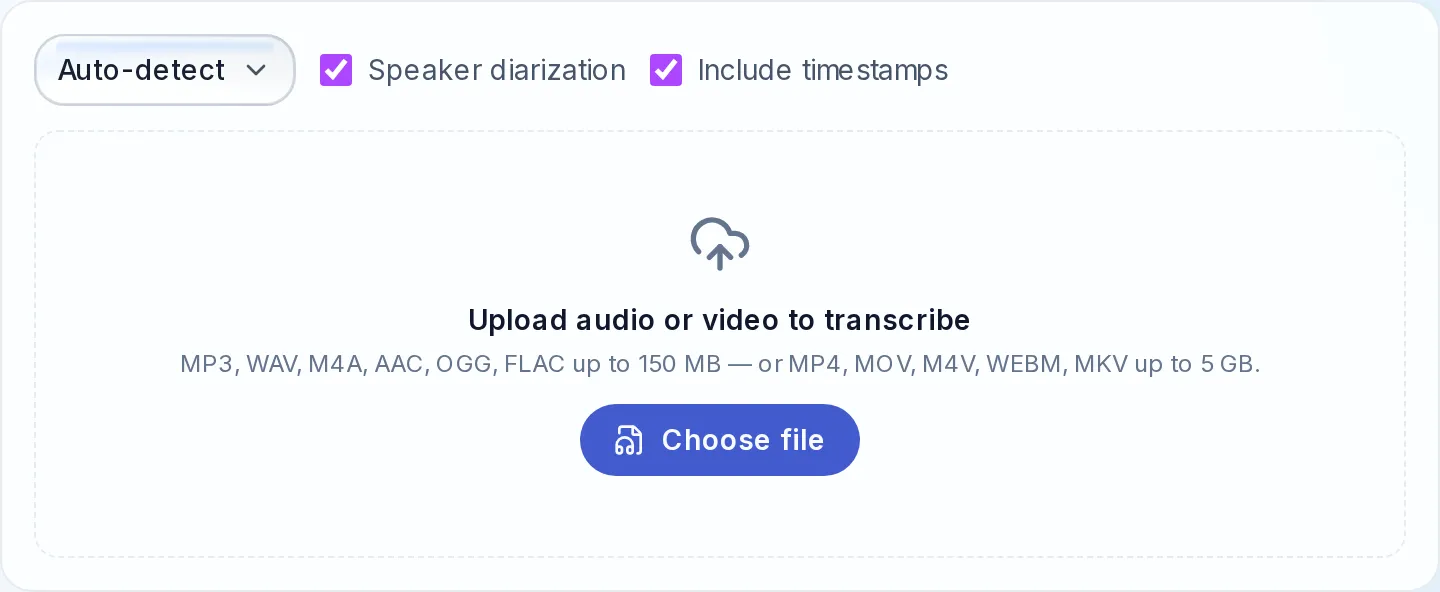
The upload panel before our run, with the default settings.
Language starts on Auto-detect, which read our English correctly; if everyone on the call spoke one language, picking it removes one guess. Next to it, Speaker diarization tries to tell the voices apart and label them Speaker 1, Speaker 2 and so on. SmileToAI's price list charges a minute the same with or without it, so we see no reason to switch it off for a meeting, even though it let us down below. Include timestamps puts each turn's start time in the editor and in the TXT; untick it before uploading if you want bare text.
Step 3: Upload the recording
Drag the M4A onto the page or select Choose file. The settings lock while the file uploads and is transcribed.
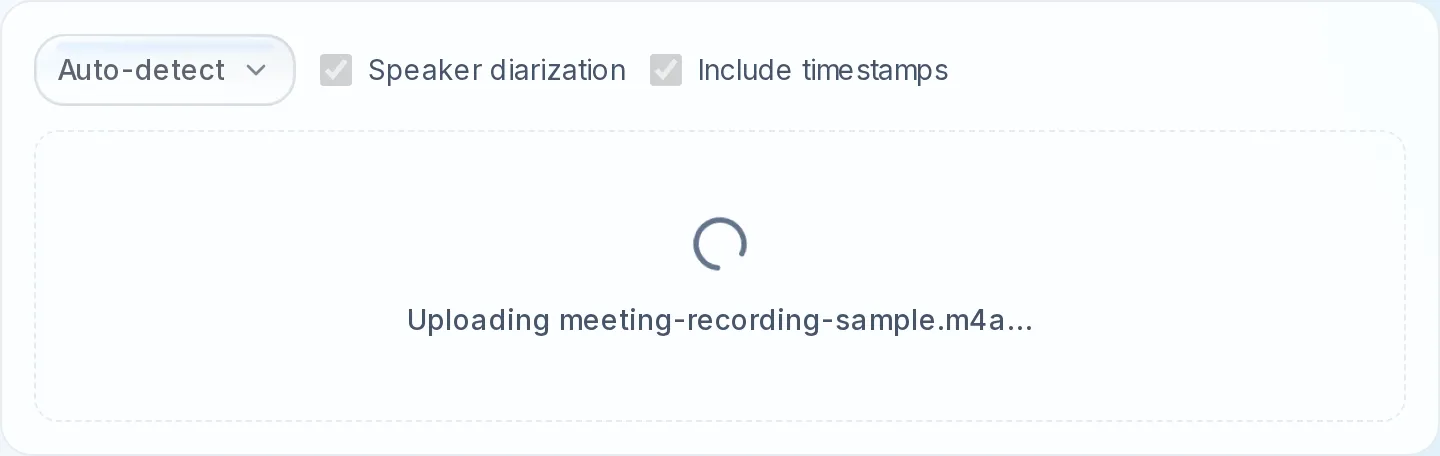
Our 1.6 MB M4A on its way up.
We waited about 19 seconds for our two-minute file. A long meeting takes longer; stay on the page until the upload has finished, because leaving mid-upload cancels it. After that you can leave: each transcript is saved as its own session in the sidebar under the file name, and it is still there when you come back.
Step 4: Check who is speaking, then fix names and numbers
The transcript opens with the file name, the length of the audio and what the run cost: 1:59 and 45 Sparks for ours.
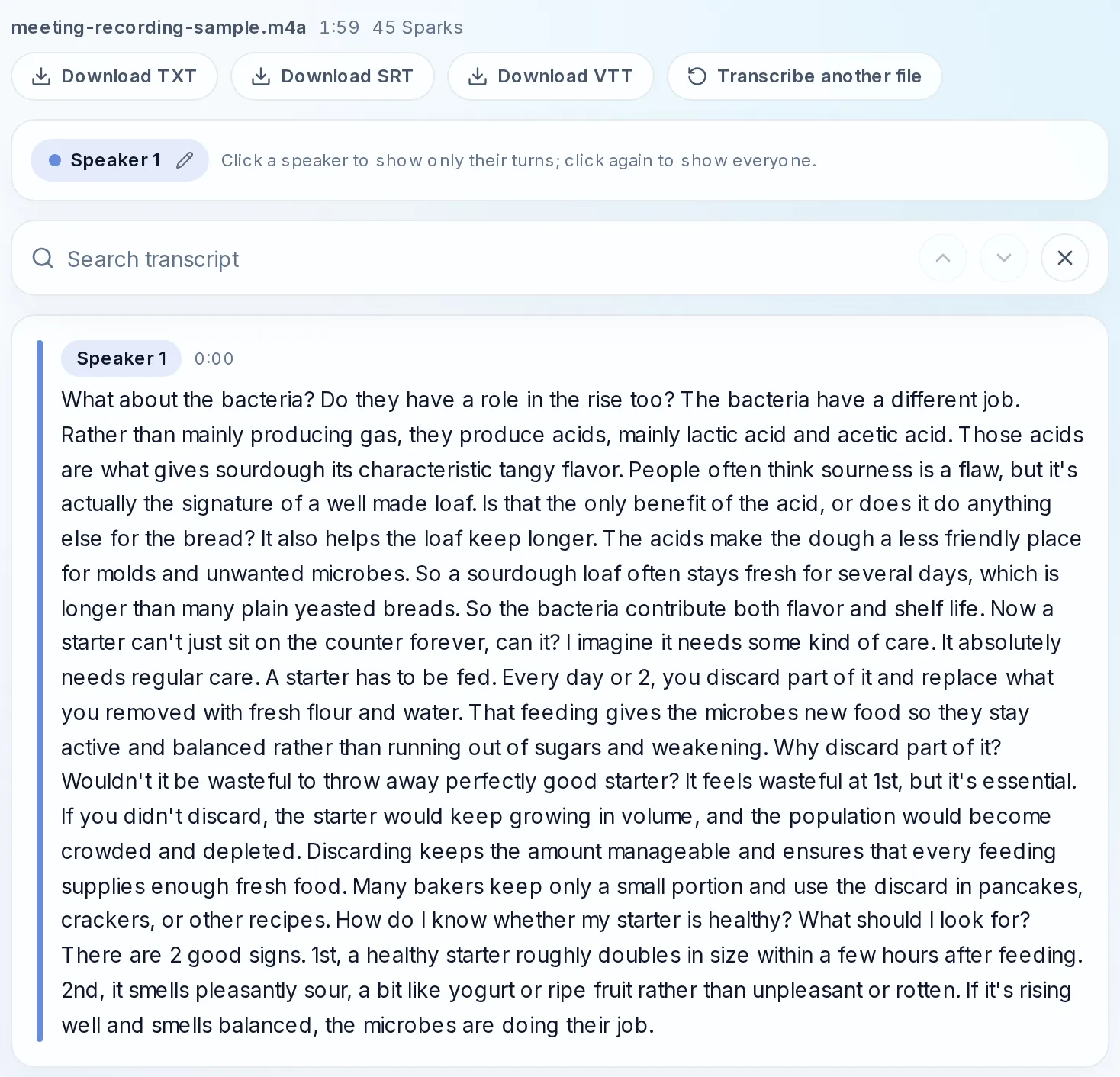
The transcript as it came back: two voices, one speaker label.
The recording has two clearly different voices, one asking questions and one answering, and we expected two labels. We got one: the whole two minutes came back as a single turn under Speaker 1. The words were right; the split was not. Speaker diarization guesses from the sound of each voice, and with these two voices it did not find the break. Expect the same risk on a call where people talk over each other or sound alike, and read the speaker labels before you trust them.
If the meeting recorded each person on their own track, use that. Zoom's local recording settings have Record a separate audio file for each participant, which saves one M4A per person in an Audio Record folder. Transcribe those files one at a time and each transcript has one speaker by construction. We could not try this ourselves, since it needs a real call with several people, and the setting has to be on before the meeting starts.
Where the labels did split, you can rename them: select the pencil next to Speaker 1 in the legend and type the person's name, and it changes everywhere, downloads included.
Then look for the small mistakes. Ours were all numbers. The speaker said "every day or two" and "at first", and the transcript wrote "Every day or 2" and "at 1st", then started two sentences with "1st," and "2nd,". It also wrote "There are 2 good signs", which we left as it was, since the digit reads fine there. Type the word into Search transcript to highlight every place it appears:
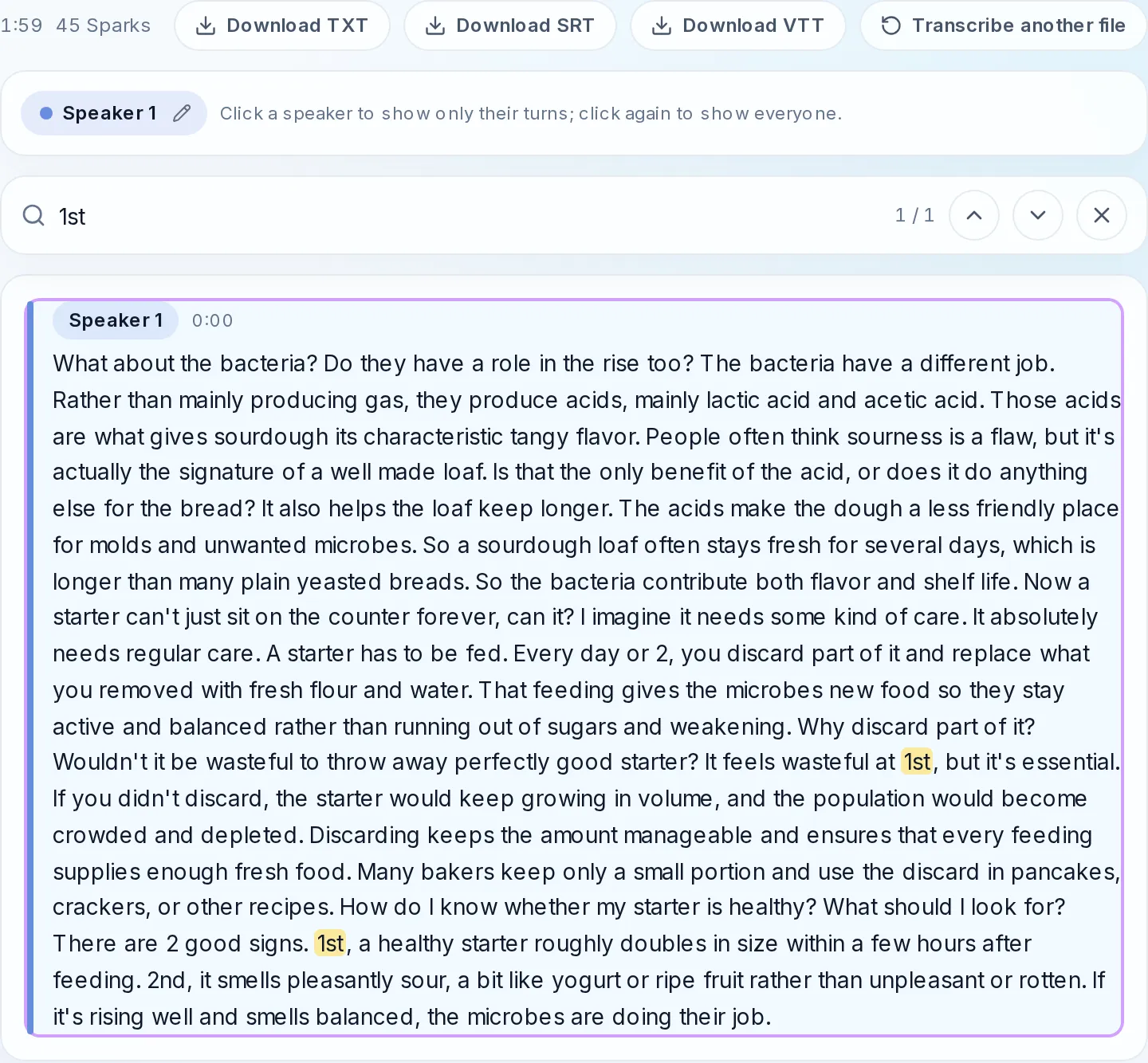
Both "1st" slips highlighted. The counter counts paragraphs, not matches, so with everything in one turn it reads 1 / 1.
Click the paragraph to open it for editing, correct the words, and press Ctrl+Enter (Cmd+Enter on a Mac) or click outside the box to save. Escape cancels.
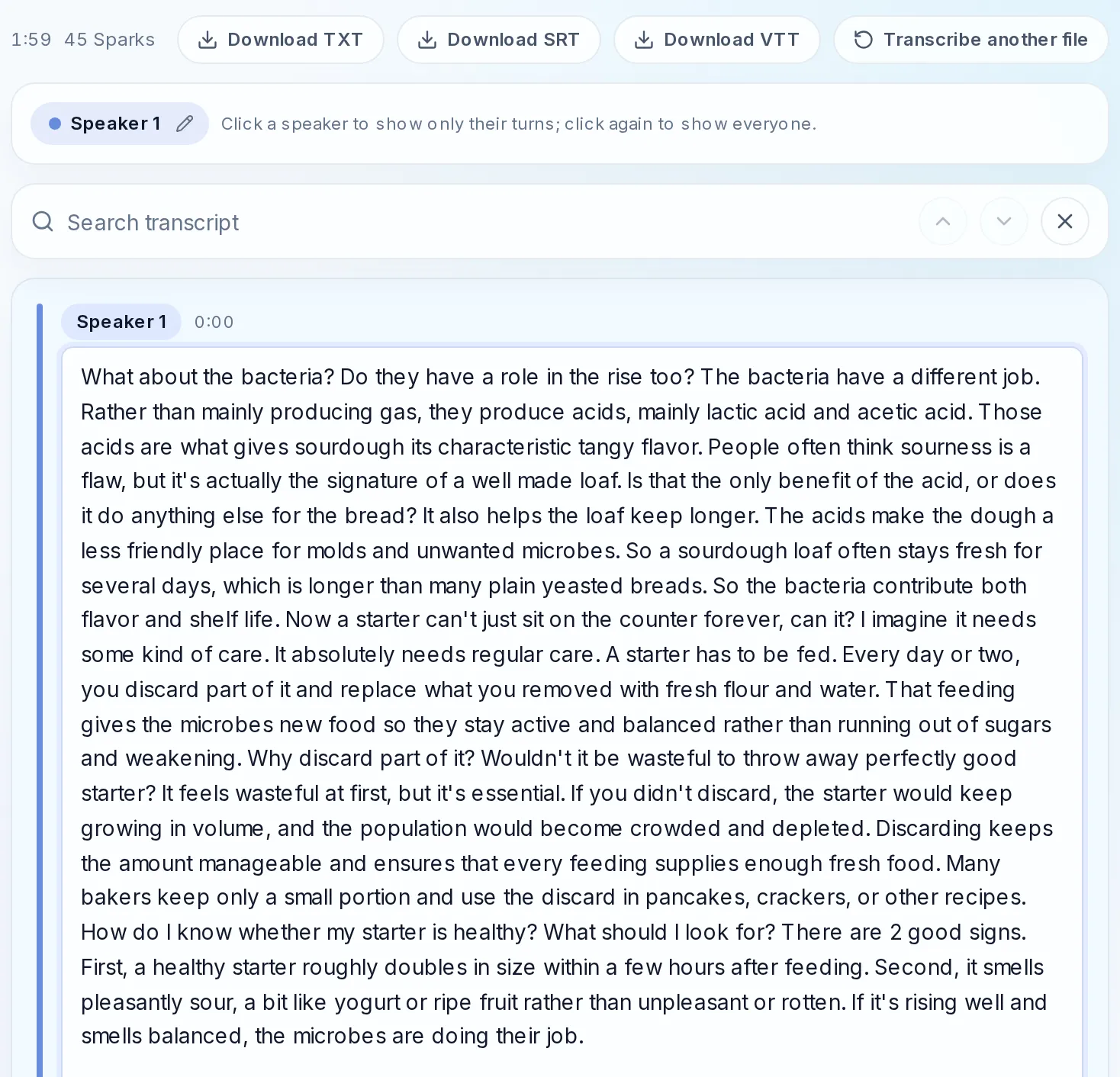
The same paragraph after our four corrections.
We downloaded after the fixes, and the TXT carried all four. There is no custom vocabulary list, so a colleague's surname or a product name has to be fixed this way too; search finds every copy at once.
Step 5: Download the transcript
Select Download TXT for meeting notes, an email or a document. A small panel asks whether to Keep speaker labels before the file downloads.
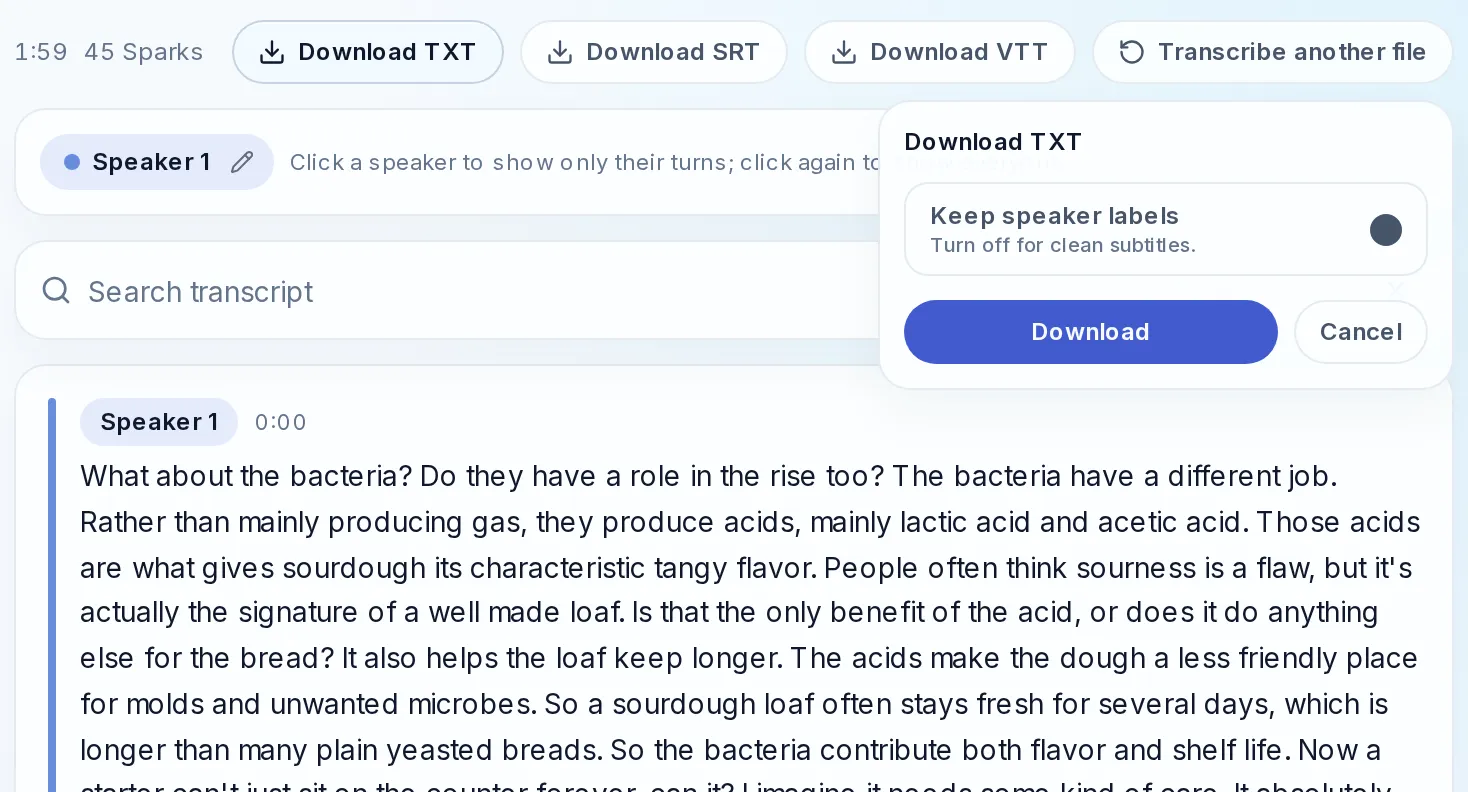
The TXT download panel. We kept the labels and the timestamps.
The start of the file we downloaded, after the corrections:
[0:00] Speaker 1: What about the bacteria? Do they have a role in the rise too? The bacteria have a different job. Rather than mainly producing gas, they produce acids, mainly lactic acid and acetic acid.
Download SRT and Download VTT give timed subtitle files instead, useful when the recording is going up as a video for people who missed the call. Our guide to auto-generating subtitles shows how to put them on a video.
Can you do it from a phone?
Yes, if the file is on the phone. We ran this test on the web, but the SmileToAI app for iOS and Android has AI Audio Transcription too, with the same settings and downloads. A Zoom computer recording is saved on the computer that recorded the meeting, so move the M4A to the phone first, or simply upload it from the computer.
Where it stops: no Zoom login, no links, no live calls
Everything here starts from a file you have downloaded. AI Audio Transcription cannot sign in to Zoom or read your cloud recordings, and a Zoom share link, like any other URL, will not work. It only transcribes finished recordings, never a meeting in progress. The caps are 150 MB per audio file and 5 GB per video file on the web (2 GB in the mobile app). And the speaker split is a guess from the voices; after our run, we would check it on every meeting before sending the notes on.
From the Zoom folder to a TXT file
On a paid Zoom plan with cloud recording and the audio transcript switched on, Zoom makes a VTT transcript for you. For anything else, take the audio….m4a from your Documents/Zoom folder (or download the cloud recording), upload it to AI Audio Transcription without converting it, check the speaker labels, search for names and numbers and fix them, and download TXT. Our two-minute file took about 19 seconds and 45 Sparks, and its fixes were four numbers written as digits. For recordings that are not from Zoom, see our guide to transcribing audio to text.
Sample used in this guide: a 1 minute 59 second section of a Podcast dialogue render made in SmileToAI's Voice Studio for our PDF to podcast guide, cut from the published file and saved as M4A with AAC audio. Both voices are AI voices; we used our own recording because a real meeting's voices are private. The screenshots show SmileToAI's output as it came back; the only changes are the four corrections shown in the editing screenshot. Zoom details are from Zoom's support pages: Starting a computer recording, Understanding recording file formats, Finding your computer and cloud recordings, Managing computer recordings, Using audio transcription for cloud recordings, Enabling or disabling audio transcription for cloud recordings and Starting a cloud recording.
FAQ
Can I get a transcript of a Zoom recording on a free Zoom account?
Not from Zoom itself. Zoom's audio transcript needs a Pro, Business, Education or Enterprise account and works only for cloud recordings. A free Basic account can still record to the computer, and that recording's M4A or MP4 file can be uploaded to a transcription tool such as AI Audio Transcription.
Where does Zoom save local recordings?
By default in a Zoom folder inside Documents: C:\Users\[Username]\Documents\Zoom on Windows and /Users/[Username]/Documents/Zoom on a Mac. You can see or change the folder in the Zoom desktop app under Settings, Recording.
Which Zoom file should I upload, the MP4 or the M4A?
The M4A. Zoom names it audio followed by a number, and it holds only the sound, so it is much smaller than the MP4 and is all a transcript needs. AI Audio Transcription takes M4A files up to 150 MB. The MP4 works too, up to 5 GB on the web, if the audio file is missing.
How much does it cost to transcribe a Zoom recording?
Transcription is charged in Sparks by the length of the audio. Our 1 minute 59 second recording was charged 45 Sparks. The free plan includes 5,000 Sparks a month.
Will it label who said what in the meeting?
It tries to, with Speaker diarization on, but check the result. In our test two voices came back under one label. If you record locally, Zoom can save a separate audio file for each participant, and transcribing those one by one gives you a transcript per person.
Can AI Audio Transcription open my Zoom cloud recordings or a share link?
No. AI Audio Transcription has no Zoom connection and no link import. Download the recording from Zoom first, then upload the file.